1
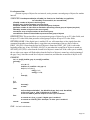
Name text field. You then do something with the file by clicking on one of the action buttons at the
bottom of the dialog.
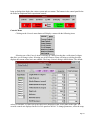
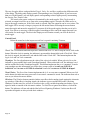
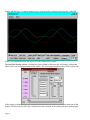
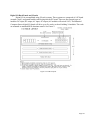
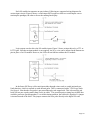
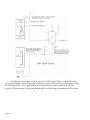
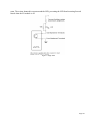
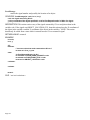
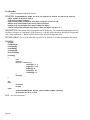
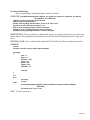
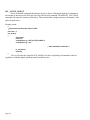
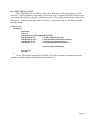
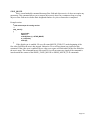
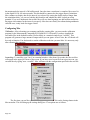
With the Process dialog, clicking on the Run action button will load the int process you selected.
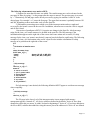
put it in the run state, and display an int process tool bar (shown below) just to the right of the process
switching tool bar. This is equivalent to executing the command ì r p nameî in older versions of Rex.
Clicking on the Load action button will load the int process you selected, but put it in a stopped state and
iconify its tool bar. This is equivalent to executing the command ì l p nameî in older versions of Rex. If
you already have an int process running and you click the Run action button with a new int process
name, Rex will stop the current running int process and iconify its tool bar, load the new int process, put
it in the run state and display its tool bar. This is equivalent to executing the command ì c p nameî in
older versions of Rex when you want to change to a new int process.
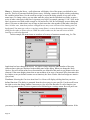
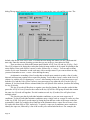
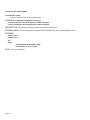
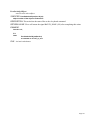
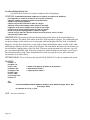
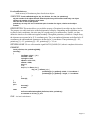
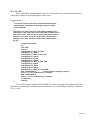
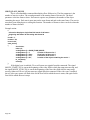
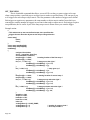
With the Root Files dialog, clicking the Read action button will read in the root file you selected.
Note, with Rex 7.0 and later, you must have an int process in the run state before reading in a root file.
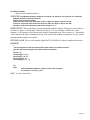
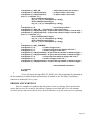
Clicking on the All, Sys + User, System, User, or States action buttons will write out a root file with the
name entered in the File Name text field. A root file created with the All button will contain the current
values of all menu items and all states. A root file created with the Sys + User button will contain the
current values of all menu items, but no states. A root file created with the System button will contain
only the current values of the system menus. A root file created with the User button will contain only
the current values of the user menus. A root file created with the States button will contain only the
current values of the process states.
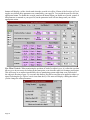
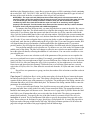
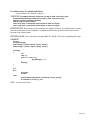
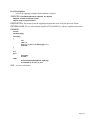
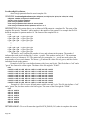
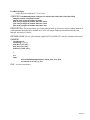
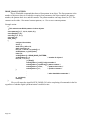
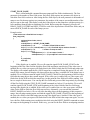
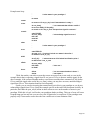
With the Open Data File dialog, the file list is shown as a convenience to indicate what data files
you already have. Rex will not reopen an existing data file, so even if you select a file from the list, you
will have to modify its name in the File Name text widget before clicking on the Open action button.
You can also open a data file by entering its name in the File Name text field and hitting the return key.
On opening the new data file, Rex will automatically close the dialog and will display the data file name
in the tool bar window frame next to the label REX.
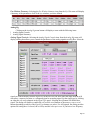
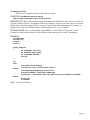
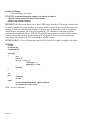
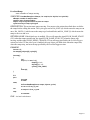
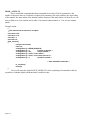
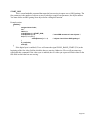
Rex does not display a dialog when you select the Close Data File item from the Files menu. It
just closes the data file and removes the file name from the tool bar window frame.
Page 79