1
Manual LedSBmanager2015
4.5.1 How to use the “Node programming” feature
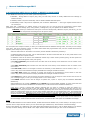
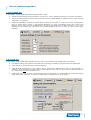
When using a set-up with multiple inter-connected LED scoreboards next to each other, each scoreboard (“node”) can be
programmed individually, so that multiple boards act together as “ONE LARGE BOARD”.
Edit the first value (before the slash “/” sign) to edit a node on the vertical axis (ROW), and the second value (after the
slash “/” sign) to edit a node on the horizontal axis (COLUMN).
Example:
Node 0/0
Node 0/1
Node 0/2
Node 1/0
Node 1/1
Node 1/2
Warning: Only connect one LED scoreboard at a time when programming, because all connected (and powered on)
scoreboards will be programmed with the chosen node number X/Y.
4.5.2 How to use the “Font Display Test”
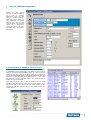
Because a LED scoreboard works with a matrix of LED's, it's resolution is limited. As a result, fonts need to be specially
adapted to displaying characters using a minimal amount of pixels. Use the FONT display test to try out how different
fonts look on the board.
Options:
Option
Description
Font
Select a font to use the test with. Currently, about 15 different fonts (A,B,..) are available.
Xpos
Start generating the test text on this x position.
Ypos
Start generating the test text on this y position.
Color
Selects a color in which to display the font (default: red).
Currently, only red, green and yellow are available.
Start char
Starting character ASCII value (default: 64, meaning '@').
End char
Ending character ASCII value (default: 100, meaning 'd').
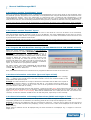
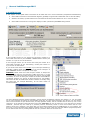
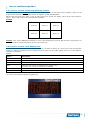
The result of the standard settings font display test:
16






![English [2012v1]](http://vs1.manualzilla.com/store/data/005994732_1-5b50c16b769d7d14a751f578cdbfd574-150x150.png)


![English [2015v1]](http://vs1.manualzilla.com/store/data/005829431_1-1fdc30543d444fb0915a40c3aab945a8-150x150.png)