1
USING DREAMWEAVER CS4 629
Building forms
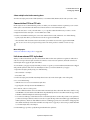
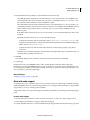
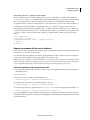
Class Lets you apply CSS rules to the object.
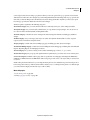
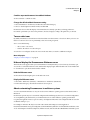
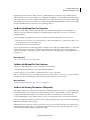
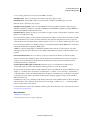
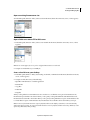
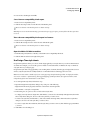
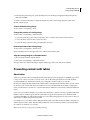
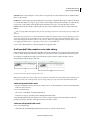
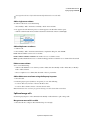
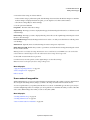
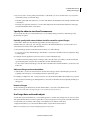
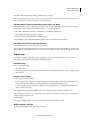
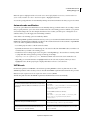
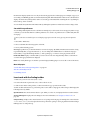
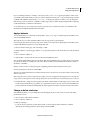
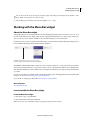
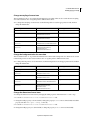
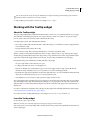
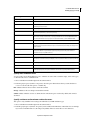
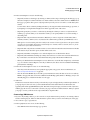
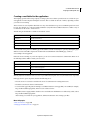
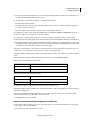
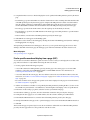
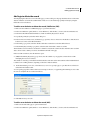
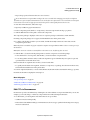
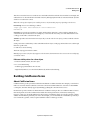
Button object options
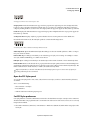
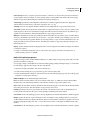
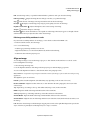
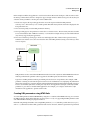
Button Name Assigns a name to the button. Two reserved names, Submit and Reset, tell the form to submit the form
data to the processing application or script, or to reset all the form fields to their original values, respectively.
Value Determines the text that appears on the button.
Action Determines what happens when the button is clicked.
• Submit Form Submits the form data for processing when the user clicks the button. The data is submitted to the
page or script specified in the form’s Action property.
• Reset Form Clears the contents of the form when the button is clicked.
• None Specifies the action to be performed when the button is clicked. For example, you can add a JavaScript
behavior that opens another page when the user clicks the button.
Class Applies CSS rules to the object.
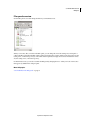
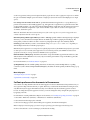
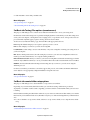
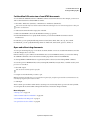
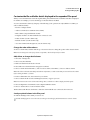
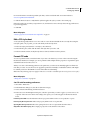
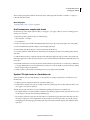
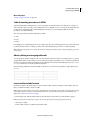
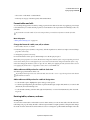
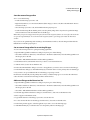
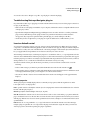
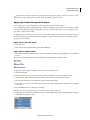
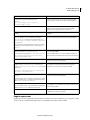
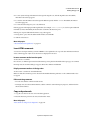
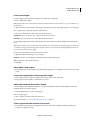
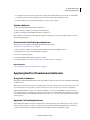
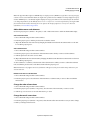
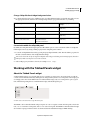
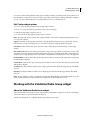
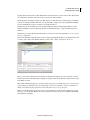
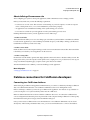
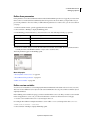
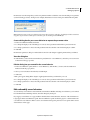
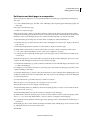
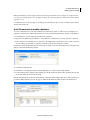
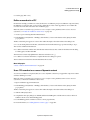
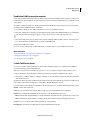
Check Box object options
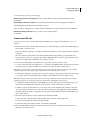
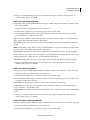
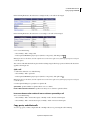
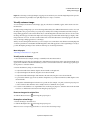
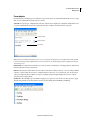
Checked Value Sets the value to be sent to the server when the check box is checked. For example, in a survey you
might set a value of 4 for strongly agree and a value of 1 for strongly disagree.
Initial State Determines whether the check box is selected when the form loads in the browser.
Dynamic Lets the server dynamically determine the initial state of the check box. For example, you can use check boxes
to visually present the Yes/No information stored in a database record. At design time, you don’t know that
information. At run time the server reads the database record and selects the check box if the value is Yes.
Class Applies Cascading Style Sheets (CSS) rules to the object.
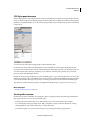
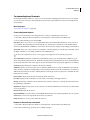
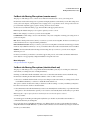
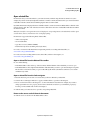
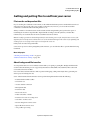
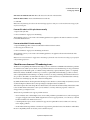
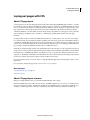
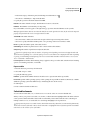
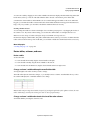
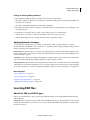
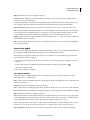
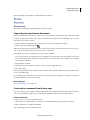
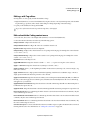
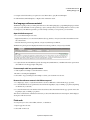
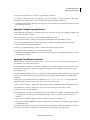
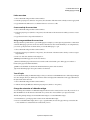
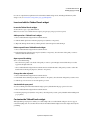
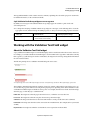
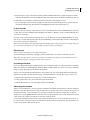
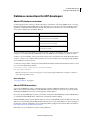
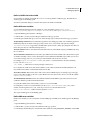
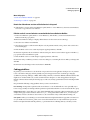
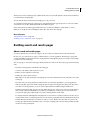
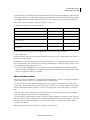
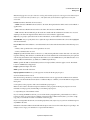
Single radio button object options
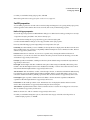
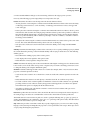
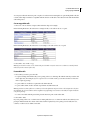
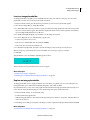
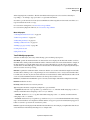
Checked Value Sets the value to be sent to the server when the radio button is selected. For example, you might type
skiing in the Checked Value box to indicate a user chose skiing.
Initial State Determines whether the radio button is selected when the form loads in the browser.
Dynamic Lets the server dynamically determine the initial state of the radio button. For example, you can use radio
buttons to visually present information stored in a database record. At design time, you don’t know that information.
At run time the server reads the database record and checks the radio button if the value matches one you specified.
Class Applies CSS rules to the object.
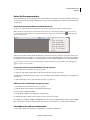
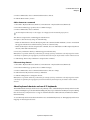
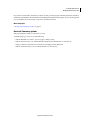
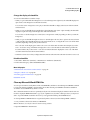
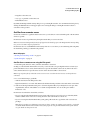
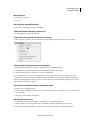
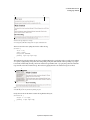
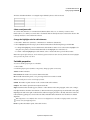
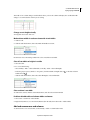
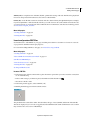
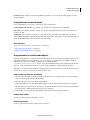
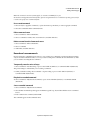
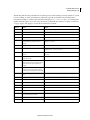
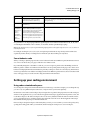
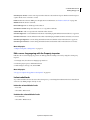
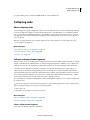
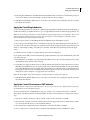
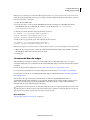
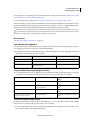
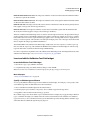
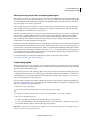
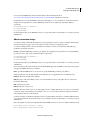
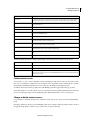
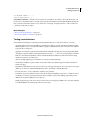
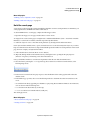
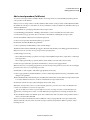
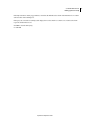
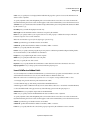
Menu options
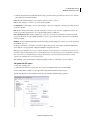
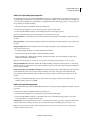
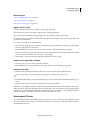
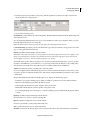
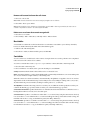
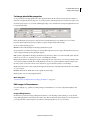
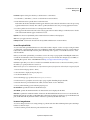
List/Menu Assigns a name to the menu. The name must be unique.
Type Indicates whether the menu drops down when clicked (the Menu option) or displays a scrollable list of items
(the List option). Select the Menu option if you want only one option to be visible when the form is displayed in a
browser. To display the other choices, the user must click the down arrow.
Select the List option to list some or all the options when the form is displayed in a browser, to let users select multiple
items.
Height (List type only) Sets the number of items displayed in the menu.
Selections (List type only) Indicates whether the user can select multiple items from the list.
Updated 24 September 2009