1
10
Interactive Biplot Construction
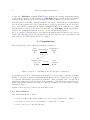
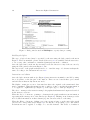
Figure 5: Dialog window used in XLS-Biplot to specify data processing.
Building the biplot
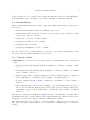
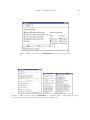
The type of biplot desired may be specified by the user using the dialog window shown in
Figure 6. The four standard options described in section 2.5 are available, and the user is free
to choose any other combination of standard/principal/canonical coordinates.
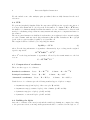
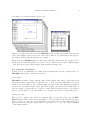
Once the biplot has been shown, the user may reverse the direction of any of the two axes by
using the dialog window shown in Figure 7, left.
The aspect ratio of the graph is always fixed to 1 : 1 and the range of both axes is always the
same, according to the discussion in section 2.6.
Interaction and edition
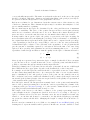
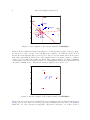
Once the biplot is in its window (see Figure 4) user interaction is mainly controlled by using
the tools palette on the left part of the window. There are two buttons that open a menu
and six buttons that modify the mouse mode.
The Biplot... menu give access to data windows where the original or the transformed data
may be visualized. Using that menu, it is also possible to define or modify the transformation
to be applied to original data (see Figure 5) or the biplot type to draw (see Figure 6)
The Save... menu provides items for saving both graphical and numerical output as described
in the next two sections.
When the Info tool is in use, pointing to elements in the graph results in some information
appearing in the message area of the window (see Figure 4). Clicking on an element provides
more detailed information on that element (a point, an arrow,a label or the axis).
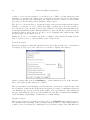
When the Edit tool is in use, clicking on a point, an arrow/axis or on the axis of the graph
gives access to dialog windows (see Figure 7) to modify the corresponding object. The desired
modifications can be applied to a single or to several elements. The Select tool makes it