1
BlomURBEX™ AutoCAD & AutoCAD Map 3D Plug-in
endlessly. In the Oblique mode a new image is loaded in a seamless way when “panning” reaches
the border of the current loaded image.
Oblique imagery shown in a “continuous” or “Ortho” mode may suffer some distortion due to the
irregularities of the terrain model that affects the ortho-rectification process. In flatter terrains the
distortion is lesser.
Tools are unselected when the view mode changes. Remember to select again the tool if using one
when the mode is changed.
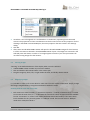
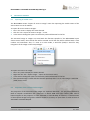
There are five types of orientations: “Ortho” orientation, that shows the image as an ortho-photo;
“North”, that shows the image looking from south to north; “South”, from north to south; “East”,
from west to east; and “West”, from east to west. To change the orientation click in the “O”, “N”,
“S”, “E” or “W” buttons in the upper left control to activate the “Ortho”, “North”, “South”, “East”
and “West” orientations, respectively.
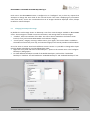
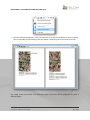
The size of each view in the layout can be changed through the use of splitter bars between the
views. Just move the mouse in the boundary of two views, and when the cursor changes, drag and
drop the splitter to change the size of the views. Each time the size is changed this setting is saved in
settings.
5.6
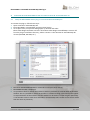
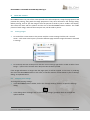
The “intelligent” behavior
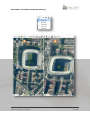
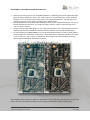
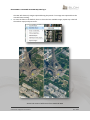
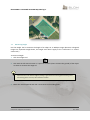
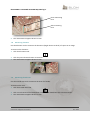
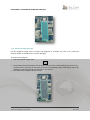
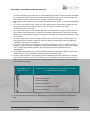
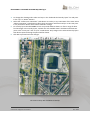
At closer zoom levels, oblique rectified images show big distortion on the buildings, while at furthest
zoom levels they do not offer better information than the ortho images.
17
Customer Support Document
Oct 2013



















![Intergraph Geomedia [6.1-2013] User manual](http://vs1.manualzilla.com/store/data/005689587_1-58c82d14f3ba8ebe92b5c45af00d079c-150x150.png)
![ArcMap [v10.0- v.10.2] User manual](http://vs1.manualzilla.com/store/data/005724954_1-1f5d2da94c774511c91b8b97dbbbcd93-150x150.png)
![Autodesk MAP [2007-2009] User manual](http://vs1.manualzilla.com/store/data/005814944_1-7d4ade0f748ad8f526e057550ef902e1-150x150.png)

![Autocad [2007-2009] User manual](http://vs1.manualzilla.com/store/data/005776291_1-e398978f20775312922048f8d5b8f7a5-150x150.png)
![MapInfo [v9.5 - v10.0] User manual PDF](http://vs1.manualzilla.com/store/data/005662542_1-c58f11f989f54f88b5c049879cd1b1b4-150x150.png)