1
USER MANUAL OpenCube XFConverter 1.4
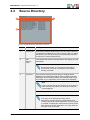
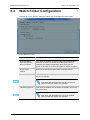
Option
Description
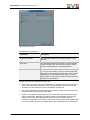
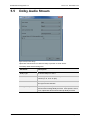
Load automatically previous
project upon start-up
If this option is enabled, the project that was opened
during the last session will be automatically loaded.
However, the watch folder will be launched only if the
next option is also enabled.
Start automatically the
watch folder upon start-up
If this option is enabled, OpenCube XFConverter will
load the previous project file and start the watch folder.
Start the application upon
Windows start-up
If this option is enabled, the next time Windows is
started, OpenCube XFConverter will be launched
automatically and will load the project that was opened
during the previous session. The watch folder will also
be automatically started.
Test Interplay connection
upon start-up
If this option is enabled, OpenCube XFConverter will
check upon start-up to see if the Interplay connection is
available.
Start minimized
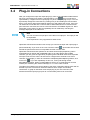
OpenCube XFConverter can be minimized in Windows’
tray task bar and can continue to run without its
graphical user interface. If this option is enabled,
OpenCube XFConverter will start in the tray task bar;
you can then open it by double-clicking on the GUI
icon:
Get minimized when closing
the application
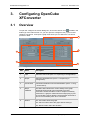
When this option is activated and you click on the
Windows’ exit icon
, OpenCube XFConverter will
go in the tray task bar and hide the user interface. To
exit the application in this mode, you can right-click on
its icon and select Quit.
OpenCube XFConverter Configuration
41