1
GA-8IRX
P4 Titan DDR Motherboard
USER’S MANUAL
Pentium® 4 P rocessor Motherboard
Rev. 2.0 Third Edition
12M D-8I RX-2003
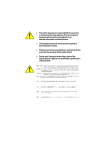
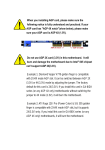
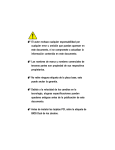
When you installing AGP card, please make sure the follow
ing notice is fully understood and practiced. If your AGP
card has "AGP 4X notch"(show below), please make sure
your AGP card is AGP 4X (1.5V).
Do not use AGP 2X card (3.3V) in this motherboard. It will
burn and damage the motherboard due to Intel® 845 chipset
can't support AGP 2X(3.3V).
Example 1: Diamond Vipper V770 golden finger is compatible with 2X/
4X mode AGP slot. It can be switched between AGP 2X (3.3V) or 4X
(1.5V) mode by adjusting the jumper. The factory default for this card is
2X(3.3V). If you install this card in GA-8IRX (or any AGP 4X only)
motherboards without switching the jumper to 4X mode (1.5V), it will
burn the motherboard.
Example 2: ATi Rage 128 Pro (Power Color) & SiS 305 golden finger is
compatible with 2X/4X mode AGP slot, but it supports 2X(3.3V) only. If
you install this card in GA-8IRX (or any AGP 4X only) motherboards, it
will burn the motherboard.
Note : Although Gigabyte's AG32S graphics card is based on ATi Rage
128 Pro chip, the design of AG32S is compliance with AGP 4X (1.5V)
specification. Therefore, AG32S will work fine with Intel 845 / 850 based
motherboards.
Before you install PCI cards, please remove the Dual BIOS
label from PCI slots if there is one.
?
?
?
?
The author assumes no responsibility for any errors or omissions
that may appear in this document nor does the author make a
comm itment to update the information contained herein.
Third-party brands and names are the property of their respective
owners.
Please do not remove any labels on m otherboard, thismay void the
warranty of this m otherboard.
Due to rapid change in technology, some of the specifications might
be out of date before publication of this booklet.
Declaration of Conform ity
We,Manufacturer/Importer
(full address)
G.B.T. Technology Trä ding GMbH
Ausschlager Weg 41, 1F, 20537 Hamburg, Germany
declare that the product
( description of the apparatus, system, installation to which it refers)
Mother Board
GA-8IRX
is in conformity with
(reference to the specification under which conformity is declared)
in accordance with 89/336 EEC-EMC Directive
? EN 55011
Limit s and met hods of measurement
of radio dist urbance charact erist ics of
indust rial,scient ific and medical (ISM
high f requency equipment
? EN 61000-3-2*
?EN 60555-2
Dist urbances in supply systems cause
by household appliances and similar
elect rical equipment “ Harmonics”
? EN 55013
Limit s and met hods of measurement
of radio dist urbance charact erist ics of
broadcast receivers and associat ed
equipment
? EN 61000-3-3*
Dist urbances in supply systems cause
by household appliances and similar
elect ric al equipment “ Volt age f luctuat ions”
Limit s and met hods of measurement
of radio dist urbance charact erist ics of
household elect rical appliances,
port able t ools and similar elect rical
apparat us
?EN 50081-1
?EN 50082-1
Generic immunit y st andard Part 1:
Limit s and met hods of measurement
of radio dist urbance charact erist ics of
f luorescent lamps and luminaries
? EN 55081-2
Generic emission st andard Part 2:
Immunit y f rom radio int erf erence of
broadcast receivers and associat ed
equipment
? EN 55082-2
Limit s and met hods of measurement
of radio dist urbance charact erist ics of
inf ormat ion t echnology equipment
? ENV 55104
Cabled dist ribut ion syst ems; Equipment
f or receiving and/or distribution f rom
sound and t elevision signals
? EN50091-2
? EN 55014
? EN 55015
? EN 55020
?EN 55022
? DIN VDE 0855
? part 10
? part 12
?EN 60555-3
Generic emission st andard Part 1:
Residual commercialand light indust ry
Residual commercialand light indust ry
Indust rialenvironment
Generic emission st andard Part 2:
Indust rialenvironment
lmmunit y requirement s f or household
appliances t ools and similar apparat us
EMC requirement s for unint errupt ible
powersyst ems (UPS)
(EC conf ormit y marking)
?CE marking
Themanufacturer also declaresthe conformity of above mentioned product
with the actual required safety standards in accordance with LV D 73/23EEC
? EN 60065
Saf et yrequirement s f or mains operat ed
elect ronic and relat ed apparat us f or
household and similar general use
? EN 60950
? EN 60335
Saf et y of household and similar
elect rical appliances
? EN 50091-1
Manufacturer/Importer
(S ta mp )
Dat e : Oct. 11, 2001
Signat ure:
Name:
Ti mmy H u an g
Tim m y Huang
DE CLARATION OF CONF ORMITY
Pe r FCC Part 2 Sect ion 2.1077(a)
Responsible Party
Name:
G.B.T. INC.
Address: 17358 Railroad Street
City of Industry, CA 91748
Phone/Fax No: (818) 854-9338/ (818) 854-9339
h ereby declares th at th e produ ct
Product Name: Motherboard
Model Number:GA-8IRX
Con forms to th e follo win g specification s:
FCC Part 15, Su b part B, Sectio n 15.107(a) an d Se ction 15.109
(a),Class B Dig i tal De v ice
Supplementary Information:
Th is dev ice co mplies wi th part 15 of th e FCC Ru les . Operati on is
su bject to t h e follo win g two con diti on s: (1) Th is de v ice may n ot
cau se h armfu l and (2) th is dev ice mu st accept an y in feren ce receiv ed,
in clu din g th at may cau se u n desired operation .
Represen tativ e Person ’s Name: ERIC LU
Sig n atu re: Eric Lu
Dat e: Oc t. 11,2001
Acronyms
Acronyms
Meaning
ACPI
Adv anced Configuration and Power I nterface
APM
Advanced Power Management
AGP
Accelerated Graphics P ort
AMR
Audio Modem Riser
ACR
Advanced Communications Riser
BBS
BIOS Boot Specification
BIOS
Basic I nput / Output System
CPU
Central Proc essing Unit
CMOS
Complementary Metal Oxide S emiconductor
CRIMM
Continuity RIMM
CNR
Comm unication and Networking Riser
DMA
Direct Memory Access
DMI
Desktop Management Interface
DIMM
Dual Inline Memory Module
DRM
Dual Retention Mechanism
DRAM
Dynamic Random Access Memory
DDR
Double Data Rate
ECP
Extended C apabilities Port
ESCD
Extended System Configuration Data
ECC
Error Check ing and Correc ting
EMC
Electrom agnetic C ompatibility
EPP
Enhanced Parallel P ort
ESD
Electrostatic Discharge
FDD
Floppy Disk Device
FSB
Front Side Bus
HDD
Hard Disk Device
IDE
Integrated Dual Channel Enhanc ed
IRQ
Interrupt Request
I/O
Input / Output
IOAPIC
Input Output Advanced P rogrammable Input Controller
ISAIndustry Standard Architecture
to be continued.. ....
Acronyms
LAN
LBA
LED
MHz
MIDI
MTH
MPT
NIC
OS
OEM
PAC
POST
PCI
RIMM
SCI
SECC
SRAM
SMP
SMI
USB
VID
Meaning
Local Area Network
Logical Bloc k Addres sing
Light Emitting Diode
Megahertz
Mus ical Interface Digital Interface
Memory Translator Hub
Memory Protocol Translator
Netw ork Interface Card
Operating Sys tem
Original Equipment M anufacturer
PCI A.G.P. Controller
Power-On Self Test
Peripheral Component Interc onnect
Rambus in-line Memory M odule
Spec ial Circumstance Instructions
Single Edge Contact Cartridge
Static Random Access Memory
Symmetric Multi-Processing
Sys tem M anagem ent I nterrupt
Universal Serial Bus
Voltage ID
?
Technical Support/RMA Sheet
Customer/ Country:
Contact Person:
Model name/ Lot Num ber:
BIOS version:
Hardware
Configuration
CPU
Memory
Brand
Video Card
Audio Card
HDD
CD-ROM /
DVD-ROM
Modem
Network
AMR / CNR
Keyboard
Mouse
Power supply
Other Device
Mfs.
Problem Desc ription:
Company:
E-mail Add. :
Phone No.:
PCB revision:
O.S./A.S.:
Model name
Size:
Driver/Utility:
?
When you installing AGP card, please make sure the follow
ing notice is fully understood and practiced. If your AGP
card has "AGP 4X notch"(show below), please make sure
your AGP card is AGP 4X (1.5V).
Do not use AGP 2X card (3.3V) in this motherboard. It will
burn and damage the motherboard due to Intel® 845 chipset
can't support AGP 2X(3.3V).
Example 1: Diamond Vipper V770 golden finger is compatible with 2X/
4X mode AGP slot. It can be switched between AGP 2X (3.3V) or 4X
(1.5V) mode by adjusting the jumper. The factory default for this card is
2X(3.3V). If you install this card in GA-8IRX (or any AGP 4X only)
motherboards without switching the jumper to 4X mode (1.5V), it will
burn the motherboard.
Example 2: ATi Rage 128 Pro (Power Color) & SiS 305 golden finger is
compatible with 2X/4X mode AGP slot, but it supports 2X(3.3V) only. If
you install this card in GA-8IRX (or any AGP 4X only) motherboards, it
will burn the motherboard.
Note : Although Gigabyte's AG32S graphics card is based on ATi Rage
128 Pro chip, the design of AG32S is compliance with AGP 4X (1.5V)
specification. Therefore, AG32S will work fine with Intel 845 / 850 based
motherboards.
Before you install PCI cards, please remove the Dual BIOS
label from PCI slots if there is one.
?
?
?
?
The author assumes no responsibility for any errors or omissions
that may appear in this document nor does the author make a
comm itment to update the information contained herein.
Third-party brands and names are the property of their respective
owners.
Please do not remove any labels on m otherboard, thismay void the
warranty of this m otherboard.
Due to rapid change in technology, some of the specifications might
be out of date before publication of this booklet.
Declaration of Conform ity
We,Manufacturer/Importer
(full address)
G.B.T. Technology Trä ding GMbH
Ausschlager Weg 41, 1F, 20537 Hamburg, Germany
declare that the product
( description of the apparatus, system, installation to which it refers)
Mother Board
GA-8IRX
is in conformity with
(reference to the specification under which conformity is declared)
in accordance with 89/336 EEC-EMC Directive
? EN 55011
Limit s and met hods of measurement
of radio dist urbance charact erist ics of
indust rial,scient ific and medical (ISM
high f requency equipment
? EN 61000-3-2*
?EN 60555-2
Dist urbances in supply systems cause
by household appliances and similar
elect rical equipment “ Harmonics”
? EN 55013
Limit s and met hods of measurement
of radio dist urbance charact erist ics of
broadcast receivers and associat ed
equipment
? EN 61000-3-3*
Dist urbances in supply systems cause
by household appliances and similar
elect ric al equipment “ Volt age f luctuat ions”
Limit s and met hods of measurement
of radio dist urbance charact erist ics of
household elect rical appliances,
port able t ools and similar elect rical
apparat us
?EN 50081-1
?EN 50082-1
Generic immunit y st andard Part 1:
Limit s and met hods of measurement
of radio dist urbance charact erist ics of
f luorescent lamps and luminaries
? EN 55081-2
Generic emission st andard Part 2:
Immunit y f rom radio int erf erence of
broadcast receivers and associat ed
equipment
? EN 55082-2
Limit s and met hods of measurement
of radio dist urbance charact erist ics of
inf ormat ion t echnology equipment
? ENV 55104
Cabled dist ribut ion syst ems; Equipment
f or receiving and/or distribution f rom
sound and t elevision signals
? EN50091-2
? EN 55014
? EN 55015
? EN 55020
?EN 55022
? DIN VDE 0855
? part 10
? part 12
?EN 60555-3
Generic emission st andard Part 1:
Residual commercialand light indust ry
Residual commercialand light indust ry
Indust rialenvironment
Generic emission st andard Part 2:
Indust rialenvironment
lmmunit y requirement s f or household
appliances t ools and similar apparat us
EMC requirement s for unint errupt ible
powersyst ems (UPS)
(EC conf ormit y marking)
?CE marking
Themanufacturer also declaresthe conformity of above mentioned product
with the actual required safety standards in accordance with LV D 73/23EEC
? EN 60065
Saf et yrequirement s f or mains operat ed
elect ronic and relat ed apparat us f or
household and similar general use
? EN 60950
? EN 60335
Saf et y of household and similar
elect rical appliances
? EN 50091-1
Manufacturer/Importer
(S ta mp )
Dat e : Oct. 11, 2001
Signat ure:
Name:
Ti mmy H u an g
Tim m y Huang
DE CLARATION OF CONF ORMITY
Pe r FCC Part 2 Sect ion 2.1077(a)
Responsible Party
Name:
G.B.T. INC.
Address: 17358 Railroad Street
City of Industry, CA 91748
Phone/Fax No: (818) 854-9338/ (818) 854-9339
h ereby declares th at th e produ ct
Product Name: Motherboard
Model Number:GA-8IRX
Con forms to th e follo win g specification s:
FCC Part 15, Su b part B, Sectio n 15.107(a) an d Se ction 15.109
(a),Class B Dig i tal De v ice
Supplementary Information:
Th is dev ice co mplies wi th part 15 of th e FCC Ru les . Operati on is
su bject to t h e follo win g two con diti on s: (1) Th is de v ice may n ot
cau se h armfu l and (2) th is dev ice mu st accept an y in feren ce receiv ed,
in clu din g th at may cau se u n desired operation .
Represen tativ e Person ’s Name: ERIC LU
Sig n atu re: Eric Lu
Dat e: Oc t. 11,2001
Acronyms
Acronyms
Meaning
ACPI
Adv anced Configuration and Power I nterface
APM
Advanced Power Management
AGP
Accelerated Graphics P ort
AMR
Audio Modem Riser
ACR
Advanced Communications Riser
BBS
BIOS Boot Specification
BIOS
Basic I nput / Output System
CPU
Central Proc essing Unit
CMOS
Complementary Metal Oxide S emiconductor
CRIMM
Continuity RIMM
CNR
Comm unication and Networking Riser
DMA
Direct Memory Access
DMI
Desktop Management Interface
DIMM
Dual Inline Memory Module
DRM
Dual Retention Mechanism
DRAM
Dynamic Random Access Memory
DDR
Double Data Rate
ECP
Extended C apabilities Port
ESCD
Extended System Configuration Data
ECC
Error Check ing and Correc ting
EMC
Electrom agnetic C ompatibility
EPP
Enhanced Parallel P ort
ESD
Electrostatic Discharge
FDD
Floppy Disk Device
FSB
Front Side Bus
HDD
Hard Disk Device
IDE
Integrated Dual Channel Enhanc ed
IRQ
Interrupt Request
I/O
Input / Output
IOAPIC
Input Output Advanced P rogrammable Input Controller
ISAIndustry Standard Architecture
to be continued.. ....
Acronyms
LAN
LBA
LED
MHz
MIDI
MTH
MPT
NIC
OS
OEM
PAC
POST
PCI
RIMM
SCI
SECC
SRAM
SMP
SMI
USB
VID
Meaning
Local Area Network
Logical Bloc k Addres sing
Light Emitting Diode
Megahertz
Mus ical Interface Digital Interface
Memory Translator Hub
Memory Protocol Translator
Netw ork Interface Card
Operating Sys tem
Original Equipment M anufacturer
PCI A.G.P. Controller
Power-On Self Test
Peripheral Component Interc onnect
Rambus in-line Memory M odule
Spec ial Circumstance Instructions
Single Edge Contact Cartridge
Static Random Access Memory
Symmetric Multi-Processing
Sys tem M anagem ent I nterrupt
Universal Serial Bus
Voltage ID
?
Technical Support/RMA Sheet
Customer/ Country:
Contact Person:
Model name/ Lot Num ber:
BIOS version:
Hardware
Configuration
CPU
Memory
Brand
Video Card
Audio Card
HDD
CD-ROM /
DVD-ROM
Modem
Network
AMR / CNR
Keyboard
Mouse
Power supply
Other Device
Mfs.
Problem Desc ription:
Company:
E-mail Add. :
Phone No.:
PCB revision:
O.S./A.S.:
Model name
Size:
Driver/Utility:
?
English
Table of Content
Item Checklist .................................................................................. 3
WARNING! ...................................................................................... 3
Chapter 1 Introduction ....................................................................... 4
Features Summary ................................................................................................ 4
GA-8IRX Motherboard Layout ............................................................................. 6
Chapter 2 Hardware Installation Process ............................................ 7
Step 1: Install the Central Processing Unit (CPU) ............................................ 8
Step 1-1 : CPU Installation ............................................................................. 8
Step 1-2 : CPU Heat Sink Installation ................................................................ 9
Step 2: Install memory modules ........................................................................ 10
Step 3: Install expansion cards .......................................................................... 11
Step 4: Connect ribbon cables, cabinet wires, and power supply ............... 12
Step 4-1 : I/O Back Panel Introduction ............................................................. 12
Step 4-2 : Connectors Introduction ................................................................. 14
Chapter 3 BIOS Setup .................................................................... 20
TheMain Menu ..................................................................................................... 20
SelectLanguage .................................................................................................. 20
Load Optimized Default ...................................................................................... 22
Save & Exit Setup ................................................................................................ 23
Chapter 4 Driver Installation ............................................................ 24
GA-8IRX Motherboard
-2 -
?
?
?
?
?
?
English
Item Checklist
The GA-8IRX motherboard
IDE cable x 1/ Floppy cable x 1
CD for motherboard driver & utility (IUCD)
GA-8IRX user’s manual
Quick PC Installation Guide
USB Cable x 1
WARNING!
Computer motherboards and expansion cards contain very delicate Integrated Circuit (IC) chips. To
protect them against damage from static electricity, y ou should follow some precautions whenever
you work on your computer.
1.
Unplug your computer w hen w orking on the inside.
2.
Use a grounded w rist strap before handling computer components. If y ou do not hav e
one, touch both of y our hands to a safely grounded object or to a metal object, such as
the pow er supply case.
Hold components by the edges and try not touch the IC chips, leads or connectors, or
other components.
Place components on a grounded antistatic pad or on the bag that came w ith the
components w henev er the components are separated from the sy stem.
Ensure that the ATX pow er supply is sw itched off before you plug in or remov e the ATX
3.
4.
5.
ow er connector on the motherboard.
Installing the motherboard to the chassis…
If the motherboard has mounting holes, but they don’t line up with the holes on the base and
there are no slots to attach the spacers, do not become alarmed y ou can still attach the spacers to
the mounting holes. Just cut the bottom portion of the spacers (the spacer may be a little hard to
cut off, so be careful of your hands). In this way y ou can still attach the motherboard to the base
without worrying about short circuits. Sometimes you may need to use the plastic springs to isolate
the screw from the motherboard PCB surface, because the circuit wire may be near by the hole. Be
careful, don’t let the screw contact any printed circuit write or parts on the PC B that are near the
fix ing hole, otherwise it may damage the board or cause board malfunctioning.
-3 -
Introduction
English
Chapter 1 Introduction
Features Summary
Form Factor
CPU
Chipset
Memory
I/O Control
Slots
On-Board IDE
On-Board Peripherals
Hardware Monitor
? 30.5cm x 22.8cm ATX size form factor, 4 layers PCB.
? Socket 478 for Intel® Micro FC-PGA2 Pentium® 4 processor
?? Support Intel ® Pentium ® 4 (Northwood, 0.13um) processor
? Intel P entium® 4 400M Hz FSB
? 2nd cache depend on CPU
? Chipset 82845 HOS T/AGP/Controller
? 82801BA(ICH2) I/ O Controller Hub
? 3 184-pin DDR DIMM sockets
? Supports PC1600 DDR or PC2100 DDR DIMM
? Supports up to 2GB DRAM (Max)
? Supports only 2.5V DDR DIMM
? Supports 64bit ECC type DRAM integrity mode
? I T8712
? 1 CNR(Communication and Networking Riser) Slot
? 1 AGP slot 4X (1.5V) device support
? 6 PCI slot supports 33MHz & PCI 2. 2 compliant
? An IDE controller on the Intel 82801BA PCI chipset
provides IDE HDD/CD-ROM with PIO, Bus Master (Ultra
DMA 33/ATA66/ATA100) operation modes.
? Can connect up to four IDE devices
? 1 Floppy port supports 2 FDD with 360K, 720K,1.2M, 1.44M
and 2.88M bytes.
? 1 Parallel port supports Normal/EPP/ ECP mode
? 2 Serial ports (COMA&COMB)
? 4 USB ports (Rear USB x 2, Front USB x 2)
? 1 SC R connector
? 1 IrDA connector for IR
? CPU/Power/ System Fan Revolution detect
? CPU/Power/System Fan Control
? CPU Overheat Warning
? System Voltage Detect
to be continued.. ....
GA-8IRX Motherboard
-4 -
PS/2 Connector
BIOS
Additional Features
Special Features
?
?
?
?
?
?
?
?
?
?
?
?
?
?
?
?
?
Creative CT5880 Sound Chipset + Sigmatel 9708T CODEC
Line In/Line Out/Mic In/CD In/AUX_IN/Game Port
PS/2 Keyboard interface and PS/2 Mouse interface
Licensed AWARD BIOS, 4M bit x 2 FWH
Supports Dual BIOS
PS/2 Keyboard pow er on by password
PS/2 Mouse power on
External Modem w ake up
STR(Suspend-To-RAM)
Wake on LAN
AC Recovery
USB KB/Mouse wake up from S3
Supports @BIOS
Supports EasyTuneIII
Supports Multi Language
Over Voltage (DDR / AGP)
Over Clock (CPU / DDR)
Please set the CPU host frequency in accordance with your processor’s specifications.
We don’t recommend you to set the system bus frequency over the CPU’s specification
because these specific bus frequencies are not the standard specifications for C PU,
chipset and most of the peripherals. Whether your system can run under these specific
bus frequencies properly will depend on your hardware configurations, including CPU,
Chipsets,SDRAM,Cards… .etc.
-5 -
Introduction
English
On-B oard S ound
STR/DIMM_LED
CPU_FAN
KB_ MS
ATX
COMA
USB
AUX_12V
COMB
LPT1
SOCKET478
GA-8IRX
Brookdale
FLOPPY
IDE1
DDR3
PWR_FAN
CD_IN
DDR2
DDR1
AG P
IDE2
GAME
MIC_IN LINE_OUT
LINE_IN
F_AUDIO
PCI1
ICH2
AUX_IN
PCI2
AC97
PCI3
BATT ERY
P4 Titan-DDR
MAIN
BI OS
PCI4
PCI5
SYS
FAN
BAC KUP
BIOS
IT8712
CT5880
PCI6
CNR
GA-8IRX Motherboard
WOL
-6 -
CI
SCR
F_PANEL
English
GA-8IRX Motherboard Layout
IR
FRONT USB
English
Chapter 2 Hardware Installation Process
To set up your computer, you must complete the following setps:
Step 1- Install the Centr al Processing Unit ( CPU)
Step 2- Install memory modules
Step 3- Install expansion cards
Step 4- Connect ribbon cables, cabinet w ires, and power supply
Step 5- Setup BIOS softw are
Step 6- Install supporting software tools
Step4
Step1
Step 2
Step 4
Step 4
Step 4
Step3
-7 -
Hardware Installation Process
English
Step 1: Install the Central Processing Unit (CPU)
Step 1-1 CPU Installation
Pin1 indicator
Pin1indicator
CPU Top View
CPU Bottom View
Socket Actuation Lever
Pin1 indicator
1. Pull up the CP U socket lever
and up to 90-degree angle.
2. Locate Pin 1 in the socket and look
for a (golden) cut edge on the CPU
upper corner. Then insert the CPU
into the socket.
3. Press down the CPU socket
lever and finish CPU installation.
? Please make sure the CPU type is supported by the motherboard.
? If you do not match the CPU socket Pin 1 and CPU cut edge well, it will cause
improper installation. Please change the insert orientation.
GA-8IRX Motherboard
-8 -
English
Step 1-2 : CPU Heat Sink Installation
2. Hook the other end of the
cooler bracket to the CPU
socket.
1. Hook one end of the cooler
bracket to the C PU socket first.
? Please use Intel approved cooling fan.
? We recommend you to apply the thermal tape to provide better heat conduction between
your CPU and heatsink.
(The CPU cooling fan might stick to the CPU due to the hardening of the thermal paste.
During this condition if you try to remove the cooling fan, you might pull the processor out
of the CPU socket alone with the cooling fan, and might damage the processor. To avoid
this from happening, we suggest you to either use thermal tape instead of thermal paste, or
remove the cooling fan with extreme caution.)
? Make sure the CPU fan power cable is plugged in to the CPU fan connector, this completes
the installation.
? Please refer to CPU heat sink user’s manual for more detail installationprocedure.
-9 -
Hardware Installation Process
English
Step 2: Install memory modules
The motherboard has 3 dual inline memory module (DIM M) sockets, but it can only support a
maximum of 4 banks of DDR memory. DDR slot 1 uses 2 banks, DDR slot 2&3 share the remaining
2 banks. P lease refer to the follow ing tables for possible memory configurations supported. The
BIOS will automatically detects memory type and size. To install the memory module, just push it
vertically into the DIMM Slot . The DIM M module can only fit in one direction due to the notch.
Memory size can vary between sockets.
Total Memory Sizes With Unbuffered DDR DIMM
Dev ic es used on DIMM
1 DIMM x 64 / x 72
2 DIMMs x 64 / x 72
3 DIMMs x 64 / x 72
64 Mbit (2Mx 8x 4 banks)
64 Mbit (1Mx 16x 4 banks)
128 Mbit(4Mx 8x 4 banks)
128 Mbit(2Mx 16x 4 banks)
256 Mbit(8Mx 8x 4 banks)
256 Mbit(4Mx 16x 4 banks)
512 Mbit(16Mx 8x 4 banks)
512 Mbit(8Mx 16x 4 banks)
128MBytes
32 MBy tes
256MBytes
64 MBy tes
512MBytes
128MBytes
1 GBy tes
256MBytes
256MBytes
64 MBy tes
512MBytes
128MBytes
1 GBy tes
256MBytes
2 GBy tes
512MBytes
256MBytes
96 MBy tes
512MBytes
196MBytes
1 GBy tes
384MBytes
2 GBy tes
768MBytes
Notes: Double-sided x 16 DDR memory dev ices are not support by Intel 845 chipset.
DDR1
S
D
D
D
S
S
DDR2
S
S
D
X
D
X
DDR3
S
S
X
D
X
D
D:Double Sided DIMM S:Single Sided DIMM
X:Not Use
DDR
1. The DIMM slot has a notch, so the
DIMMmemory module can only fit in one direction.
2. Insert the DIMM memory module verticallyinto the
DIMM slot. Then push it down.
3. Close the plastic clip at both edges of theDIMM slots
to lock the DIMM module.
Reverse the installation steps when you wish to
remove the DIMM module.
? When STR/DIMM LED is ON, do not install/remove DIMM from socket.
? Please note that the DIMM module can only fit in one direction due to
the two notches. Wrong orientation will cause improper installation.
Please change the i nsert orientation.
GA-8IRX Motherboard
- 10 -
1. Read the related ex pansion card’s instruction document before install the expansion card into
the computer.
2. Remove your computer’s chassis cover, screws and slot bracket from the computer.
3. Press the expansion card firmly into expansion slot in motherboard.
4. Be sure the metal contacts on the card are indeed seated in the slot.
5. Replace the screw to secure the slot bracket of the expansion card.
6. Replace your computer’s chassis cover.
7. Power on the computer, if necessary, setup BIOS utility of expansion card from BIOS.
8. Install related driver from the operating system.
Please carefully pull out the small whitedraw able bar at the end of the AGP slot
when you try to install/ Uninstall the AGP
card. Please align the AGP card to the
onboard AGP slot and press firmly dow n on
the slot .M ake sure your AGP card is locked
by the small white- drawable bar.
AGP Card
Issues To Beware Of When Installing CNR
Please use standard CNR card like the one in order to avoid mechanical problem.
Standard CNR Card
- 11 -
Hardware Installation Process
English
Step 3: Install expansion cards
English
Step 4: Connect ribbon cables, cabinet wires, and power
supply
Step 4-1 : I/O Back Panel Introduction
?
?
?
?
?
? PS/2 Keyboard and PS/2 Mouse Connector
PS/2 Mouse Connector
(6 pin Female)
?This connector supports standard P S/2
keyboard and PS/2 mouse.
PS/2 K eyboard Connector
(6 pin Female)
? USB Connector
USB 0
USB 1
GA-8IRX Motherboard
?Before you connect your device(s) into USB
connector(s), please make sure your device(s)
such as USB keyboard, mouse, scanner, zip,
speaker..etc. Hav e a standard USB interface.
Also make sure your OS (Win 95 with USB
supplement, Win98, Windows 2000, Windows
ME, WinNT with SP 6) supports USB controller.
If your OS does not support USB controller,
please contact OS vendor for possible patch or
driver upgrade. For more information please
contact your OS or device(s) vendors.
- 12 -
Parallel Port
(25 pin Female)
?This connector supports 2 standard COM ports
and 1 Parallel port. Dev ice like printer can be
connected to Parallel port ; mouse and modem
etc can be connected to Serial ports.
COMA
COMB
Serial Ports (9 pin Male)
? Game /MIDI Ports
?This connector supports joystick, M IDI keyboard
and other relate audio devices.
Joystick/ MIDI (15 pin Female)
? Audio Connectors
Line O ut
Line In
MIC In
? After install onboard audio driver, you may connect
speaker to Line Out jack, micro phone to MIC In jack.
Device like C D-ROM , walkman etc can be connected
to Line-In jack.
Please note: Line Out 1: Line Out or SPDIF (The SPDIF
output is capable of providing digital audio to external
speakers or compressed AC3 data to an external Dolby
digital decoder). To enable SPDIF, simply insert SPDIF
connector into Line Out1. Line Out1 will become SPDIF
Out automatically.
To enable Four S peaker (for Creative 5880 audio only),
and Line I n will become Line Out2 to support second
pair of stereo speakers.
If you want to realize the “Four Speaker & SPDIF
“setup information in detail, please download
this manual from Gigabyte web
http://www.gigabyte.com.tw.
- 13 -
Hardware Installation Process
English
? Parallel Port and Serial Ports (COMA/COMB)
English
Step 4-2 :Connectors Introduction
A
R
B
C
D
E
Q
P
O
F
N
G
M
H
L K J I
A) CPU_FAN
J) IR/CIR
B) STR/DIMM_LED
K) SCR
C) ATX
L) WOL
D) FLOPPY
M) CI
E) IDE1/IDE2
N) BAT
F) PWR_FAN
O) AUX_IN
G) SYS_FAN
P) CD_IN
H) F_PANEL
Q) F_AUDIO
I) FRONT_USB
R) AUX_12V
GA-8IRX Motherboard
- 14 -
? This connector (ATX +12V) is
used only for CPU Core Voltage.
1 3
+12V
+12V
GND
GND
2 4
A) CPU_FAN (CPU Fan Connector)
? Please note, a proper installation of the CPU
cooler is essential to prevent the CPU from
running under abnormal condition or
damaged by overheating.The CPU fan
connector supports Max. current up to 600mA .
Sense
+12V/Control
1
GND
CPU_FAN
F) PWR_FAN (Power Fan Connector)
1
G) SYS_FAN (System Fan Connector)
GND
+12V/Control
Sense
1
C) ATX (ATX Power Con nector)
Sense
+12V/Control
GND
? AC power cord should
only be connected to
your power supply unit after ATX power
cable and other related dev ices are firmly
connected to the mainboard.
20
VCC
VCC
-5V
GND
GND
GND
PS-ON(SoftOn/Off)
GND
-12V
3.3V
+12V
5V SB (Stand by +5V)
Power Good
GND
VCC
GND
VCC
GND
3.3V
3.3V
1
- 15 -
Hardware Installation Process
English
R) AUX_12V( +12V Power Connector)
? Important Notice:
Please connect first harddisk to I DE1
and connect CDROM to IDE2.
IDE1
1
IDE2
1
D) FLOPPY (Floppy Connector)
P) CD_IN (CD Audio Line In Connector)
1
CD-R
GND
CD-L
1
O ) AUX_IN ( AUX In Connector)
L) WOL(Wake on LAN)
AUX-R
GND
AUX-L
English
E ) IDE1 / IDE2 Connector(Primary/Secondary]
1
+5V SB
GND
Signal
AUX_IN
1
GA-8IRX Motherboard
- 16 -
GND
NC
USB D3+
USB D3Power
? Be careful with the polarity of the front
panel USB connector. Check the pin
assignment while you connect the front
panel USB cable. P lease contact your
nearest dealer for optional front panel
USB cable.
Power
USB D2USB D2+
NC
GND
1
There are two types of front audio
connector, please refer to the tables
Incase speaker (L)
GND
GND
GND
Rear Audio (R)
Rear Audio (L)
below before you install.
? I f y ou want to use ty pe 1-Front A udio
connector, y ou must remove 11-12, 13-14
Jumper.I f y ou want to use ty pe 2-Front Audio
connector, you must remove 3-4, 5-6 Jumper.
In order to utilize the front audio header, your
chassis must hav e front audio connector. Also
please make sure the pin assigment on the cable
is the same as the pin assigment on the MB
header. To find out if the chassis you are buy ing
support front audio connector, please contact your
dealer
GND
Rear Audio (R)
Rear Audio (L)
Q) F_AUDIO (F_AUDIO Connector)
Incase speaker (R)
GND
GND
MIC +12V
Front Audio (R)
Front Audio (L) GND
1
MIC
Front Audio (R)
Front Audio (L)
GND
1
Type1
- 17 -
Type2
Hardware Installation Process
English
I) FRONT_USB (Front USB Connector)
? Do not remove memory modules while
DIMM LED is on. It might cause short or
other unex pected damages due to the
2.5V stand by voltage. Remove memory
modules only when STR function is
disabled by jumper and AC Pow er cord is
disconnected.
STR/DIMM LED
NC
NC
DATA
NC
DATA
DATA
NC
K) SCR (Smart Card Reader Header)
? This MB supports smart card reader. To
enable smart card reader function an optional
smart card reader box is required. Please
contact your autherized distributor.
VCC
VCC
DATA
Clock
NC
GND
NC
1
NC
CIRRX
VCC
GND
NC
J) IR/CIR (IR/CIR )
1
VCC
NC
IRRX
GND
IRTX
English
B) STR/DIMM_LED
M) CI (CASE OPEN)
1
GA-8IRX Motherboard
? Make sure the pin 1 on the IR device is
aling w ith pin one the connector. To
enable the IR/ CIR function on the board,
you are required to purchase an option IR/
CIR module. For detail information please
contact y our autherized G iga-B yte
distributor.
To use IR function only, please connect IR
module to Pin1 to Pin5.
? This 2 pin connector allows y our system to
enable or disable the system alarm if the sys
tem case begin remove.
GND
Signal
- 18 -
13
14
English
H) F_PANEL (2x7 pins jumper)
RS TRST+
SPK+ 1
PW+
PWPD+
PD_GPD_Y-
SPK-
2
1
1 HD+
HD-
HD (IDE Hard Disk Active LED)
Pin 1: LED anode(+)
Pin 2: LED cathode(-)
SPK (S peaker Connector)
Pin 1: VCC(+)
Pin 2- Pin 3: NC
Pin 4: Data(-)
RST (Reset Sw itch)
Open: Normal Operation
Close: Reset H ardware System
PD+/PD_G-/PD_Y-(Power LED) Pin 1: LED anode(+)
Pin 2: LED cathode(-)
Pin 3: LED cathode(-)
PW (Soft Power Connector)
Open: Normal Operation
Close: Power On/Off
? Please connect the power LED, PC speaker, reset switch and power switch etc of your chassis
front panel to the F_PANEL connector according to the pin assignment above.
N) BAT (Battery)
CAUTION
+
? Danger of explosion if battery is incorrectly
replaced.
? Replace only with the same or equivalent
type recommended by the manufacturer.
? Dispose of used batteries according to the
manufacturer’s instructions.
- 19 -
Hardware Installation Process
English
Chapter 3 BIOS Setup
BIOS Setup is an overview of the BIOS Setup Program. The program that allows users to modify
the basic system configuration. This type of information is stored in battery-backed CMOS RAM so
that it retains the Setup information when the pow er is turned off.
ENTERING SETUP
After pow er on the computer, pressing <Del> immediately during POST (Power On Self Test) it will allow y ou to
enter standard BIOS CMOS SETUP.
If y ou require more adv anced BIOS settings, please go to “ Adv anced BIOS” setting menu.To enter Adv anced
BIOS setting menu, press “Ctrl+F1” key on the BIOS screen.
GETTING HELP
Main Menu
The on-line description of the highlighted setup function is display ed at the bottom of the screen.
Status Page Setup Menu / Option Page Setup Menu
Press F1 to pop up a small help w indow that describes the appropriate key s to use and the possible selections
for the highlighted item. To ex it the Help Window press <Esc>.
The M ain M enu
Once y ou enter Aw ard BIOS CMOS Setup Utility, the Main Menu w ill appear on the screen. The Main Menu
allow s y ou to select from eight setup functions and tw o ex it choices. Use arrow key s to select among the items
and press <Enter> to accept or enter the sub-menu.
Dua l BIOS / Q-Flash Utility
After pow er on the computer, pressing <Del> immediately during POST (Pow er On Self Test) it w ill allow y ou
to enter Aw ard BIOS CMOS SETUP, then press <F8> to enter DualBIOS/Q-Flash utility . If you want to
detail information for “DualBIOS/Q-Flash Utility “,please download this manual from Gigabyte web
http://www.gigabyte.com.tw.
Select Language
You can press <F3> to select multi language. There are 7 languages av ailable, including English,
Japanese, French, Spanish, Germany, Sim plified Chinese, Traditional Chinese.
CMOS Set up Utility-Cop yright (C) 198 4-2002 Award Software
?Standard CMOS Features
Select Language
?Advanced BIOS Features
Load Fail-Safe Defaults
?IntegratedPeripherals
Load Optimized Defaults
?Power Management Setup
Set Supervisor Password
?PnP/PCI Configurations
Set UserPassword
?PC Health Status
Save & Exit Setup
?Frequency/VoltageControl
Exit Without Saving
Top Performance
GA-8IRX Motherboard
- 20 -
u
English
?
Standard CMOS Features
This setup page includes all the items in standard compatible BI OS.
?
Advanced BIOS Features
This setup page includes all the items of Award special enhanced features.
?
Advanced Chipset Features
This setup page includes all the items of chipset special features.
We would not suggest you change the chipset default setting unless you really
need it.
?
Integrated Peripherals
This setup page includes all onboard peripherals.
We would not suggest you change the default setting unless you really need it.
For power End-User use only.
?
Power Management Setup
This setup page includes all the items of Green function features.
We would not suggest you change the default setting unless you really need it.
For power End-User use only.
?
PnP/PCI Configurations
This setup page includes all the configurations of PCI & PnP I SA resources.
We would not suggest you change the default setting unless you really need it.
For power End-User use only.
?
PC Health Status
This setup page is the System auto detect Temperature, voltage, fan, speed.
?
Frequency/Voltage Control
This setup page is control CPU’s clock and frequency ratio.
For power End-User use only.
?
Select Language
This setup page is select multi language.
?
Load Fail-Safe Defaults
Fail-Safe Defaults indicates the v alue of the system parameters which the sy stem w ould
be in safe configuration.
?
Load Optimized Defaults
Optimized Defaults indicates the value of the system parameters which the system w ould
be in best performance configuration.
- 21 -
BIOS Setup
English
?
Set Supervisor password
Change, set, or disable password. It allows you to limit access to the sy stem and S etup,
or just to Setup.
?
Set User password
Change, set, or disable password. It allows you to limit access to the system.
?
Save & Exit Setup
Save CMOS value settings to CMOS and exit setup.
?
Exit Without Saving
Abandon all CMOS value changes and exit setup.
Lo ad Optimize d D efault
CMOS Set up Utility-Cop yright (C) 198 4-2002 Award Software
?Standard CMOS Features
Select Language
?Advanced BIOS Features
Load Fail-Safe Defaults
?IntegratedPeripherals
Load Optimized Defaults
?Power Management Setup
Set Supervisor Password
?PnP/PCI Configurations
Set UserPassword
?PC Health Status
Save & Exit Setup
?Frequency/VoltageControl
Top Performance
Exit Without Saving
Load Optimized D efaults? ( Y/N)?Y
? Load Optimized Defaults
Selecting this field loads the factory defaults for B IOS and Chipset Features which the
system automatically detects.
To Load Optimized, move cursor, by pressing the arrow keys on the keyboard ,to highlight
the optimized default and press enter key then press "Y" if you decide to load this option.
GA-8IRX Motherboard
- 22 -
English
Sav e & Exit Setup
CMOS Set up Utility-Cop yright (C) 198 4-2002 Award Software
?Standard CMOS Features
Select Language
?Advanced BIOS Features
Load Fail-Safe Defaults
?IntegratedPeripherals
Load Optimized Defaults
?Power Management Setup
Set Supervisor Password
?PnP/PCI Configurations
Set UserPassword
?PC Health Status
Save & Exit Setup
SAVE to CMOS and EXIT (Y/N)?Y
?Frequency/VoltageControl
Exit Without Saving
Top Performance
? To save exit the BI OS setting screen press F10, and press "Y" if
you want to save setting. By typing "N" or "ESC" will take you
back to setup screen.
If you want to realize the BIOS setup information in detail, please download this manual from Gigabyte web http://www.gigabyte.com.tw.
- 23 -
BIOS Setup
English
Revision
ChapterHistory
4 Driver Intallation
Picture below are shown in Windows ME (IUCD driver version 1.9)
Insert the driver CD-title that came with your motherboard into your C D-ROM driv er, the driver
CD-title will auto start and show the installation guide. I f not, please double click the CD-ROM
device icon in "M y computer" , and execute the setup.exe.
A. Installing I ntel 845 Chipset Driver
Please install this driver as the first priority .
this item installs the chipset driv er utility that
enableds Plug-n-Plag INF support for Intel
chipset component.
B. Installing Sound Driver
Click this item to install sound driv er.
A: Intel 845 Chipset Driver Installation
Follow the setup that show ing on the scween to install the Utility.
A-1. Windows 9x/ME/2000/XP INF Update Utility
Click "Windows 9x/ME/2000/XP INF Update Utility"
item.
A-2. Intel Ultra ATA Storage Driver
Click "Intel Ultra ATA Storage Driver"item.
B: Sound Driver Installation
Revision History
1. 9
Press "Audio" icon.
1.Click "C reative CT5880 Sound Driver"
item.
GA-8IRX Motherboard
- 24 -
GA-8IRX
P4 Titan DDR Motherboard
USER’S MANUAL
Pentium® 4 P rocessor Motherboard
Rev. 2.0 Third Edition
12M D-8I RX-2003
English
Table of Content
Item Checklist .................................................................................. 3
WARNING! ...................................................................................... 3
Chapter 1 Introduction ....................................................................... 4
Features Summary ................................................................................................ 4
GA-8IRX Motherboard Layout ............................................................................. 6
Chapter 2 Hardware Installation Process ............................................ 7
Step 1: Install the Central Processing Unit (CPU) ............................................ 8
Step 1-1 : CPU Installation ............................................................................. 8
Step 1-2 : CPU Heat Sink Installation ................................................................ 9
Step 2: Install memory modules ........................................................................ 10
Step 3: Install expansion cards .......................................................................... 11
Step 4: Connect ribbon cables, cabinet wires, and power supply ............... 12
Step 4-1 : I/O Back Panel Introduction ............................................................. 12
Step 4-2 : Connectors Introduction ................................................................. 14
Chapter 3 BIOS Setup .................................................................... 20
TheMain Menu ..................................................................................................... 20
SelectLanguage .................................................................................................. 20
Load Optimized Default ...................................................................................... 22
Save & Exit Setup ................................................................................................ 23
Chapter 4 Driver Installation ............................................................ 24
GA-8IRX Motherboard
-2 -
?
?
?
?
?
?
English
Item Checklist
The GA-8IRX motherboard
IDE cable x 1/ Floppy cable x 1
CD for motherboard driver & utility (IUCD)
GA-8IRX user’s manual
Quick PC Installation Guide
USB Cable x 1
WARNING!
Computer motherboards and expansion cards contain very delicate Integrated Circuit (IC) chips. To
protect them against damage from static electricity, y ou should follow some precautions whenever
you work on your computer.
1.
Unplug your computer w hen w orking on the inside.
2.
Use a grounded w rist strap before handling computer components. If y ou do not hav e
one, touch both of y our hands to a safely grounded object or to a metal object, such as
the pow er supply case.
Hold components by the edges and try not touch the IC chips, leads or connectors, or
other components.
Place components on a grounded antistatic pad or on the bag that came w ith the
components w henev er the components are separated from the sy stem.
Ensure that the ATX pow er supply is sw itched off before you plug in or remov e the ATX
3.
4.
5.
ow er connector on the motherboard.
Installing the motherboard to the chassis…
If the motherboard has mounting holes, but they don’t line up with the holes on the base and
there are no slots to attach the spacers, do not become alarmed y ou can still attach the spacers to
the mounting holes. Just cut the bottom portion of the spacers (the spacer may be a little hard to
cut off, so be careful of your hands). In this way y ou can still attach the motherboard to the base
without worrying about short circuits. Sometimes you may need to use the plastic springs to isolate
the screw from the motherboard PCB surface, because the circuit wire may be near by the hole. Be
careful, don’t let the screw contact any printed circuit write or parts on the PC B that are near the
fix ing hole, otherwise it may damage the board or cause board malfunctioning.
-3 -
Introduction
English
Chapter 1 Introduction
Features Summary
Form Factor
CPU
Chipset
Memory
I/O Control
Slots
On-Board IDE
On-Board Peripherals
Hardware Monitor
? 30.5cm x 22.8cm ATX size form factor, 4 layers PCB.
? Socket 478 for Intel® Micro FC-PGA2 Pentium® 4 processor
?? Support Intel ® Pentium ® 4 (Northwood, 0.13um) processor
? Intel P entium® 4 400M Hz FSB
? 2nd cache depend on CPU
? Chipset 82845 HOS T/AGP/Controller
? 82801BA(ICH2) I/ O Controller Hub
? 3 184-pin DDR DIMM sockets
? Supports PC1600 DDR or PC2100 DDR DIMM
? Supports up to 2GB DRAM (Max)
? Supports only 2.5V DDR DIMM
? Supports 64bit ECC type DRAM integrity mode
? I T8712
? 1 CNR(Communication and Networking Riser) Slot
? 1 AGP slot 4X (1.5V) device support
? 6 PCI slot supports 33MHz & PCI 2. 2 compliant
? An IDE controller on the Intel 82801BA PCI chipset
provides IDE HDD/CD-ROM with PIO, Bus Master (Ultra
DMA 33/ATA66/ATA100) operation modes.
? Can connect up to four IDE devices
? 1 Floppy port supports 2 FDD with 360K, 720K,1.2M, 1.44M
and 2.88M bytes.
? 1 Parallel port supports Normal/EPP/ ECP mode
? 2 Serial ports (COMA&COMB)
? 4 USB ports (Rear USB x 2, Front USB x 2)
? 1 SC R connector
? 1 IrDA connector for IR
? CPU/Power/ System Fan Revolution detect
? CPU/Power/System Fan Control
? CPU Overheat Warning
? System Voltage Detect
to be continued.. ....
GA-8IRX Motherboard
-4 -
PS/2 Connector
BIOS
Additional Features
Special Features
?
?
?
?
?
?
?
?
?
?
?
?
?
?
?
?
?
Creative CT5880 Sound Chipset + Sigmatel 9708T CODEC
Line In/Line Out/Mic In/CD In/AUX_IN/Game Port
PS/2 Keyboard interface and PS/2 Mouse interface
Licensed AWARD BIOS, 4M bit x 2 FWH
Supports Dual BIOS
PS/2 Keyboard pow er on by password
PS/2 Mouse power on
External Modem w ake up
STR(Suspend-To-RAM)
Wake on LAN
AC Recovery
USB KB/Mouse wake up from S3
Supports @BIOS
Supports EasyTuneIII
Supports Multi Language
Over Voltage (DDR / AGP)
Over Clock (CPU / DDR)
Please set the CPU host frequency in accordance with your processor’s specifications.
We don’t recommend you to set the system bus frequency over the CPU’s specification
because these specific bus frequencies are not the standard specifications for C PU,
chipset and most of the peripherals. Whether your system can run under these specific
bus frequencies properly will depend on your hardware configurations, including CPU,
Chipsets,SDRAM,Cards… .etc.
-5 -
Introduction
English
On-B oard S ound
STR/DIMM_LED
CPU_FAN
KB_ MS
ATX
COMA
USB
AUX_12V
COMB
LPT1
SOCKET478
GA-8IRX
Brookdale
FLOPPY
IDE1
DDR3
PWR_FAN
CD_IN
DDR2
DDR1
AG P
IDE2
GAME
MIC_IN LINE_OUT
LINE_IN
F_AUDIO
PCI1
ICH2
AUX_IN
PCI2
AC97
PCI3
BATT ERY
P4 Titan-DDR
MAIN
BI OS
PCI4
PCI5
SYS
FAN
BAC KUP
BIOS
IT8712
CT5880
PCI6
CNR
GA-8IRX Motherboard
WOL
-6 -
CI
SCR
F_PANEL
English
GA-8IRX Motherboard Layout
IR
FRONT USB
English
Chapter 2 Hardware Installation Process
To set up your computer, you must complete the following setps:
Step 1- Install the Centr al Processing Unit ( CPU)
Step 2- Install memory modules
Step 3- Install expansion cards
Step 4- Connect ribbon cables, cabinet w ires, and power supply
Step 5- Setup BIOS softw are
Step 6- Install supporting software tools
Step4
Step1
Step 2
Step 4
Step 4
Step 4
Step3
-7 -
Hardware Installation Process
English
Step 1: Install the Central Processing Unit (CPU)
Step 1-1 CPU Installation
Pin1 indicator
Pin1indicator
CPU Top View
CPU Bottom View
Socket Actuation Lever
Pin1 indicator
1. Pull up the CP U socket lever
and up to 90-degree angle.
2. Locate Pin 1 in the socket and look
for a (golden) cut edge on the CPU
upper corner. Then insert the CPU
into the socket.
3. Press down the CPU socket
lever and finish CPU installation.
? Please make sure the CPU type is supported by the motherboard.
? If you do not match the CPU socket Pin 1 and CPU cut edge well, it will cause
improper installation. Please change the insert orientation.
GA-8IRX Motherboard
-8 -
English
Step 1-2 : CPU Heat Sink Installation
2. Hook the other end of the
cooler bracket to the CPU
socket.
1. Hook one end of the cooler
bracket to the C PU socket first.
? Please use Intel approved cooling fan.
? We recommend you to apply the thermal tape to provide better heat conduction between
your CPU and heatsink.
(The CPU cooling fan might stick to the CPU due to the hardening of the thermal paste.
During this condition if you try to remove the cooling fan, you might pull the processor out
of the CPU socket alone with the cooling fan, and might damage the processor. To avoid
this from happening, we suggest you to either use thermal tape instead of thermal paste, or
remove the cooling fan with extreme caution.)
? Make sure the CPU fan power cable is plugged in to the CPU fan connector, this completes
the installation.
? Please refer to CPU heat sink user’s manual for more detail installationprocedure.
-9 -
Hardware Installation Process
English
Step 2: Install memory modules
The motherboard has 3 dual inline memory module (DIM M) sockets, but it can only support a
maximum of 4 banks of DDR memory. DDR slot 1 uses 2 banks, DDR slot 2&3 share the remaining
2 banks. P lease refer to the follow ing tables for possible memory configurations supported. The
BIOS will automatically detects memory type and size. To install the memory module, just push it
vertically into the DIMM Slot . The DIM M module can only fit in one direction due to the notch.
Memory size can vary between sockets.
Total Memory Sizes With Unbuffered DDR DIMM
Dev ic es used on DIMM
1 DIMM x 64 / x 72
2 DIMMs x 64 / x 72
3 DIMMs x 64 / x 72
64 Mbit (2Mx 8x 4 banks)
64 Mbit (1Mx 16x 4 banks)
128 Mbit(4Mx 8x 4 banks)
128 Mbit(2Mx 16x 4 banks)
256 Mbit(8Mx 8x 4 banks)
256 Mbit(4Mx 16x 4 banks)
512 Mbit(16Mx 8x 4 banks)
512 Mbit(8Mx 16x 4 banks)
128MBytes
32 MBy tes
256MBytes
64 MBy tes
512MBytes
128MBytes
1 GBy tes
256MBytes
256MBytes
64 MBy tes
512MBytes
128MBytes
1 GBy tes
256MBytes
2 GBy tes
512MBytes
256MBytes
96 MBy tes
512MBytes
196MBytes
1 GBy tes
384MBytes
2 GBy tes
768MBytes
Notes: Double-sided x 16 DDR memory dev ices are not support by Intel 845 chipset.
DDR1
S
D
D
D
S
S
DDR2
S
S
D
X
D
X
DDR3
S
S
X
D
X
D
D:Double Sided DIMM S:Single Sided DIMM
X:Not Use
DDR
1. The DIMM slot has a notch, so the
DIMMmemory module can only fit in one direction.
2. Insert the DIMM memory module verticallyinto the
DIMM slot. Then push it down.
3. Close the plastic clip at both edges of theDIMM slots
to lock the DIMM module.
Reverse the installation steps when you wish to
remove the DIMM module.
? When STR/DIMM LED is ON, do not install/remove DIMM from socket.
? Please note that the DIMM module can only fit in one direction due to
the two notches. Wrong orientation will cause improper installation.
Please change the i nsert orientation.
GA-8IRX Motherboard
- 10 -
1. Read the related ex pansion card’s instruction document before install the expansion card into
the computer.
2. Remove your computer’s chassis cover, screws and slot bracket from the computer.
3. Press the expansion card firmly into expansion slot in motherboard.
4. Be sure the metal contacts on the card are indeed seated in the slot.
5. Replace the screw to secure the slot bracket of the expansion card.
6. Replace your computer’s chassis cover.
7. Power on the computer, if necessary, setup BIOS utility of expansion card from BIOS.
8. Install related driver from the operating system.
Please carefully pull out the small whitedraw able bar at the end of the AGP slot
when you try to install/ Uninstall the AGP
card. Please align the AGP card to the
onboard AGP slot and press firmly dow n on
the slot .M ake sure your AGP card is locked
by the small white- drawable bar.
AGP Card
Issues To Beware Of When Installing CNR
Please use standard CNR card like the one in order to avoid mechanical problem.
Standard CNR Card
- 11 -
Hardware Installation Process
English
Step 3: Install expansion cards
English
Step 4: Connect ribbon cables, cabinet wires, and power
supply
Step 4-1 : I/O Back Panel Introduction
?
?
?
?
?
? PS/2 Keyboard and PS/2 Mouse Connector
PS/2 Mouse Connector
(6 pin Female)
?This connector supports standard P S/2
keyboard and PS/2 mouse.
PS/2 K eyboard Connector
(6 pin Female)
? USB Connector
USB 0
USB 1
GA-8IRX Motherboard
?Before you connect your device(s) into USB
connector(s), please make sure your device(s)
such as USB keyboard, mouse, scanner, zip,
speaker..etc. Hav e a standard USB interface.
Also make sure your OS (Win 95 with USB
supplement, Win98, Windows 2000, Windows
ME, WinNT with SP 6) supports USB controller.
If your OS does not support USB controller,
please contact OS vendor for possible patch or
driver upgrade. For more information please
contact your OS or device(s) vendors.
- 12 -
Parallel Port
(25 pin Female)
?This connector supports 2 standard COM ports
and 1 Parallel port. Dev ice like printer can be
connected to Parallel port ; mouse and modem
etc can be connected to Serial ports.
COMA
COMB
Serial Ports (9 pin Male)
? Game /MIDI Ports
?This connector supports joystick, M IDI keyboard
and other relate audio devices.
Joystick/ MIDI (15 pin Female)
? Audio Connectors
Line O ut
Line In
MIC In
? After install onboard audio driver, you may connect
speaker to Line Out jack, micro phone to MIC In jack.
Device like C D-ROM , walkman etc can be connected
to Line-In jack.
Please note: Line Out 1: Line Out or SPDIF (The SPDIF
output is capable of providing digital audio to external
speakers or compressed AC3 data to an external Dolby
digital decoder). To enable SPDIF, simply insert SPDIF
connector into Line Out1. Line Out1 will become SPDIF
Out automatically.
To enable Four S peaker (for Creative 5880 audio only),
and Line I n will become Line Out2 to support second
pair of stereo speakers.
If you want to realize the “Four Speaker & SPDIF
“setup information in detail, please download
this manual from Gigabyte web
http://www.gigabyte.com.tw.
- 13 -
Hardware Installation Process
English
? Parallel Port and Serial Ports (COMA/COMB)
English
Step 4-2 :Connectors Introduction
A
R
B
C
D
E
Q
P
O
F
N
G
M
H
L K J I
A) CPU_FAN
J) IR/CIR
B) STR/DIMM_LED
K) SCR
C) ATX
L) WOL
D) FLOPPY
M) CI
E) IDE1/IDE2
N) BAT
F) PWR_FAN
O) AUX_IN
G) SYS_FAN
P) CD_IN
H) F_PANEL
Q) F_AUDIO
I) FRONT_USB
R) AUX_12V
GA-8IRX Motherboard
- 14 -
? This connector (ATX +12V) is
used only for CPU Core Voltage.
1 3
+12V
+12V
GND
GND
2 4
A) CPU_FAN (CPU Fan Connector)
? Please note, a proper installation of the CPU
cooler is essential to prevent the CPU from
running under abnormal condition or
damaged by overheating.The CPU fan
connector supports Max. current up to 600mA .
Sense
+12V/Control
1
GND
CPU_FAN
F) PWR_FAN (Power Fan Connector)
1
G) SYS_FAN (System Fan Connector)
GND
+12V/Control
Sense
1
C) ATX (ATX Power Con nector)
Sense
+12V/Control
GND
? AC power cord should
only be connected to
your power supply unit after ATX power
cable and other related dev ices are firmly
connected to the mainboard.
20
VCC
VCC
-5V
GND
GND
GND
PS-ON(SoftOn/Off)
GND
-12V
3.3V
+12V
5V SB (Stand by +5V)
Power Good
GND
VCC
GND
VCC
GND
3.3V
3.3V
1
- 15 -
Hardware Installation Process
English
R) AUX_12V( +12V Power Connector)
? Important Notice:
Please connect first harddisk to I DE1
and connect CDROM to IDE2.
IDE1
1
IDE2
1
D) FLOPPY (Floppy Connector)
P) CD_IN (CD Audio Line In Connector)
1
CD-R
GND
CD-L
1
O ) AUX_IN ( AUX In Connector)
L) WOL(Wake on LAN)
AUX-R
GND
AUX-L
English
E ) IDE1 / IDE2 Connector(Primary/Secondary]
1
+5V SB
GND
Signal
AUX_IN
1
GA-8IRX Motherboard
- 16 -
GND
NC
USB D3+
USB D3Power
? Be careful with the polarity of the front
panel USB connector. Check the pin
assignment while you connect the front
panel USB cable. P lease contact your
nearest dealer for optional front panel
USB cable.
Power
USB D2USB D2+
NC
GND
1
There are two types of front audio
connector, please refer to the tables
Incase speaker (L)
GND
GND
GND
Rear Audio (R)
Rear Audio (L)
below before you install.
? I f y ou want to use ty pe 1-Front A udio
connector, y ou must remove 11-12, 13-14
Jumper.I f y ou want to use ty pe 2-Front Audio
connector, you must remove 3-4, 5-6 Jumper.
In order to utilize the front audio header, your
chassis must hav e front audio connector. Also
please make sure the pin assigment on the cable
is the same as the pin assigment on the MB
header. To find out if the chassis you are buy ing
support front audio connector, please contact your
dealer
GND
Rear Audio (R)
Rear Audio (L)
Q) F_AUDIO (F_AUDIO Connector)
Incase speaker (R)
GND
GND
MIC +12V
Front Audio (R)
Front Audio (L) GND
1
MIC
Front Audio (R)
Front Audio (L)
GND
1
Type1
- 17 -
Type2
Hardware Installation Process
English
I) FRONT_USB (Front USB Connector)
? Do not remove memory modules while
DIMM LED is on. It might cause short or
other unex pected damages due to the
2.5V stand by voltage. Remove memory
modules only when STR function is
disabled by jumper and AC Pow er cord is
disconnected.
STR/DIMM LED
NC
NC
DATA
NC
DATA
DATA
NC
K) SCR (Smart Card Reader Header)
? This MB supports smart card reader. To
enable smart card reader function an optional
smart card reader box is required. Please
contact your autherized distributor.
VCC
VCC
DATA
Clock
NC
GND
NC
1
NC
CIRRX
VCC
GND
NC
J) IR/CIR (IR/CIR )
1
VCC
NC
IRRX
GND
IRTX
English
B) STR/DIMM_LED
M) CI (CASE OPEN)
1
GA-8IRX Motherboard
? Make sure the pin 1 on the IR device is
aling w ith pin one the connector. To
enable the IR/ CIR function on the board,
you are required to purchase an option IR/
CIR module. For detail information please
contact y our autherized G iga-B yte
distributor.
To use IR function only, please connect IR
module to Pin1 to Pin5.
? This 2 pin connector allows y our system to
enable or disable the system alarm if the sys
tem case begin remove.
GND
Signal
- 18 -
13
14
English
H) F_PANEL (2x7 pins jumper)
RS TRST+
SPK+ 1
PW+
PWPD+
PD_GPD_Y-
SPK-
2
1
1 HD+
HD-
HD (IDE Hard Disk Active LED)
Pin 1: LED anode(+)
Pin 2: LED cathode(-)
SPK (S peaker Connector)
Pin 1: VCC(+)
Pin 2- Pin 3: NC
Pin 4: Data(-)
RST (Reset Sw itch)
Open: Normal Operation
Close: Reset H ardware System
PD+/PD_G-/PD_Y-(Power LED) Pin 1: LED anode(+)
Pin 2: LED cathode(-)
Pin 3: LED cathode(-)
PW (Soft Power Connector)
Open: Normal Operation
Close: Power On/Off
? Please connect the power LED, PC speaker, reset switch and power switch etc of your chassis
front panel to the F_PANEL connector according to the pin assignment above.
N) BAT (Battery)
CAUTION
+
? Danger of explosion if battery is incorrectly
replaced.
? Replace only with the same or equivalent
type recommended by the manufacturer.
? Dispose of used batteries according to the
manufacturer’s instructions.
- 19 -
Hardware Installation Process
English
Chapter 3 BIOS Setup
BIOS Setup is an overview of the BIOS Setup Program. The program that allows users to modify
the basic system configuration. This type of information is stored in battery-backed CMOS RAM so
that it retains the Setup information when the pow er is turned off.
ENTERING SETUP
After pow er on the computer, pressing <Del> immediately during POST (Power On Self Test) it will allow y ou to
enter standard BIOS CMOS SETUP.
If y ou require more adv anced BIOS settings, please go to “ Adv anced BIOS” setting menu.To enter Adv anced
BIOS setting menu, press “Ctrl+F1” key on the BIOS screen.
GETTING HELP
Main Menu
The on-line description of the highlighted setup function is display ed at the bottom of the screen.
Status Page Setup Menu / Option Page Setup Menu
Press F1 to pop up a small help w indow that describes the appropriate key s to use and the possible selections
for the highlighted item. To ex it the Help Window press <Esc>.
The M ain M enu
Once y ou enter Aw ard BIOS CMOS Setup Utility, the Main Menu w ill appear on the screen. The Main Menu
allow s y ou to select from eight setup functions and tw o ex it choices. Use arrow key s to select among the items
and press <Enter> to accept or enter the sub-menu.
Dua l BIOS / Q-Flash Utility
After pow er on the computer, pressing <Del> immediately during POST (Pow er On Self Test) it w ill allow y ou
to enter Aw ard BIOS CMOS SETUP, then press <F8> to enter DualBIOS/Q-Flash utility . If you want to
detail information for “DualBIOS/Q-Flash Utility “,please download this manual from Gigabyte web
http://www.gigabyte.com.tw.
Select Language
You can press <F3> to select multi language. There are 7 languages av ailable, including English,
Japanese, French, Spanish, Germany, Sim plified Chinese, Traditional Chinese.
CMOS Set up Utility-Cop yright (C) 198 4-2002 Award Software
?Standard CMOS Features
Select Language
?Advanced BIOS Features
Load Fail-Safe Defaults
?IntegratedPeripherals
Load Optimized Defaults
?Power Management Setup
Set Supervisor Password
?PnP/PCI Configurations
Set UserPassword
?PC Health Status
Save & Exit Setup
?Frequency/VoltageControl
Exit Without Saving
Top Performance
GA-8IRX Motherboard
- 20 -
u
English
?
Standard CMOS Features
This setup page includes all the items in standard compatible BI OS.
?
Advanced BIOS Features
This setup page includes all the items of Award special enhanced features.
?
Advanced Chipset Features
This setup page includes all the items of chipset special features.
We would not suggest you change the chipset default setting unless you really
need it.
?
Integrated Peripherals
This setup page includes all onboard peripherals.
We would not suggest you change the default setting unless you really need it.
For power End-User use only.
?
Power Management Setup
This setup page includes all the items of Green function features.
We would not suggest you change the default setting unless you really need it.
For power End-User use only.
?
PnP/PCI Configurations
This setup page includes all the configurations of PCI & PnP I SA resources.
We would not suggest you change the default setting unless you really need it.
For power End-User use only.
?
PC Health Status
This setup page is the System auto detect Temperature, voltage, fan, speed.
?
Frequency/Voltage Control
This setup page is control CPU’s clock and frequency ratio.
For power End-User use only.
?
Select Language
This setup page is select multi language.
?
Load Fail-Safe Defaults
Fail-Safe Defaults indicates the v alue of the system parameters which the sy stem w ould
be in safe configuration.
?
Load Optimized Defaults
Optimized Defaults indicates the value of the system parameters which the system w ould
be in best performance configuration.
- 21 -
BIOS Setup
English
?
Set Supervisor password
Change, set, or disable password. It allows you to limit access to the sy stem and S etup,
or just to Setup.
?
Set User password
Change, set, or disable password. It allows you to limit access to the system.
?
Save & Exit Setup
Save CMOS value settings to CMOS and exit setup.
?
Exit Without Saving
Abandon all CMOS value changes and exit setup.
Lo ad Optimize d D efault
CMOS Set up Utility-Cop yright (C) 198 4-2002 Award Software
?Standard CMOS Features
Select Language
?Advanced BIOS Features
Load Fail-Safe Defaults
?IntegratedPeripherals
Load Optimized Defaults
?Power Management Setup
Set Supervisor Password
?PnP/PCI Configurations
Set UserPassword
?PC Health Status
Save & Exit Setup
?Frequency/VoltageControl
Top Performance
Exit Without Saving
Load Optimized D efaults? ( Y/N)?Y
? Load Optimized Defaults
Selecting this field loads the factory defaults for B IOS and Chipset Features which the
system automatically detects.
To Load Optimized, move cursor, by pressing the arrow keys on the keyboard ,to highlight
the optimized default and press enter key then press "Y" if you decide to load this option.
GA-8IRX Motherboard
- 22 -
English
Sav e & Exit Setup
CMOS Set up Utility-Cop yright (C) 198 4-2002 Award Software
?Standard CMOS Features
Select Language
?Advanced BIOS Features
Load Fail-Safe Defaults
?IntegratedPeripherals
Load Optimized Defaults
?Power Management Setup
Set Supervisor Password
?PnP/PCI Configurations
Set UserPassword
?PC Health Status
Save & Exit Setup
SAVE to CMOS and EXIT (Y/N)?Y
?Frequency/VoltageControl
Exit Without Saving
Top Performance
? To save exit the BI OS setting screen press F10, and press "Y" if
you want to save setting. By typing "N" or "ESC" will take you
back to setup screen.
If you want to realize the BIOS setup information in detail, please download this manual from Gigabyte web http://www.gigabyte.com.tw.
- 23 -
BIOS Setup
English
Revision
ChapterHistory
4 Driver Intallation
Picture below are shown in Windows ME (IUCD driver version 1.9)
Insert the driver CD-title that came with your motherboard into your C D-ROM driv er, the driver
CD-title will auto start and show the installation guide. I f not, please double click the CD-ROM
device icon in "M y computer" , and execute the setup.exe.
A. Installing I ntel 845 Chipset Driver
Please install this driver as the first priority .
this item installs the chipset driv er utility that
enableds Plug-n-Plag INF support for Intel
chipset component.
B. Installing Sound Driver
Click this item to install sound driv er.
A: Intel 845 Chipset Driver Installation
Follow the setup that show ing on the scween to install the Utility.
A-1. Windows 9x/ME/2000/XP INF Update Utility
Click "Windows 9x/ME/2000/XP INF Update Utility"
item.
A-2. Intel Ultra ATA Storage Driver
Click "Intel Ultra ATA Storage Driver"item.
B: Sound Driver Installation
Revision History
1. 9
Press "Audio" icon.
1.Click "C reative CT5880 Sound Driver"
item.
GA-8IRX Motherboard
- 24 -