1
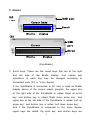
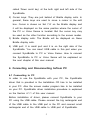
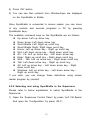
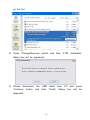
Simulate Keystroke Up: Left up arrow key Virtual Focus Previous Line: Left up arrow key Simulate Key Press Down: Left down arrow key Virtual Focus Next Line: Left down arrow key Simulate Key Press Home: Left up arrow key - Right up scroll key Simulate Key Press End: Left down arrow key - Right down scroll key Simulate Key Press Enter: Right up scroll key - Right down scroll key Simulate Key Press Tab: Left down arrow key - Right up scroll key Simulate Key Press Shift Tab: Left up arrow key - Right down scroll key Simulate Key Press Windows: Left up arrow key - Left down arrow key - Right up scroll key Simulate Key Alt: Left up arrow key - Left down arrow key - Right down scroll key If you wish, you can change these definitions using screen reader by yourself. 4.3 Disconnect from PC You can disconnect SyncBraille from PC by removing USB cable to be connected to PC. And you can connect again SyncBraille to PC by connecting USB cable. 4.4 Remove the driver As mentioned before, If you have any error while installing SyncBraille driver or if you can’t connect to your PC with correct cable, please reinstall SyncBraille driver after removing it. Please refer to below explanation to remove SyncBraille driver. 1) Open the ‘Add or Remove Programs’ in the control panel and move to the ‘FTDI USB Serial Converter Drivers’ item 13