1
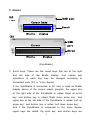
Connect “A” part at long cable and another “A” part at short
cable
for connecting SyncBraille and Voice Sense]
2) Please connect the other end of the long USB cable to the
SyncBraille. And then turn on the power of Voice Sense and
connect the other end of short USB cable to the USB port of
Voice Sense.
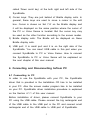
3) If SyncBraille with 32 cells is connected to Voice Sense
successfully, Voice Sense will display ‘SyncBraille 32 is
connected’ in voice and SyncBraille will display ‘SyncBraille
32 is connected’ in Braille. If SyncBraille with 20 cells is
connected to Voice Sense, ‘SyncBraille 20 is connected’ will
be displayed in voice and Braille.
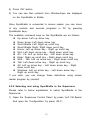
If SyncBraille does not display any Braille, you have to check if
cables are connected firmly or directions of cable are correct.
In this case, remove all cables and carefully connect again or try
again after reboot the Voice Sense.
If you want to connect SyncBraille to Voice Sense while Voice
Sense is turned off, please connect all cables in advance before
turning on the Voice Sense.
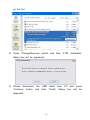
After connect Voice Sense to SyncBraille, Braille will be scrolled
in the previous direction by pressing the ‘Up scroll key’ of
SyncBraille and Braille will be scrolled in the next direction by
pressing the ‘Down scroll key’ of SyncBraille. If you want to
learn more about how to use SyncBraille with Voice Sense,
please refer to the Voice Sense user manual.
16