1
EasyInput – User Installation Manual
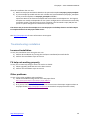
After the installation the user can:
a) Build new EasyInput workbooks based on the personal template EasyInput_EmptyTemplate
b) Try the examples provided with the tool in folder User\UserInstallation\EasyInput_Examples
and in personal templates in EasyInput_Examples subfolder .
Important: Most of the financial examples will work without much adjustment. The logistics
examples are usually too dependent on the system configuration to be executed successfully
on another system, that the one they were created on. The functional scripts (FM) are less
prone to system changes than transactional scripts (TR).
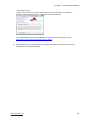
The easiest way to access the examples is to start EasyInput via desktop shortcut and select Open
EI Template button from EasyInput ribbon menu.
See http://easyinput.net for more information on EasyInput.
Troubleshooting installation
Incorrect installation
In case, the installation went wrong the user can:
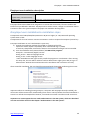
a) Perform de-installation by running the User\User Installation\Uninstall.vbs file
b) Perform the installation steps once more.
F4 help not working properly
In case, the F4 value help hangs or does not work as it should:
a) Please upgrade/ patch SAP GUI to the latest version
b) Perform the installation steps once more.
Other problems
In case, of any other problems with installation:
a) Check the troubleshooting section at the EasyInput forum
https://easyinput.net/forum/viewtopic.php?f=10&t=24
b) Write an e-mail to [email protected]
c) Or if you are the full version user with maintenance services: Please open support tickets on
EasyInput forum (http://easyinput.net/forum/ Servicedesk > EasyInput Service Tickets)
http://easyinput.net
3/7



![[U4.81.12] Opérateur INTE_MAIL_3D](http://vs1.manualzilla.com/store/data/006360284_1-917f4164f1cafb65372c9c035f1a70f5-150x150.png)