1
Map Composer
Add a Map Title
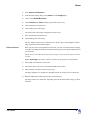
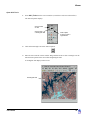
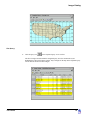
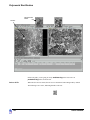
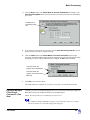
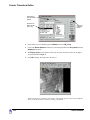
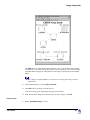
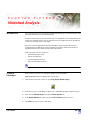
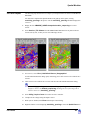
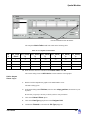
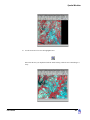
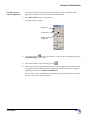
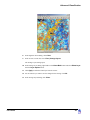
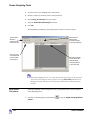
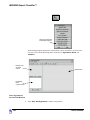
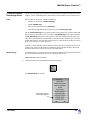
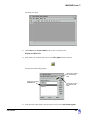
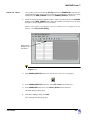
You must have a map composition and the Annotation tool palette open.
1.
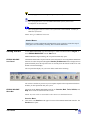
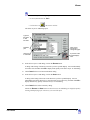
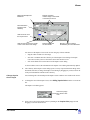
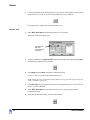
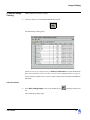
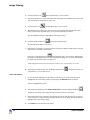
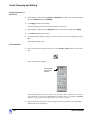
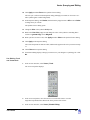
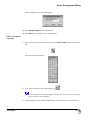
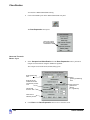
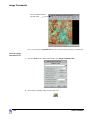
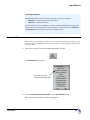
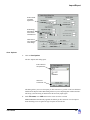
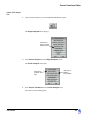
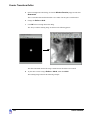
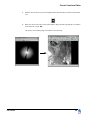
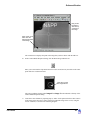
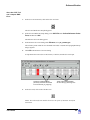
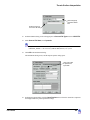
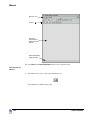
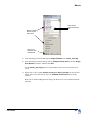
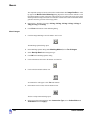
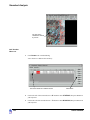
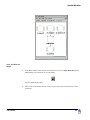
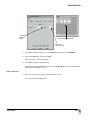
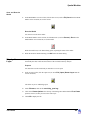
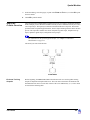
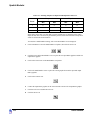
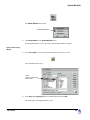
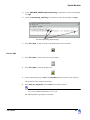
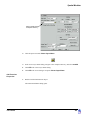
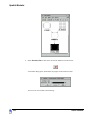
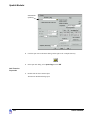
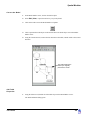
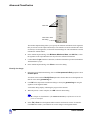
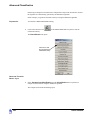
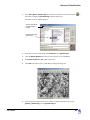
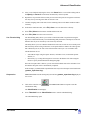
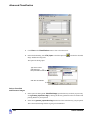
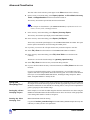
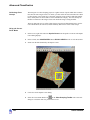
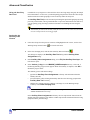
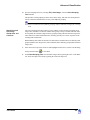
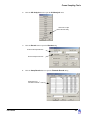
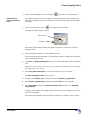
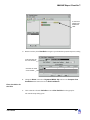
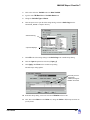
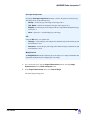
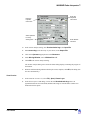
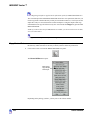
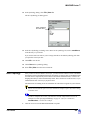
Click on the Text icon
2.
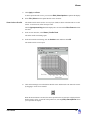
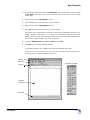
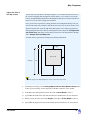
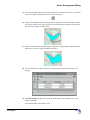
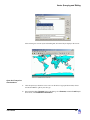
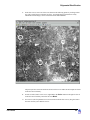
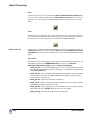
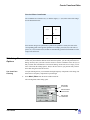
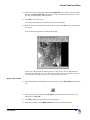
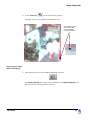
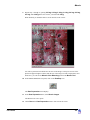
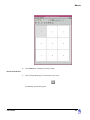
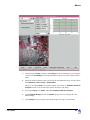
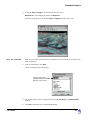
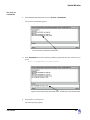
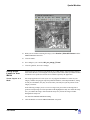
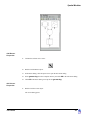
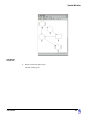
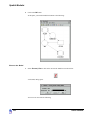
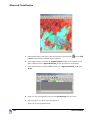
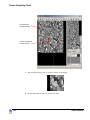
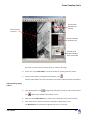
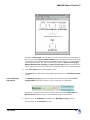
Move your cursor to the top of the map in the Map Composer viewer. The cursor becomes an
I-beam
3.
in the Annotation tool palette.
, indicating that you are placing text.
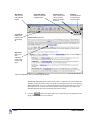
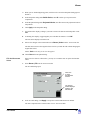
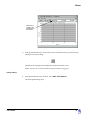
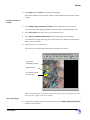
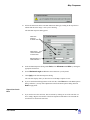
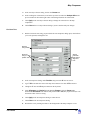
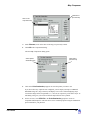
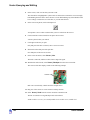
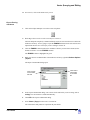
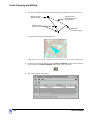
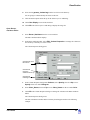
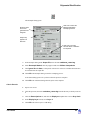
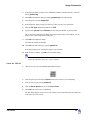
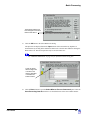
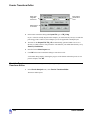
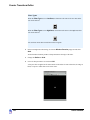
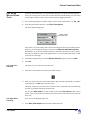
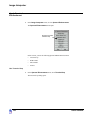
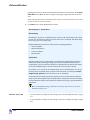
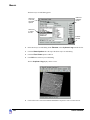
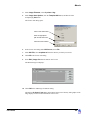
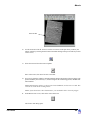
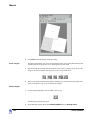
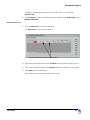
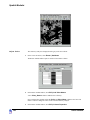
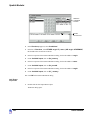
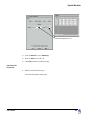
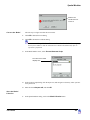
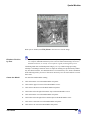
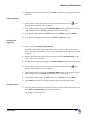
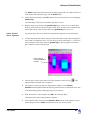
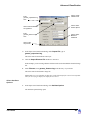
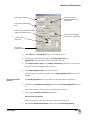
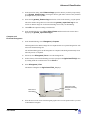
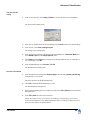
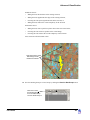
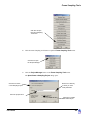
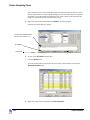
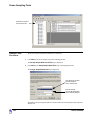
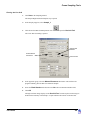
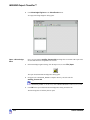
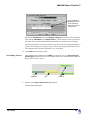
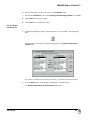
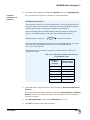
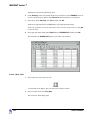
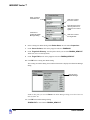
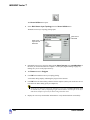
Click where you want to place the text. The spot where you click is the bottom left corner of
your text string.
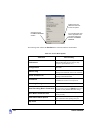
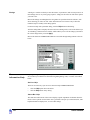
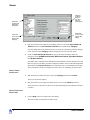
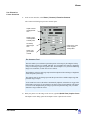
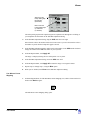
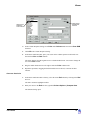
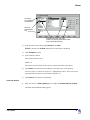
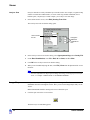
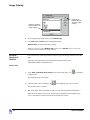
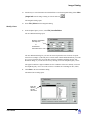
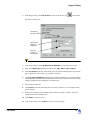
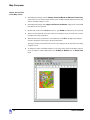
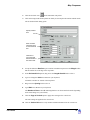
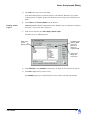
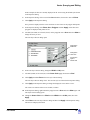
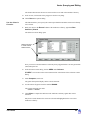
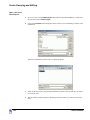
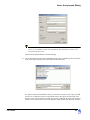
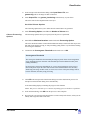
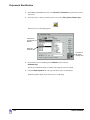
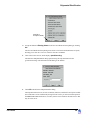
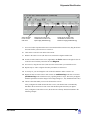
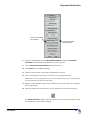
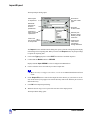
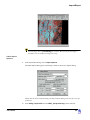
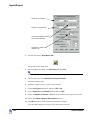
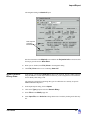
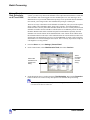
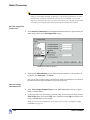
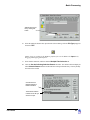
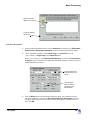
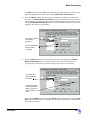
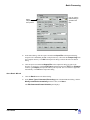
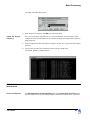
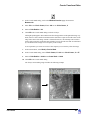
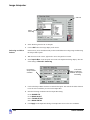
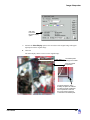
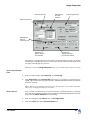
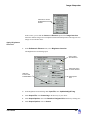
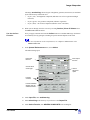
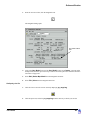
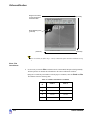
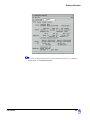
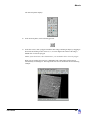
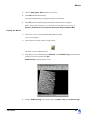
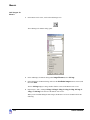
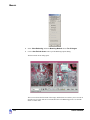
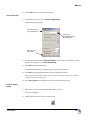
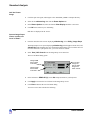
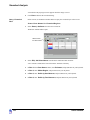
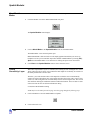
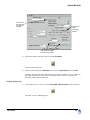
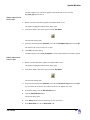
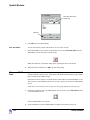
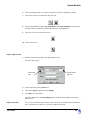
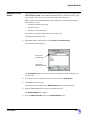
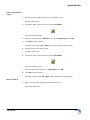
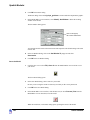
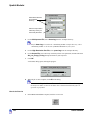
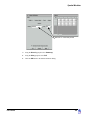
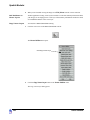
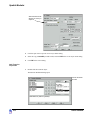
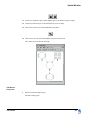
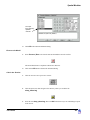
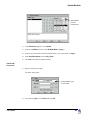
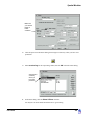
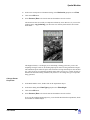
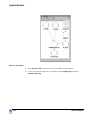
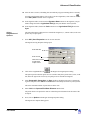
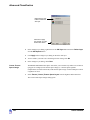
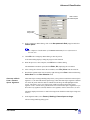
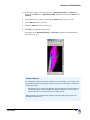
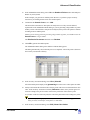
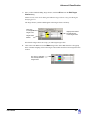
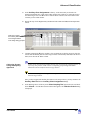
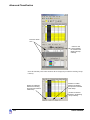
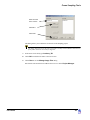
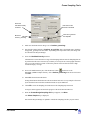
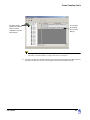
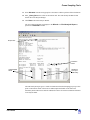
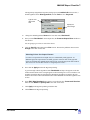
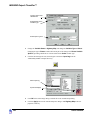
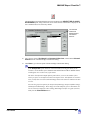
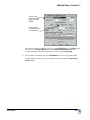
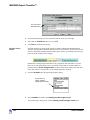
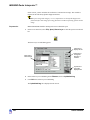
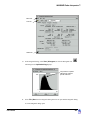
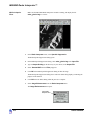
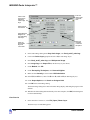
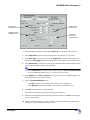
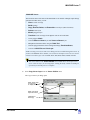
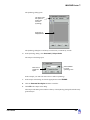
The Annotation Text dialog opens.
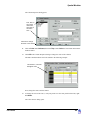
Type text
string here
4.
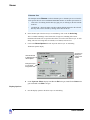
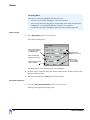
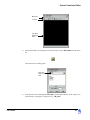
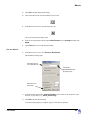
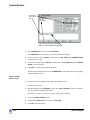
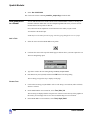
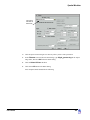
Move your pointer into the Enter Text String area in the Annotation Text dialog.
5.
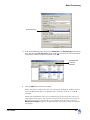
Type Environmental Sensitivity Analysis in the text field.
6.
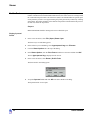
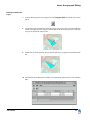
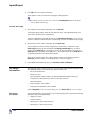
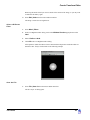
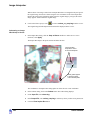
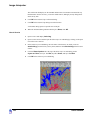
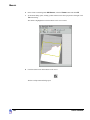
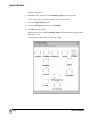
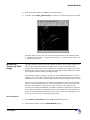
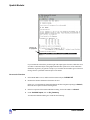
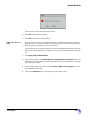
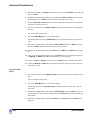
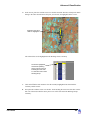
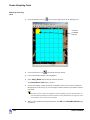
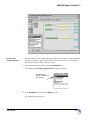
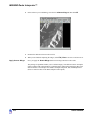
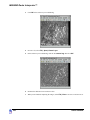
Click OK in the Annotation Text dialog to place the text in the map composition.
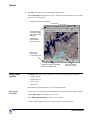
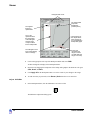
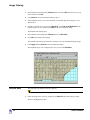
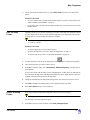
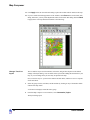
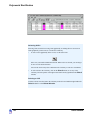
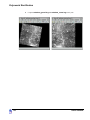
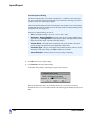
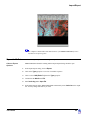
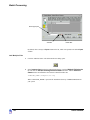
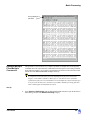
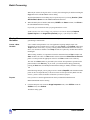
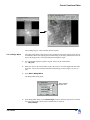
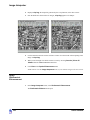
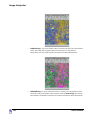
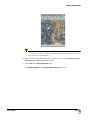
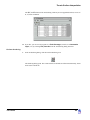
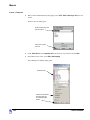
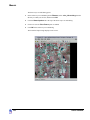
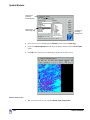
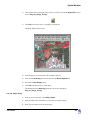
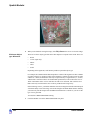
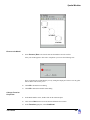
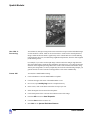
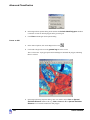
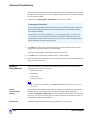
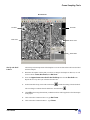
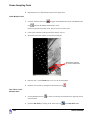
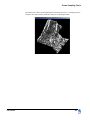
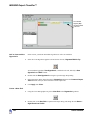
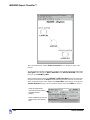
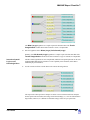
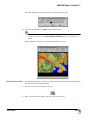
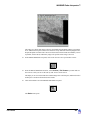
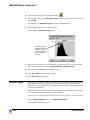
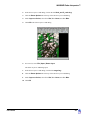
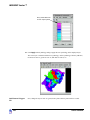
The text string is now displayed in the map composition.
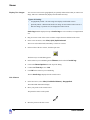
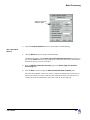
Change Text Style
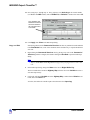
1.
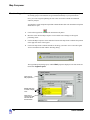
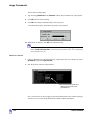
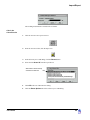
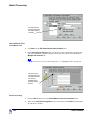
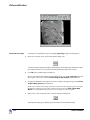
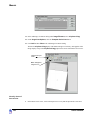
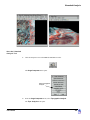
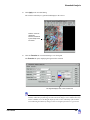
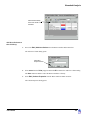
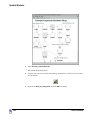
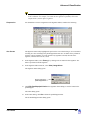
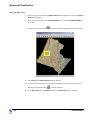
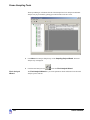
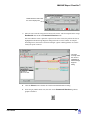
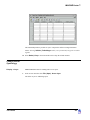
Click on the text string in the Map Composer viewer to select it.
2.
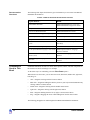
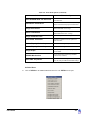
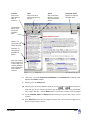
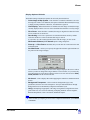
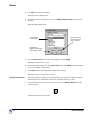
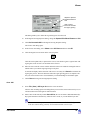
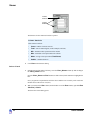
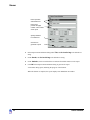
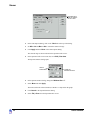
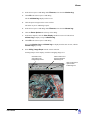
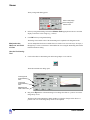
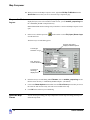
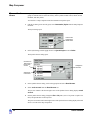
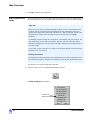
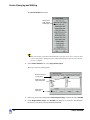
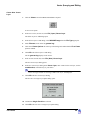
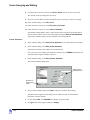
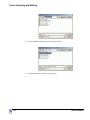
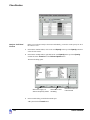
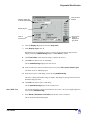
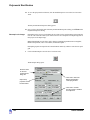
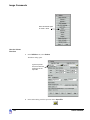
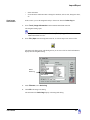
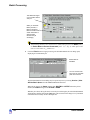
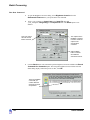
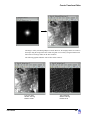
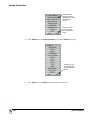
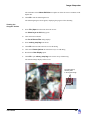
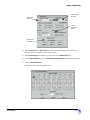
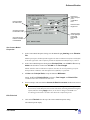
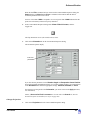
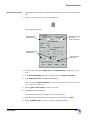
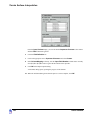
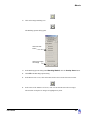
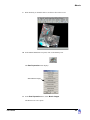
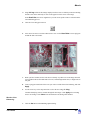
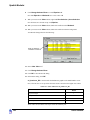
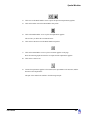
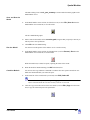
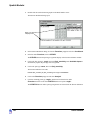
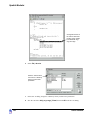
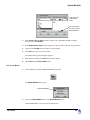
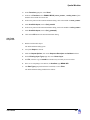
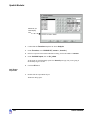
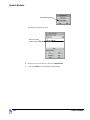
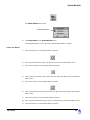
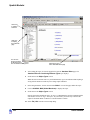
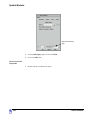
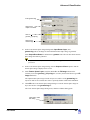
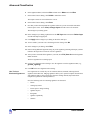
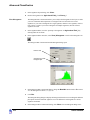
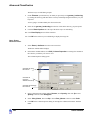
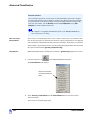
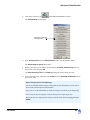
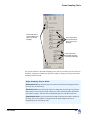
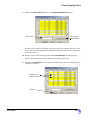
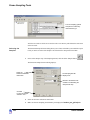
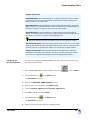
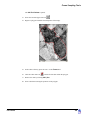
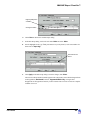
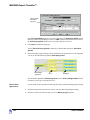
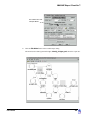
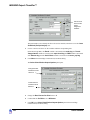
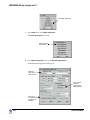
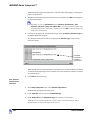
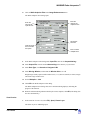
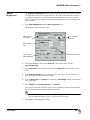
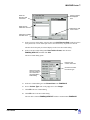
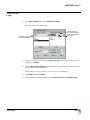
From the Map Composer menu bar, select Annotation | Styles.
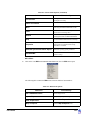
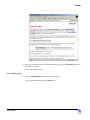
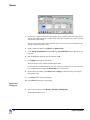
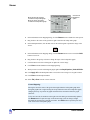
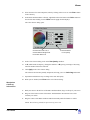
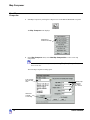
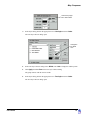
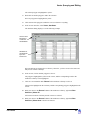
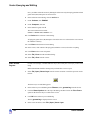
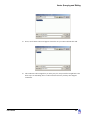
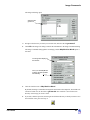
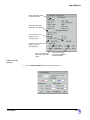
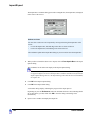
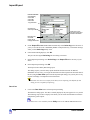
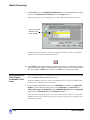
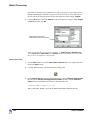
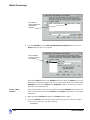
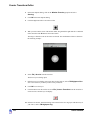
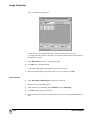
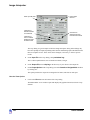
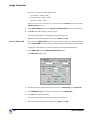
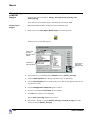
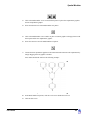
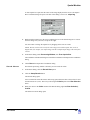
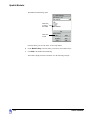
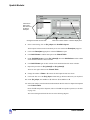
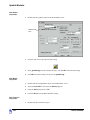
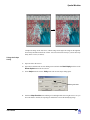
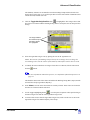
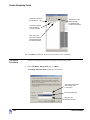
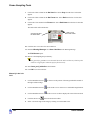
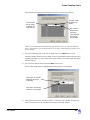
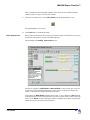
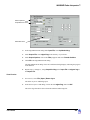
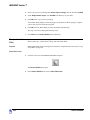
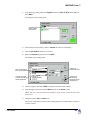
The Styles dialog opens.
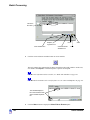
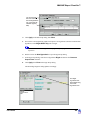
3.
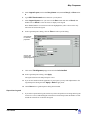
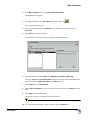
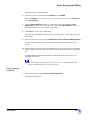
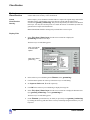
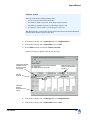
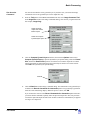
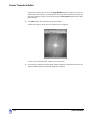
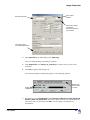
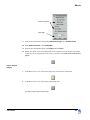
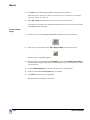
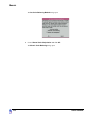
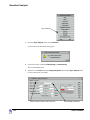
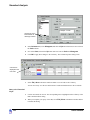
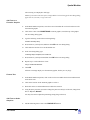
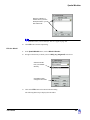
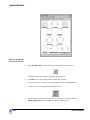
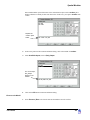
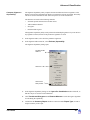
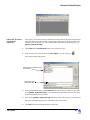
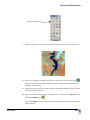
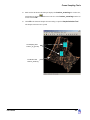
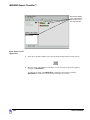
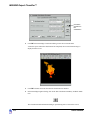
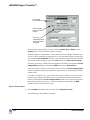
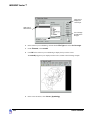
In the Styles dialog, hold on the popup list next to Text Style and select Other.
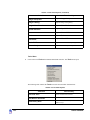
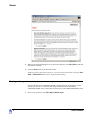
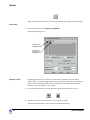
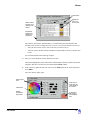
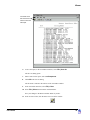
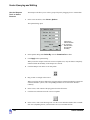
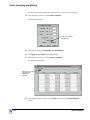
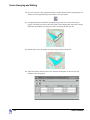
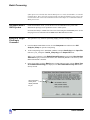
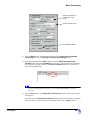
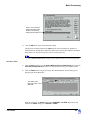
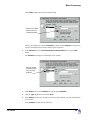
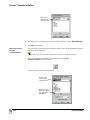
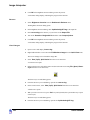
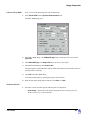
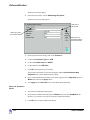
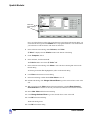
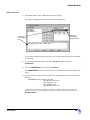
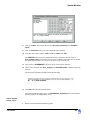
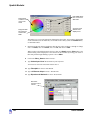
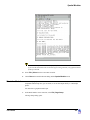
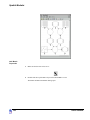
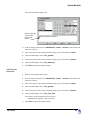
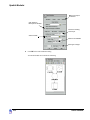
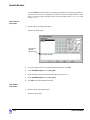
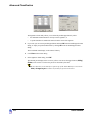
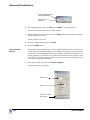
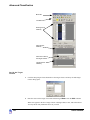
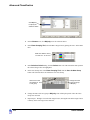
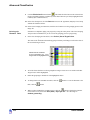
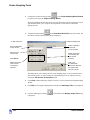
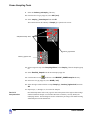
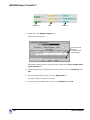
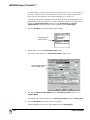
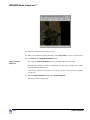
The Text Style Chooser dialog opens.
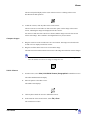
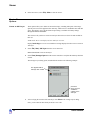
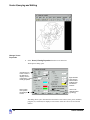
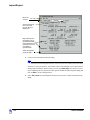
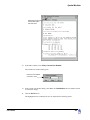
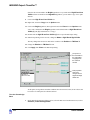
4.
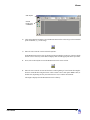
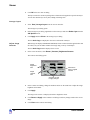
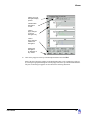
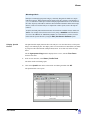
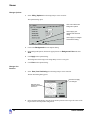
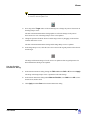
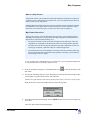
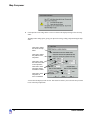
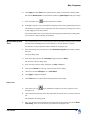
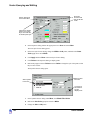
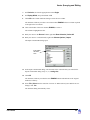
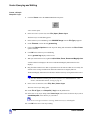
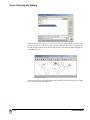
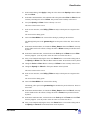
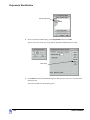
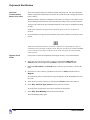
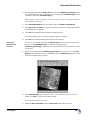
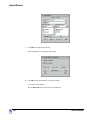
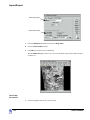
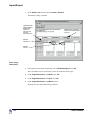
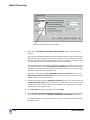
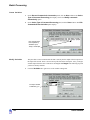
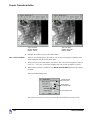
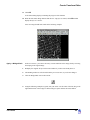
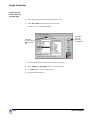
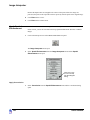
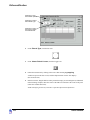
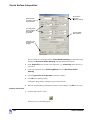
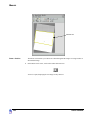
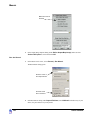
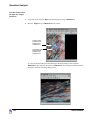
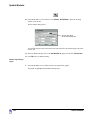
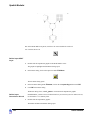
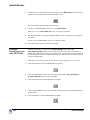
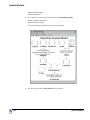
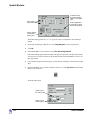
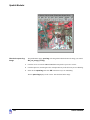
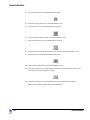
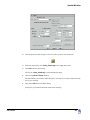
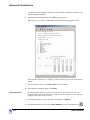
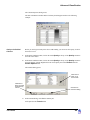
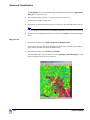
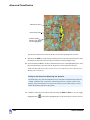
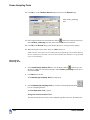
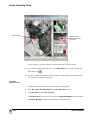
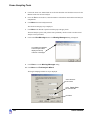
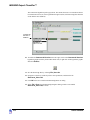
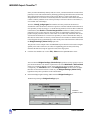
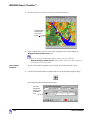
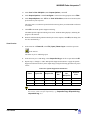
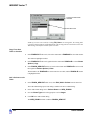
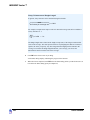
In the Text Style Chooser dialog, change the text Size to 20 points.
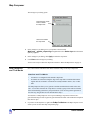
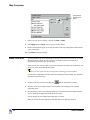
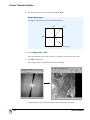
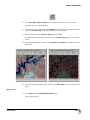
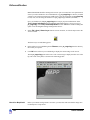
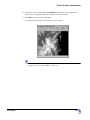
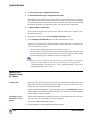
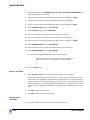
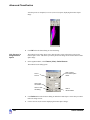
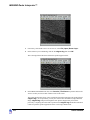
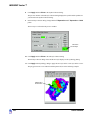
The preview window at the bottom right corner of the Text Style Chooser dialog illustrates the
change in point size.
86
ERDAS IMAGINE