1
Chapter 3: Coverage Analysis Demos
Adventure Tutorial
69
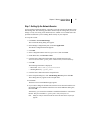
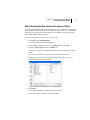
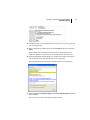
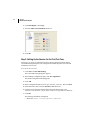
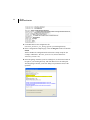
a Click the browse button beside the Application Arguments field.
b In the Application Arguments dialog box, select the existing argument in the
lower box and click Delete.
c Edit the argument in the upper box as follows:
<jprobe_home>/demos/coverage/adventure/AdvTest2.txt
Note
If there is a space in your JProbe home directory path, enclose the argument in
quotes.
d Click Parse Argument.
The argument appears in the first line of the lower field.
e Click OK.
The Application Arguments field displays the program argument.
6 Click Save then Save As, to save the configuration file
(Adventure_TestCase2_Cov_Settings.jpl) into your working directory.
7 Click Integrate.
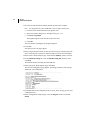
JProbe validates the configuration file and creates a startup script file (for
example, in Windows: Adventure_TestCase2.bat, and in Unix/Linux:
Adventure_TestCase2.sh).
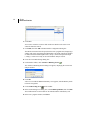
8 In the Integrating Adventure_TestCase2 dialog box, use the browse button to
navigate to your working directory, and click Save to save the startup file.
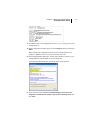
The Integrating Adventure_TestCase2 dialog box presents the status of the
operation.
9 Select the Close Create/Edit Settings tool on successful integration check box,
and click Close.
You are now ready to run a Coverage analysis session (test case #2).
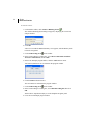
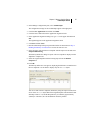
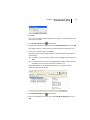
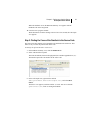
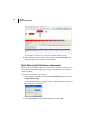
10 On the JProbe toolbar, click Attach to a Running Session
.
The Attach to a Running Session dialog box appears, displaying the correct host
and port number.
11 Click OK.
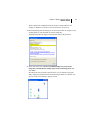
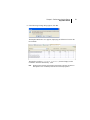
The Connection Indicator dialog box indicates that JProbe is looking for your
session.
12 Start the Adventure program (test case #2) from the command line:
• In a Windows command window: >Adventure_TestCase2.bat