1
User Manual
4
4.1
Page: 7
The frame area
Edit frame lists
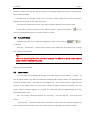
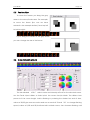
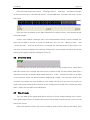
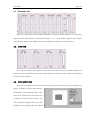
The frame area shows all the frames in the current frame list. Right click on a frame,
or use the menu, to add/delete/clear frames or open/save frame lists.
Double click on a frame to open it in the editor.
You can copy/paste frames between frame lists. To select the frames click on the
start frame, then hold shift and click on the end frame, the selected frames are marked
with red frame numbers. To copy/paste click the right mouse button.
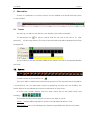
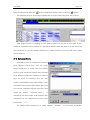
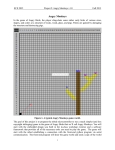
Use Ctrl+Tab and Shift+Ctrl+Tab, or the arrow buttons (see picture), to
move to the next/previous frame list. Ctrl+F4, or the cross button, close the
current framelist.
4.2
Adding frames to your show
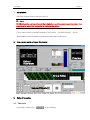
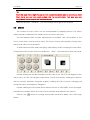
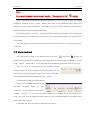
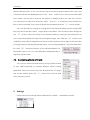
Drag a frame to a scene/track to include the frame in the current
show. To add multiple frames, add one as described before then
adjust the frames start/end value of the scene to the desired values.
As an alternative you can select a sequence of frames (click on the
first frame, then hold shift and click on the last frame) and drag the
whole sequence to a scene or an empty part of a track. The frames
that are currently used in the selected scene are marked with a red frame in the frame
list, selected frames have red numbers. Change the repeat value if you want to repeat
the frame sequence more then once in the scene.
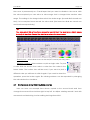
Frames are saved in the .FRA format. This format saves the object information. You
can also save in ILDA (.ild) or older frame formats (.FL*). The object information will then
be lost; the frames are saved as an (unstructured) list of points. Use this option to export to
other editors or for playback on the live player.
To export complete shows use the “Save output to file” button (see “Preview”
further below).