1
ProppFrexx ONAIR
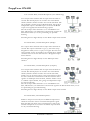
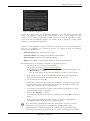
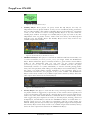
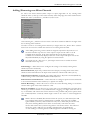
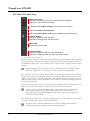
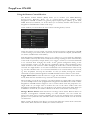
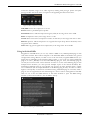
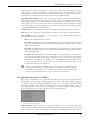
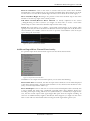
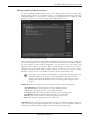
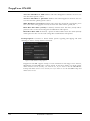
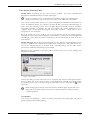
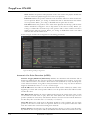
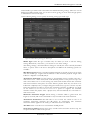
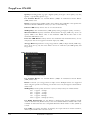
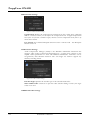
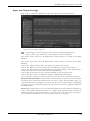
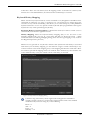
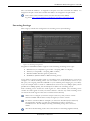
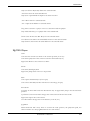
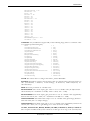
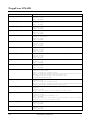
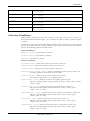
Click on the Master/Slave button to directly toggle the mode of that remote instance, which
actually fires the execution of the related OnSetMaster resp. OnSetSlave control-commands on
that remote client.
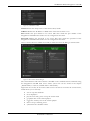
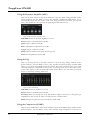
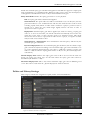
Click on the Mixer Channels popup to open and control the mixer channels of the remote
clients mixer. This allows you to directly change the mixer channels volume, Mute state,
ON/OFF state, SND state and REC mode of the remote mixer.
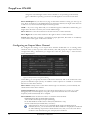
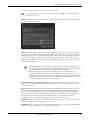
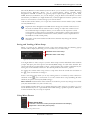
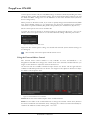
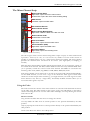
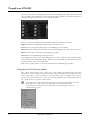
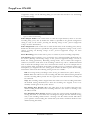
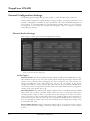
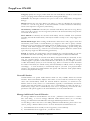
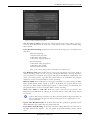
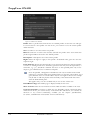
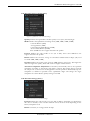
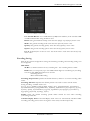
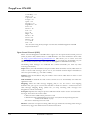
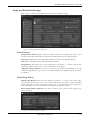
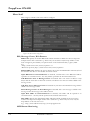
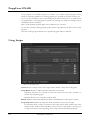
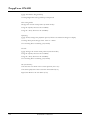
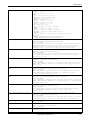
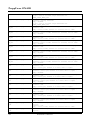
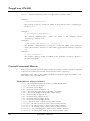
In the next section you can monitor the state of the remote control interfaces of this
ProppFrexx ONAIR instance.
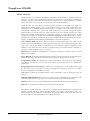
In general a remoting device/server receives external GPIO commands (eg. MIDI messages)
and maps them via filtering rules into so called control commands (see the chapter
„REMOTING, EVENTS, COMMANDS AND GPIO“ for more information on how to
define the remoting devices/servers and associate the execution of control commands).
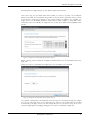
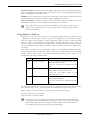
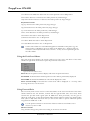
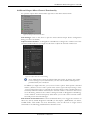
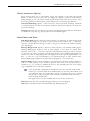
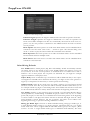
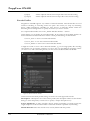
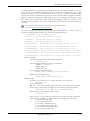
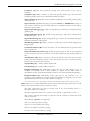
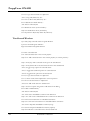
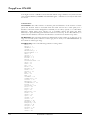
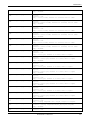
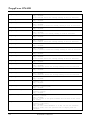
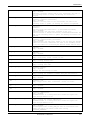
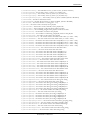
TCP Remote Control Server: Shows the status of the TCP remote control server and if a
client is connected. Double-Click to start/stop the server.
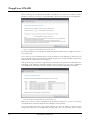
TCP Remote Control Client: If a client is connected, the IP address of the remote control
client is shown. Double-Click to kick (disconnect) this client.
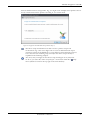
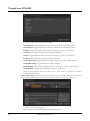
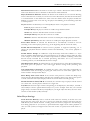
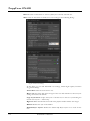
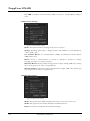
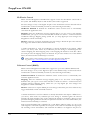
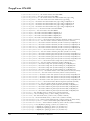
MIDI Remote Control Server: Shows the status of the MIDI Input and MIDI Output
remote control server. Double-Click to start/stop the server.
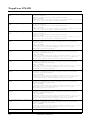
SERIAL Remote Control Server: Shows the status of the SERIAL Input and SERIAL
Output remote control server. Double-Click to start/stop the server.
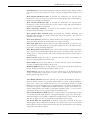
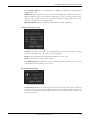
GamePort Remote Control Server: Shows the status of the GamePort Input remote
control server. Double-Click to start/stop the server.
IO-Warrior Remote Control Server: Shows the status of the IO-Warrior Input remote
control server. Double-Click to start/stop the server. Note: currently IO-Warrior is NOT
implemented!
80
RADIO42 Confidential