1
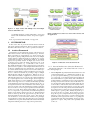
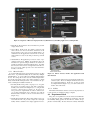
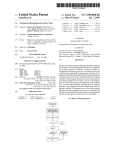
Figure 10: Snapshots of End User Deployment Tool (a) Main Panel, (b) Installing Application (c)Adding Profile
1. Basic Mode: The application shows information as pictorial
widgets in this mode.
2. Sensor Mode: In this mode, the display is triggered only
when someone is in front of the mirror, and the rest of the
time it switches to the power save mode (blank display). To
enable this mode the application needs the mirror to be augmented with a Proximity Profile that provides this positional
context.
3. Standard Mode: The application provides two styles of presentation in this mode. Initially, the application shows the
information in pictorial widgets which can be switched to
textual presentation by interacting with the mirror. To enable
this mode, the mirror needs to be augmented with a Bi-state
Interaction Profile, which provides a two state switch functionality to the mirror.
4.1.3 Mirror Profiles
To work in a full fledged mode, the application needs two profiles
in the mirror. A profile functionality can be achieved by multiple
instrumentations. So, both profiles have multiple implementation
choices. For each profile we have used two different implementations in this trial. Each profile comes with a hardware, a plugin
binary and the Profile Description File. A user manual is also provided containing the installation instructions.
1. Proximity Profile: This profile’s sole purpose is to recognize
the presence of an entity in front of the mirror. This functionality can be achieved in multiple ways, i.e. using an infra
red sensor, a motion sensor, a camera, etc. In our test, we
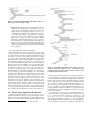
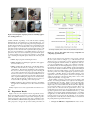
have provided two implementations with two different sensors for this profile (Figure 11(d)). The first one is with an
Infra Red Sensor and the second one is with a Floor Sensor
(Figure 11(c)).
2. Bi-State Interaction Profile: This profile enables a user to interact with the mirror. It provides a simple two-state input
facility which is suitable for the display application since a
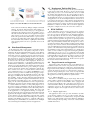
Figure 11: Mirror Artefact, Profiles and Applications with
their manuals
user can navigate between the pictorial and the detailed presentation styles. There are multiple instrument choices for
the profile implementation. In this test, we have provided
two implementations (Figure 11(e)), one with a touch sensor
and the other with a slider.
4.1.4
FedNet
The FedNet infrastructure and the web based deployment tool
for the end users are running in a laptop computer.
4.2
Experiment Detail
The goal of our experiment is to involve end users in a DIY fashion in deploying the mirror, installing the application, and then
incrementally adding profiles into the mirror to enhance the application’s functionality. We have invited 10 ordinary individuals