1
On your desktop:
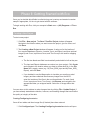
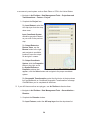
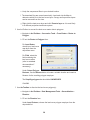
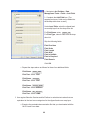
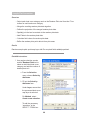
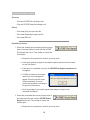
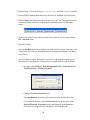
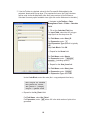
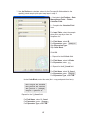
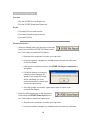
1 Click Tools > PDA Utility and the PDA interface will open with the PDA tab active.
2 With the PDA connected to your computer, ActiveSync working, and the Eco PDA
application not running, click Check PDA Status.
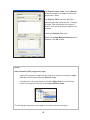
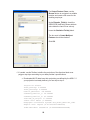
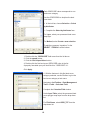
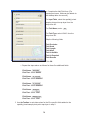
3 Click the button labeled Select Recorded Tree Data to Send to PDA. The
inventory list will appear.
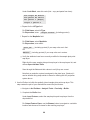
4 Check the box next to the appropriate records and click OK.
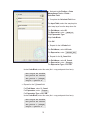
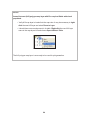
Your records should now appear in the PDA
Transferring data to the Forest Service
When data entry is complete, the project information must be sent to the US Forest
Service Northern Research Station in Syracuse. To begin data transfer:
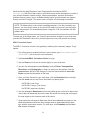
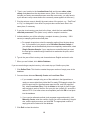
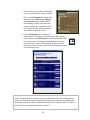
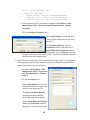
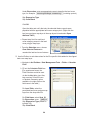
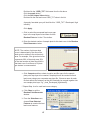
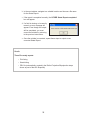
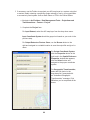
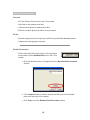
1 Click Tools > Send Data to Forest Service for Processing.
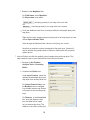
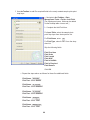
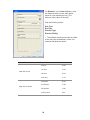
2 A dialogue box entitled Contact Information opens. Fill in the boxes, being
particularly careful with your email address. Add any comments you feel are
important to understanding your project data.
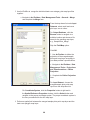
3 When you have filled in and checked all the information, click OK. Your contact
information will be attached to your project file and uploaded automatically to a
server, notifying the US Forest Service Research Unit in Syracuse that your data
are ready for processing.
Downloading results from the Forest Service
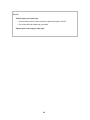
When your data have been processed, you will be notified by email that the results are
ready to download. A file name for the results will be supplied in the email.
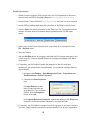
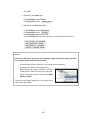
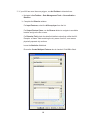
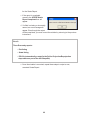
1 Open the Eco program and then open your project.
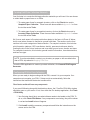
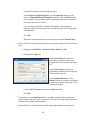
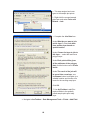
2 Click Tools > Load Data from Forest Service for Reporting.
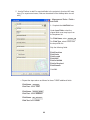
3 In the File window, enter the name of the file from the email notification you
received. The recommended method is to copy the file name from the email, then
paste it into this dialogue box so that the file name is accurate.
4 Click OK. Eco will automatically download your results from the server and place
them in the correct database location on your computer.
45