1
8 . Getting Started
User Interface
Navigating the Preview
Home > Getting Started > Opening Perfect Portrait
Opening Perfect Portrait
Opening Perfect Portrait Standalone Application
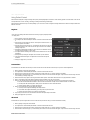
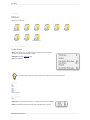
1. Open the Perfect Portrait Application. On Mac OSX it will live in your
Applications Folder, on Windows it will live in your Start menu.
2. When the application opens, it will prompt you for which file you would like to
work on.
3. Make your desired adjustments, then press Apply.
4. You will be prompted to save your file.
Opening Perfect Portrait inside the Perfect Photo Suite
1. Start by opening the Perfect Photo Suite application. On Mac OSX it will live
in your Applications Folder, on Windows it will live in your Start menu. You
can also access the Perfect Photo Suite inside of Lightroom or Aperture as
detailed above.
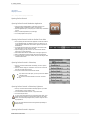
2. The Perfect Photo Suite starts in the Layers module. Think of this as the
home base where you open and save your files.
3. Open the image(s) you wish to work on. You can do this from the File >
Open menu or by using the Browser.
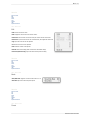
4. Select Perfect Portrait from the module selector in the upper right corner
5. Make your adjustments in Perfect Portrait, then press the Apply button
6. Your image will return to the Layers module, Save your work using the Save
command in the File menu.
Opening Perfect Portrait in Photoshop
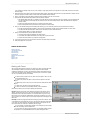
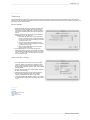
1. When you use Perfect Portrait inside of Photoshop you need to open an
image first.
2. When you have the image you would like to work on be sure to select the
layer that you would like to start with.
3. Then go to the onOne Panel and select Perfect Portrait.
If you don't see the onOne panel, you can open it from the Window
> Extensions menu.
You can also access Perfect Portrait from the File > Automate
menu.
Opening Perfect Portrait in Photoshop Lightroom
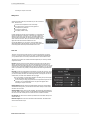
1. When you use Perfect Portrait inside of Photoshop Lightroom you need to
select and image or group of images to start.
2. Then select Perfect Portrait for the File > Plug-In extras menu.
3. Then select the open button.
If you are using Perfect Portrait as part of the Perfect Photo Suite, select
Perfect Photo Suite instead, then select Perfect Portrait from the module
selector. Don't select multiple images unless you wish to merge them into a
single layered file.
You can also access Perfect Portrait from the Lightroom Export dialog for
batch processing.
Opening Perfect Portrait in Aperture
Perfect Portrait User Guide