1
NETWORK IP CAMERA User’s Guide
6.4 Admin, User Configuration
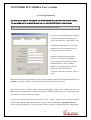
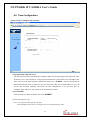
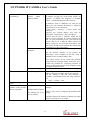
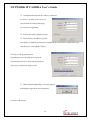
This screen is used to configure IDs and Passwords for an administrator and up to 5 users.
(1) User Account
There is one administrator account and 5 user accounts. Account names can be changed.
(2) Password
If you want to open your Network IP Camera to everyone, you may not change default user’s
ID and Password, However you should change administrator’s ID and Password with unique
Ones of yours.
(3) Access rights
The Administrator may assign users’ rights of viewing control. With the default setting, the
administrator has all authority of configuration and the normal user doesn’t have any right
except to access the login page to see the image defaults “guest” for ID and Password.
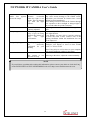
ID and Password Limitation
It is very important to compose any ID or Password within 10 bytes’ limit. 10 bytes are equal to
10 English characters.
38