1
Chapter 3 — Troubleshooting and Maintaining the PB22/PB32
4 Press
until you reach Data Dump and then press
5 Press
to select Yes and then press
.
.
6 Cold boot the printer to exit Dump mode. For help, see the next
procedure, “Cold Booting the PB22/PB32.”
Cold Booting the PB22/PB32
You rarely need to cold boot the PB22/PB32 printer, unless you are
upgrading the firmware. If your printer occasionally locks up, you will
want to cold boot it. A cold boot reinitializes the 802.11 radio and
clears the working memory.
Note: The Setup menu is not affected by a cold boot. Your printer
retains all of your configuration settings after the printer powers
back up.
To reset the PB22/PB32
1 Disconnect the PB22/PB32 from power if externally powered.
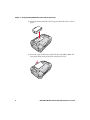
2 Remove the battery from the PB22/PB32 for at least one second.
3 Insert the battery back into the PB22/PB32.
4 Reconnect external power if your PB22/PB32 is externally
powered.
Upgrading the Firmware
The latest firmware and software is always available for download
from the Intermec web site at www.intermec.com.
To download firmware updates
1 Go to the Intermec web site at www.intermec.com.
2 Click Products > Printers and Media > Mobile Printers.
3 Choose a PB22 or PB32 mobile printer.
48
PB22/PB32 Mobile Label and Receipt Printer User’s Guide