1
Please note when using multiple VoverlayHD cards on Windows XP, only one card can have live video
preview at any time, trying to preview video while another VoverlayHD card is already previewing
causes a DirectDraw error warning dialog advising to close the other card’s preview first.
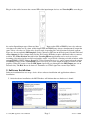
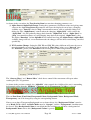
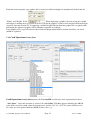
Clicking the
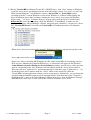
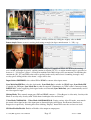
button will grab the current video frame into the application’s main window:
,
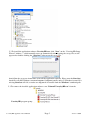
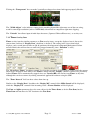
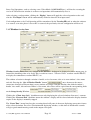
if the “Save Image to File”/”Save YUV” box at the lower right part of the window is checked when
“Grab Image” button is clicked, a graphics file and/or the grabbed YUV raw data file will be created:
The graphics file will have one of the .bmp, .jpg, .gif(WinXP)/.tif(Non-WinXP), .png file extensions as
typed in the edit field, plus a serial number appended before the ‘.’ character, such as VOverlayHD0.jpg,
VOverlayHD1.bmp etc. The graphics file’s image is the current frame at the currently selected video
input port (SDI or HDMI), with the same video resolution (from 720X480 ~ 1920X1080 pixels) without
any scaling.
The grabbed YUV file is of packed UYVY 4:2:2 format, useful for some YUV play/analysis programs.
The “Deinterlace” check box only shows under Windows XP, checking it will capture de-interlaced
image.
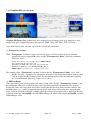
The “Reset Out” button disables then re-enables the SDI and HDMI output ports.
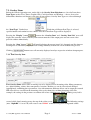
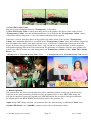
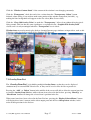
The “Delays” button pops up a window allowing changes to the current card’s line and frame delays:
A “Reset Card” button at the lower-left corner of the Setup Window will close and restart the current
VoverlayHD card, this can be used to rectify any erroneous situation of a card.
VoverlayHD Application User Manual
Page 8
Version 1.0.0.0