1
82
Learning the Basics
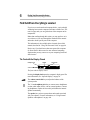
How to Use the Keyboard
The Character Keys
For the letter and number keys, typing on a computer keyboard is
very much like typing on a typewriter. However, there are some
exceptions:
❖ When you press the spacebar, a computer does not simply pass
over an area of the page like a typewriter does. Although you
may not see anything on the screen, each time you press the
spacebar, the computer creates a space character just as it creates characters representing letters or symbols.
❖ The lowercase l (el) and the number 1 are not interchangeable.
❖ The uppercase O and the number 0 are not interchangeable.
❖ On a typewriter, the shift lock key locks all the keys into their
uppercase positions. On a computer keyboard, pressing the
Caps Lock key changes only the alphabet keys to uppercase—
the number and symbol keys aren’t affected.
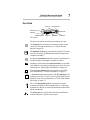
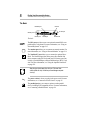
The Other Keys
In addition to the character keys, the computer keyboard contains a
number of keys that carry out special computer tasks. This section
describes these special keys.
❖ The 12 function keys (F1, F2, etc.) across the top of the
keyboard carry out program-specific tasks. To find out what
these keys do in your program, refer to the program's documentation.
❖ The function of the Ctrl key (Control key) also varies according
to the program you're using.
❖ In Windows programs, pressing the Alt key lets you open
menus.
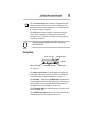
❖ Pressing the Fn key simultaneously with one of the specially
marked keys allows you to emulate a 101-key keyboard (discussed below), turn keyboard overlays on and off (page 250)
and control various system functions.