1
Projector overview
Troubleshooting
Problem:
I can’t display my
computer’s desktop in
VGA mode.
The projector is
shutting down by
itself.
Solution:
● To rule out connection issues, try
shutting down your computer, and
connecting the projector as your only
display. Your computer should detect
the projector. If you see your OS
startup screen, but not your desktop,
your resolution or refresh rate may
be set to an incompatible mode.
● If you’re using a laptop, some
laptops have a ‘Projector mode’ that
must be enabled before they will
output to your projector.
Other laptops have a key
combination (usually FN+F5) that
needs to be pressed in order to
activate their external VGA port. If
you’re not sure how your laptop
outputs to an external display, please
contact the manufacturer of your
laptop.
● The projector may have inadequate
ventilation.
● The room temperature may be too
high.
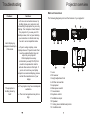
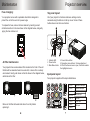
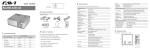
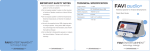
Main unit overview:
The following diagrams point out the features of your projector:
6
7
5
1
2
9
3
8
4
10
1: Lens
2: IR receiver
3: Height adjustment foot
4: Air filter removal tab
5: Input panel
6: Main power switch
7: Fuse retainer
8: Keystone control
9: Ventilation output
10: Speaker
11: Ceiling mount attachment points
12: Ventilation slot
11
12