1
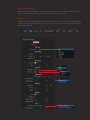
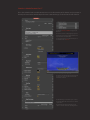
Presets : Create your own setups and save them for future use, or open a previously prepared setup.
You can save presets and exchange them with your colleagues when using the same version of the
plug-in and across all supported hosts.
Info : The Info button is enabled by default. It provides information about the subtitle data encoded
that is being displayed in the timeline and helps in the identification of possible typographical
errors, time code miss match or misplacement of subtitles.
When the Info button is on, the Canvas window or Viewer shows an overlay on top of the subtitle
generator with the approximate Running Time Code (RTC), the current frame in time, the total
number of subtitles decoded, the raw IN and OUT time code data for the previous, next and current
subtitle, and the corresponding Subtitle text.
Attention : The Running Time Code may not be completely accurate and show some discrepancies with the actual time
code of the project. This is simply displayed in the info screen for reference and approximation. The actual time code of
the timeline of the software should be the accurate reference for you.
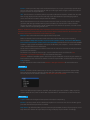
Edit Text : This is where the text can be typed, edited or imported.
Make sure that the Format selection matches the format of the text that you are importing.
You can import SubRip SRT, YouTube, Script File (used by Adobe Encore), Final Cut Pro XML Markers,
Final Cut Pro 7 Marker Data and User Time Coded (SUGARfx) formatted text to be used with SUGARfx
Subtitles, simply open the Text Editor and import the file from your computer. – See the addendum
at the end of this file for more information.
The User Time code format have to follow certain rules in order to be decoded correctly for accurate
placement in the timeline.
The format is very simple and easy to type. See the addendum at the end of this file: Text
Preparation > User Time code Format for more detailed information.
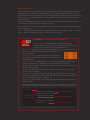
[ Markers ] Additional workflow options include the import of XML files created using the markers in
Final Cut Pro X (10.0.7) and later. The markers need to be exported first, and then imported using the
Text parameter.
See the addendum at the end of this file: Markers > Using Final Cut Pro X for more information.
Text Input
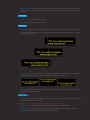
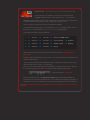
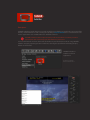
Format : Select the subtitle text format you are using. –If the format selected does not match the
format of the text imported, then the subtitles will not be decoded as expected and they simply
wont be displayed. The default selection is UserTC (User Time code Format).
There are 6 different import options available, SRT, YouTube generated subtitles (SBV), Script File
(used in Adobe Encore), Final Cut Pro X XML exported Markers, FCP7 Markers List data and UserTC.
Main Setup
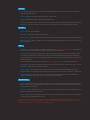
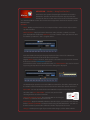
Keyable : Makes the background transparent and ready for compositing.
Position : Sets the position of the subtitle text anywhere on screen. You can also use the OSC guides
provided when the Info parameter is enabled.
Drop Frame : By default the filter operates in Non Drop Frame (NDF), however if your project is set to
Drop Frame, this button will adjust the processing and display of your subtitles accordingly.