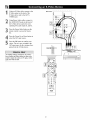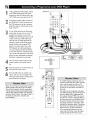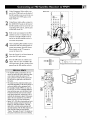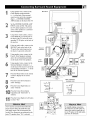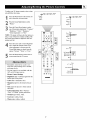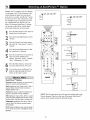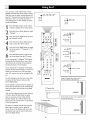
1
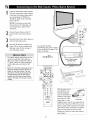
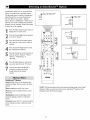
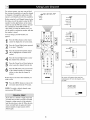
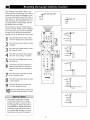
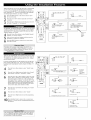
The Auto Search Method of programming
the
remote control can take several minutes to
complete. So before starting, it
ed that you sit in a comfortable
least six feet from the accessory
will have to hold the remote so
is recommendposition at
device. You
that it is
pointed at the front of the device
time the search is taking place.
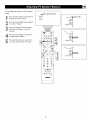
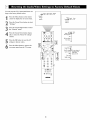
Turn the accessory
device's
2
for the entire
device on using the
power button,
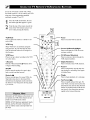
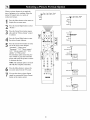
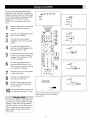
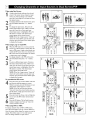
Press the desired
Mode button that cor-
responds to the type of device you
wish to operate--CBL,
VCR, AMR
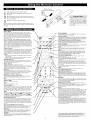
HD, SAT, DVD, or CD. A green light
will indicate the mode labeled on the
top of the button, while a red light will
indicate the mode labeled on the bottom of the button.
If needed,
hold the
button down and the light will toggle
between the green and red settings.
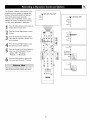
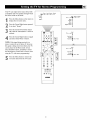
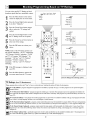
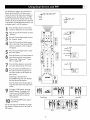
Press and hold the 1 and 3 Digit
(Number) buttons at the same time until
the Backlight and selected Mode buttons light up. Then release both buttons.
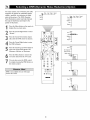
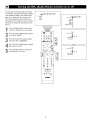
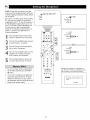
Press and release
ton on the remote
Backlight buttons
Mode button will
The remote
available
the red POWER butcontrol, The
and the selected
turn off.
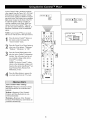
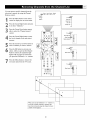
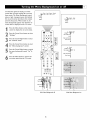
will start the Auto Search of all
codes, sending
a command
to chan-
nel up. The backlight will blink after each
code is tried. For devices such as DVD or CD
players, insert a disc and press PLAY on the
device. The remote control will send a command to switch to the next track. Switch AV
receivers to the tuner function.
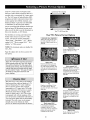
IMPORTANT:
Watch the channel
indicator
PHILIPS
of your accessory device closely, Once the
right code is found, the channels on your
device
will start to scan up.
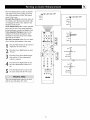
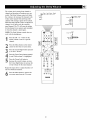
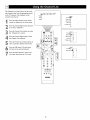
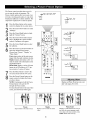
Press and release the red POWER button on the remote control as soon as
the channels start to change. The
Backlight buttons and selected Mode
button will blink twice to indicate the
Auto Search code setup is complete,
NOTE: If any other buttons are pressed during the procedure, the Auto Search will end.
Remember, Auto Search can take several minutes to complete, so please be patient,
21