1
Table of Contents
Introduction............................................................................................................................................2
Installation of the application...................................................................................................................3
What is SuperMemo UX...........................................................................................................................4
First steps with the application.................................................................................................................5
First steps with the course.......................................................................................................................8
Basic types of exercises...........................................................................................................................9
Other types of exercises........................................................................................................................12
Learning with Intensive Vocabulary Training System courses...................................................................17
Memorization with SuperMemo UX.........................................................................................................20
Listening to the recordings and speech analysis function..........................................................................22
Additional options..................................................................................................................................25
Application settings...............................................................................................................................28
Application update.................................................................................................................................30
Editing options of the application............................................................................................................31
Creating your own courses.....................................................................................................................33
Problem solving.....................................................................................................................................35
Document updated: March 3, 2012
Copyright© 1991-2012 SuperMemo World sp. z o.o.
1
Introduction
Welcome among the users of the SuperMemo UX application and thank you for choosing our offer.
The information in this manual applies universally to all the courses available with the SuperMemo UX
application. The operating instructions, learning principles and types of exercises are described below on the
basis of the Fast Track to CAE course. Special options available in the courses from the Intensive
Vocabulary Training System series are described on the basis of Extreme English courses on English
vocabulary.
The actual screen layouts in the application may be slightly different from these presented in the manual.
We kindly invite you to register the course you have bought. The registration will enable us to inform you
about new products and services, offer special discounts and be of better help should any questions or
problems arise. You can register the course by filling out an on-line registration form. You can find the link
to the registration form at http://www.supermemo.eu in the Help tab of the main menu.
All trademarks in this manual are property of their respective owners.
2
Installation of the application
After you have inserted the disc in your CD-ROM drive, the setup application will be launched automatically.
However, if the autorun feature of your CD-ROM is disabled on your computer, the setup application will not
be launched automatically. In such case open the autorun.exe file that can be found on the disc.
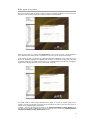
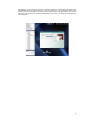
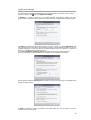
After the setup application has been launched, you will see a dialogue box enabling you to start the installa tion. After you choose ‘Install’, the setup application will check whether the environment essential for SuperMemo UX to work is already installed on your computer. The environment includes the following applications: Internet Explorer v. 6.0 or later, Windows Installer v. 3.0, Windows Media Player v. 9.0 or later, .NET
Framework v. 2.0. If any of the above mentioned environment components is missing, the setup application
will install it automatically. All the applications are necessary for the SuperMemo UX application to work correctly. The installation may take up to 20 minutes, depending on the speed of your computer, and requires
up to 300 MB of free hard drive space.
After a successful installation of the environment, the SuperMemo UX application and course setup will start.
Follow the instructions that appear in the dialogue box. You can choose to have the entire course installed
on your computer hard drive or to use the CD-ROM while learning. The installation requires up to 4 GB of
hard drive space in case of the Intensive Vocabulary Training System series, depending on the course
size and installation type chosen.
To uninstall the SuperMemo UX application, follow these steps:
• In the Control Panel, choose Add/Remove Programs,
• In the dialogue box that appears, choose SuperMemo UX,
• Click Add/Remove…
Minimum system requirements for the application:
–
–
–
–
Windows XP EN, Windows Vista EN or Windows 7 EN,
512 MB of RAM,
CD-ROM drive,
sound card.
3
What is SuperMemo UX
SuperMemo is a family of computer-assisted learning applications. Statistically, a simple information item
(like a date, a number or a new foreign word) is remembered for up to several days without recalling it
through usage, association or repetition. Successive repetitions tend to reinforce memory traces, therefore
the intervals between repetitions necessary to keep information in the memory become longer. By analysing
the processes of retention and forgetting, SuperMemo finds the optimum timing for the review of the learnt
material with minimum number of repetitions and minimum time spend on revisions.
SuperMemo analyses how each user manages to remember individual information items and schedules the
repetition on a day when the item is close to being forgotten. As a result the time spent on learning and
repetition is minimalised.
In SuperMemo the rate of recall, i.e. memorization effectiveness, is measured constantly during regular
repetitions. Intervals between repetitions are set individually and dynamically so that you reach your
required level of knowledge retention.
SuperMemo in the UX version is equipped in a smartly designed, intuitive and easy-to-use user interface. All
types of exercises used in the previous application version have been newly implemented. Moreover, new
types of exercises, prepared especially for language courses, have been added, as well as a scheduler, that
enables clear presentation of the learning plan and progress.
SuperMemo UX also enables to:
•
•
•
•
multiple user management; with only one installation many users can learn from the courses,
without the need to copy them,
learn from many courses simultaneously,
choose the material that should be taught, including and excluding information from the repetitions,
automatic on-line upgrade both of the application and course material.
SuperMemo UX is a tool for computer-assisted learning. The application will enable you to remember a great
number of information items provided that you will work with the material regularly and systematically. It is
therefore recommended to have a regular learning schedule with SuperMemo UX, ideally on a daily basis.
Even 10-15 minutes of learning with the application a day will be a source of satisfaction with the learning
results. Your memorization of grammatical rules will be permanent because you will practise their usage on
real language examples.
This method is applied in the practice part of the course. With diverse and interactive exercises the learning
with the SuperMemo UX application not only brings good results but it is also pleasant.
4
First steps with the application
To run the previously installed application, you have to click the SuperMemo UX icon in the Start menu or
on the desktop.
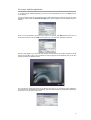
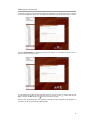
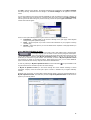
First you will see the login box. The application can be used by several users. If there is only one user of the
application, simply choose the Don’t ask me again option and the application will automatically log in the
last user.
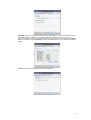
When you run the application for the first time, create a new account. Click New and fill out the form (as
the one shown below). Enter any Login of your choice (e.g. your name) and, optionally, a password.
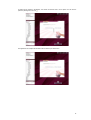
After you have logged in, you will see the main window of the application. This window presents your study
plan for the given day. A list of your courses and your learning progress will be displayed. Here you can also
change the settings of individual courses.
The next step is to choose the course you are going to learn from. If it is not the first course installed on
your computer with the SuperMemo UX application, a list of installed courses will be displayed automatically.
Choose the one you are going to learn from.
5
Of course you can choose many courses to learn from. All the courses that you choose will be presented in
the learning process without the need to switch between them.
To return to the list of installed courses later, choose the add option in the main window of the application
or choose the Course / Subscribe… option from the menu.
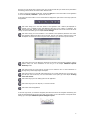
In the upper part of the window a set of round buttons is displayed for quick access to the major options of
the application.
This button brings you to the main window of the application with a session plan displayed. It
includes a list of installed courses and additional data such as the number of repetitions, new
exercises and drills, and the percentage of the material introduced. There is also a link to the course
settings. For more information go to the chapter Course settings.
This button brings you to the scheduler. It is a schedule of the repetitions planned for the month.
The application displays the data for all the courses. The user can choose a particular course from
the droplist. Use the arrows in the lower part of the window to go to the next or previous month.
This button brings you to the dictionary (this button is not active in the Intensive Vocabulary Training
System series). For more information on this tool go to the chapter Additional options:
Dictionary below.
This button brings you to the login box in which you can switch the user. For more information on
the login box go to the beginning of this chapter.
This button brings you to the edit mode which allows you to create and edit your own courses. You
can edit your own courses only. For more information on this option go to the chapter Creating
one’s own courses.
This button brings you to the setting options of the application.
This button brings you to the help file, i.e. this user’s manual.
This button closes the application.
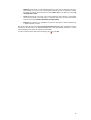
In the lower right corner you will find a navigation panel with three buttons for navigation and learning. The
panel can be dragged with the mouse to any place on the screen. For more information on the panel and its
settings go to the chapter Additional options: Navigation panel.
6
Some of the options are only available in the courses from the Intensive Vocabulary Training System
series.
Type in a word that you want to find in the course. Every word that you find in this
search can be then added to My list of phrases to learn. The words that you
choose in this way have priority in your learning process for a given day.
This button brings you to My list of phrases to learn. It presents a list of words to learn that you
have selected. You can add and delete selected words from My list of phrases to learn here.
7
First steps with the course
There are two ways to start learning:
–
click the name of a given course in the main window,
–
click the Start button in the navigation panel.
There is a navigation panel in the bottom right corner of the screen. The panel will contain three
buttons for navigation and learning. It is possible to move the panel to any position in the screen by
clicking the bottom bar of the panel and dragging it. More information about the panel and its settings
is available in the chapter Additional options: Navigation panel.
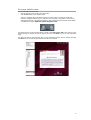
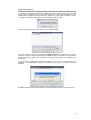
The sample learning process presented below is based on the Fast Track to CAE course. After you have
started learning, you will first see the title page of the course. Click Next to go to the first presentation
page.
First listen and read the text presented. After you have familiarised yourself with the material presented,
click Next to go to the next exercises related to this part of the material.
8
Basic types of exercises
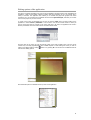
One of the interactive types of exercise consists in typing in the English translation. In some courses, the
first letters of the words have been given to help you find the correct translation.
After you have typed in your answer, click Check answer. If your answer is correct, it will be displayed in
green. Otherwise your answer will be in red and below or next to it you will see the correct answer.
In the majority of cases, your answers are checked automatically. Depending on the correctness of your
answer, the application highlights the suggested mark. However, you decide on the final mark. This option
is especially useful when you make just a small error, e.g. a spelling mistake. The application will suggest a
negative mark, although the answer was very close to the correct one.
The display mode for correct answers described above applies to all types of exercises except for the
“question – answer” type of tasks. In this case you give the answer out loud or in your mind. The correct (or
sample) answer is displayed below the question.
„Question – answer” is the basic type of exercise in the Intensive Vocabulary Training System series.
You will find more details on adding other types of exercises in such a course in the Learning with the
Intensive Vocabulary Training System series courses.
9
The application will mark your answer by highlighting in white one of the three options: Didn’t know,
Almost, I knew. However, it is the user who makes the final decision. Decide for yourself which mark you
should receive by clicking the appropriate button.
Please remember that the mark you receive for each exercise determines how they are scheduled for
repetition. If you have made a mistake in the exercise or if your answer is far from the one proposed by the
application, and you think you haven’t mastered the material yet, choose Didn’t know or Almost. The
exercises that receive such a mark enter the drill cycle automatically. You will therefore have an opportunity
to do the exercise again in the same study session. The exercises that receive the I knew mark do not
enter the drill cycle. However, you may come across them in the repetitions scheduled by SuperMemo UX
for the following days.
After you have marked yourself, the next exercises will be displayed automatically until all the tasks in the
set scheduled for the given session have been completed. If there are any exercises marked as Didn’t
know or Almost in the given session, the application will bring you to the drill cycle and you will do these
exercises again. This time you can also mark your answer, however you will only have two marks at your
disposal, Didn’t know and I knew, as you see the exercise for the second time in the same session.
The exercises are drilled in the same session until you have marked all your answers with the I knew
option.
When you go through the daily set of exercises and repetitions, the application will finish the study sessions
and will bring you to the main window. To continue learning and doing exercises from the next set, click
Start or the name of course you want to continue learning from. If you want to finish learning for the day
and exit the application, click Exit.
The program includes a mechanism for translating all words in the course in a context menu. All you need
to do is to mark the unknown word and click on it with the right button of your mouse. A menu will appear
where you can find the wanted word in its basic, uninflected form together with its translation. Once you
click on the translation, a dictionary window will open with the wanted word (e.g. In the No Problem!
series).
10
Furthermore, if you have any of the courses in the Intensive Vocabulary Training System, the context menu
will additionally show the words found in this course. By clicking on it, you will see the definition of the
word, its synonims and examples of use and you will be able also listen to the pronunciation. You may add
the word to your vocabulary list and learn it independently of the course – see Create My List of Phrases to
Learn on page 18.
11
Other types of exercises
A commonly used type of exercise in the SuperMemo UX application is the multiple-choice test. In this type
of exercise the application will give you a few options to choose from. Click the one that you think is correct.
Then click Check answer. The application will check your answer, i.e. it will mark the correct answer in
green and an incorrect answer in red.
In some multiple-choice tests more than one option is correct. The icons next to the options are then square
, and change into
after an option has been chosen. If the icon is round
, it means that only one
option is correct. The icon changes into
after you have chosen an option.
After you have answered the task, mark yourself by choosing the button suggested by the application or
any other if you do not agree with the suggested mark.
12
A similar type of exercise is the droplist. You choose one answer from a set of options. You can see the
options by clicking the arrow icon .
The application will complete the sentence with the answer you have chosen.
13
Click Check answer to see whether your answer is correct (green colour) or not (red colour).
As usual, you should mark yourself for your answer. The button Check answer transforms into three
marking buttons. The suggested mark is highlighted. After you have marked yourself, the application will
proceed to the next exercise automatically.
Another type of exercise consists in matching the listed elements with a category or gaps in the text. The
elements can be moved many times. After you have dragged an element to a given gap, an arrow
will
appear next to it. It allows you to move back an element if you think you have dragged it to an incorrectly.
The arrows will be visible until you click Check answer button.
14
After you have click Check answer, the application will show you with an appropriate colour whether your
answers were correct or not.
In the courses there are also exercises in which you will be asked to put the given elements in the correct
order. The elements that can be moved are framed. After you have completed the task, click Check
answer.
The application will display the correct answer in green. If your answer is incorrect, the application will mark
it in red and show the correct answer below it. As usual, you should mark your answer by choosing the
appropriate mark.
15
The last type of exercise in SuperMemo UX to be presented here is an exercise that consists in searching for
and selecting in the text an element according to the instructions. The word over which the mouse cursor is
placed changes its colour and when it is clicked, it will be underlines or crossed out. Another click on it will
make the underline or cross-out disappear. In this type of exercise usually many elements are underlined or
crossed out. After you have clicked Check answer, the application will display the correct answers in green
and the incorrect in red. After you have marked your answer, the next exercise will be displayed.
16
Learning with Intensive Vocabulary Training System courses
Basic path of learning
Directly after installation, the vocabulary in the course is ordered by the frequency of use and is displayed in
the Table of contents. By default only “question-answer” exercises are active. New words to learn are
displayed in the order of appearance in the Table of contents.
You can learn like in any other SuperMemo course, that is in the order scheduled by the application. In
“question-answer” exercises, the question includes: word definition, part of speech and a context sentence,
as well as synonyms (if there are any). Give your answer, that is the word that best fits the information you
can see. If you do not know the word yet, read the answer displayed by the application to learn it. After you
have marked your answer, the word goes to the repetition process according to the general rules of learning
and remembering in SuperMemo courses.
Choose your own path of learning
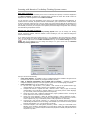
In courses from the Intensive Vocabulary Training System series you can change your learning
process, choose the material, order the material to learn according to your own needs and change the
choice of exercise types.
If you prefer exercises other than “question-answer” or you would like to learn the material in a different
order, you can change your path of learning and switch on additional types of exercises. Choose the button
in the top right corner of the Table of contents field to go to the Course settings. In the new
window that will be displayed you can change the settings of a given course from the Intensive
Vocabulary Training System series:
Here you can choose the following:
•
scope of the material – all available or only for a selected exam that is available at the given level of
the course (this option is available only in English vocabulary courses),
•
order of material presentation, the so-called path of learning – according to thematic
categories (subjects), frequency of use (how popular a given word is in the language) or alphabet,
•
types of exercises out of the six available for every word:
✔ Say the word / Sag das Wort / Di la palabra – basic exercise of the question-answer type,
recommended if you would like to build up your vocabulary in an active way,
✔ Complete the sentence / Ergänze den Satz / Rellena la frase – filling in gaps in sentences,
recommended if you would like to practise spelling or if you actively use the written language,
e.g. write emails, where both spelling and form are important,
✔ Choose the correct word / Wähle das passende Wort / Elige la palabra correcta – choosing the
correct option from a set of options in a sentence,
✔ Choose the correct definition / Wähle die passende Definition / Elige la definición correcta –
choosing the correct definition for a given word, recommended if it is enough for you to know a
word in a passive way, e.g. to read articles, listen to radio programmes or watch films,
✔ Listen and say / Hör und sag / Escucha y di – exercise of the question-answer type based on
understanding the definition in the recording, recommended if you would like to actively practise
listening comprehension, e.g. if you are going to go abroad,
✔ Listen and complete / Hör und ergänze / Escucha y rellena – writing in a word based on the
definition in the recording, recommended if you would like to master your spelling and listening
comprehension, e.g. if you have frequent contacts with people from abroad, both personal and on
the phone or by email.
17
Click OK to confirm all the changes. The changes introduced will be displayed in the Table of contents
and during learning. Remember that the changes in the Course settings will be applied in the entire
course.
You can also modify the scope of the exercises individually for each word during the process of learning. In
order to change the types of exercises for a particular word click a given word in the Table of contents
with the right mouse button during the process of learning. Choose the option Types of exercises... in the
context menu that will appear.
There are more options directly linked to a given word in the context menu displayed above:
✔ Information – includes details on the process of learning of the given page, marks assigned
during learning and repetitions planned,
✔ Reset – choose this option if you want to reset all the information on your progress in learning
with this page,
✔ Dismiss – choose this option if you want to dismiss further repetition of this page because you
know it very well.
Create My list of phrases to learn
When you come across new words in class, while reading a text or watching a film
in a foreign language, you can search it in the course by using the search option.
Type in the word that you want to find in the search field. Each word that you find
you can then add to a collection called My list of phrases to learn. In this way you can first learn the
words that you need most in a given moment. The words that you select to My list of phrases to learn
will be the first to appear in your learning session. While learning each word, you can choose additional
types of exercises for each word by using the context menu described above.
In order to go directly to My list of phrases to learn click the round button
top part of the screen or the button My list in the Course settings.
of My list available in the
In My list of phrases to learn you can browse through the course material according to various
parameters: subjects, levels and exams (this option of exams is available only in English vocabulary
courses).
Whichever view you choose, you will be able to select particular words or groups of words and add them to
My list of phrases to learn. The words that you select to My list of phrases to learn will be the first to
appear in your learning session.
18
•
Subjects include the list of all the thematic categories in the course. By clicking the name of a
given category you can go to a list of subcategories, and finally to a list of words that it includes.
By clicking any word on the list and then the option Add to list you can add every word to My
list of phrases to learn,
•
Levels include the list of all words in the course according to their frequency in the language
(from the most popular to the least used). It is especially useful when you have more than one
course from the series Intensive Vocabulary Training System,
•
Exams allows to present a list of phrases for a given exam (this option of exams is available only
in English vocabulary courses).
After all the words that you have added to My list of phrases to learn have been introduced, and before
finishing the learning session, the application displays next words automatically scheduled for a given
session according to the path of learning that you have chosen.
In order to close the list view and go back to learning, click
or press Esc.
19
Memorization with SuperMemo UX
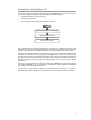
To start your everyday learning session with the application, click Start button (or choose a course from the
list). During the session the application will guide you through the following stages:
•
repetitions scheduled for the given day (if any),
•
memorizing new information,
•
drills of exercises which have been poorly marked in this session.
Repetitions scheduled for the given day
Memorizing new information
Drills of the new material
The memorization with the SuperMemo UX application is an endless cycle of repetitions. However, do not be
afraid that you will lose your time repeating the material with which you are perfectly familiar. After several
repetitions such material will be repeated so seldom that it will virtually disappear from your study plan.
SuperMemo UX organizes repetitions in a way that allows you to revise the material that is indeed close to
be forgotten on a given day. To go through repetitions, click Start button (or choose a course from the list).
Only after you have done all the repetitions scheduled for a given day does the application proceed to the
presentation of the new material. The final stage is a drill session to master the information items that have
been poorly marked at the previous stages of the learning sessions. They are drilled until they receive a
positive mark.
Even if you are not going to learn new material, you should use the Start option to check whether there are
any repetitions scheduled for you by the SuperMemo UX application. Undone repetitions accumulate and
after a longer break it may be difficult to catch up.
The more days a given repetition is delayed, the more difficult will be the answer to a question in
SuperMemo UX repetitions. Irregular work with SuperMemo UX can be therefore extremely demotivating.
20
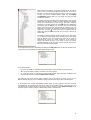
While learning new material, you can skip anything you do not want to
learn or return to a previously completed set of exercises. To do this, in
the table of contents choose the page from which you want to continue
learning. You can also navigate between pages with the PageUp
and PageDown buttons (Note: you can change the page only while
learning new material).
The nodes in the table of contents have various symbols, which can also
change during the learning process. The pages skipped in the learning
process are marked with an empty icon
. The pages aimed for
repetitions are marked
. After the exercises have been displayed in
the learning mode for the first time, the colour of their titles becomes
lighter, which means that they have entered the repetition cycle. The
pages that are not meant for repetition (so-called one-time pages) are
marked with a symbol
, which means that the application will not
display them again in the learning mode. You can return to them in the
review mode.
SuperMemo UX usually schedules the first repetition of any page within
2 or 3 days from its first display in the learning process. This interval
does not depend on the mark received. The mark will be crucial for
determining the interval for further repetitions. If the marks are
positive, the interval will grow. If the marks are poor, the interval
between repetitions will be very short and the exercises will enter the
drill cycle in the same learning session.
In the upper left screen corner SuperMemo UX displays the study plan which is a box with the data on the
course, exercises and repetitions. The data change during learning.
In the above example:
•
0 - shows the number of repetitions from previous lessons, which will begin the learning session,
•
10 - shows the number of pages to be learnt in the current session,
•
3 - shows the number of exercises that have entered the drill stage (drill stage comprises all the
exercises that have been marked as Didn’t know or Almost).
The study plan also shows at which stage of learning you are at present. Of course, you can go to a
different learning stage (or even to a different course) by choosing the relevant item in the study plan.
If, while learning new material and switching between pages, you find a page that has been previously
completed/learnt, the application will switch to the review mode (signalled properly in the study plan). You
can return from the review mode to the learning mode by using the option Resume learning in the
navigation panel or simply by clicking a different stage directly in the study plan.
21
Listening to the recordings and speech analysis function
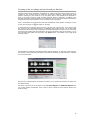
Language courses with the SuperMemo UX application use a built-in and state-of-the-art speech analyser. It
provides you with a unique option for autonomous pronunciation perfection. Having heard the native
speaker’s recording, the user records his or her own speech, which is then assessed by the application in
terms of the accent, intonation, speed and other important aspects of articulation. In addition to the
automatic assessment of these parameters by the application, there are also various diagrams generated by
the application that provide information on the correctness of the pronunciation.
Texts in presentations and most exercises have been illustrated with native speakers’ recordings. To listen
to them, click the player icon
that appears on the page.
To simply listen to the recording, click the left part of the icon (with a green arrow). If you click the right
part of the icon (with a small downward arrow), an additional player window will open. You can then access
the frequently used functions, such as stopping or forwarding/rewinding the recording. You can also change
the speed of the recording (this option depends on the chosen mechanism to play the recordings). To go to
the pronunciation drill module from this window click Speech option. It is available only for single words
and short phrases.
The SuperMemo UX application uses advanced speech analysis algorithms. On their basis, partial marks for
the intonation, accent, speed and pronunciation correctness are calculated. The total final mark is a weighed
sum of the partial marks.
With the use of several diagrams, SuperMemo UX enables you to visualise and compare your speech with
the model recording.
The options in the lower part of the window in the fields Basic diagrams and Additional diagrams allow
you to switch between the diagrams. There is also an option to adjust the user’s speed of speech to the
model recording.
22
Graphs generated by the application
Spectrogram
The sounds you produce are different from one another. For example, the difference between “a” and “s” is
more audible than the difference between “a” and “o”. The source of the differences and similarities
between the sounds are their component frequencies. Each sound is comprised of so-called basic tones. The
application decomposes sounds into these basic tones and draws them on a spectrogram. The higher in the
spectrogram the higher are the component frequencies, and the lighter the point the greater the amplitude
of this component.
Amplitude
The amplitude diagram shows the air vibration registered by your microphone. With the amplitude diagram
it is easy to notice the end of one sound and the beginning of another.
Intonation
Th eintonation diagram shows how high the vowels are pronounced in a given expression. This diagram is
drawn on the amplitude diagram or on the spectrogram.
Accent
The accent diagram shows how much energy was transmitted in a given moment of time. It shows
therefore how loudly you pronounce a given part of the utterance. This diagram is also drawn on the
amplitude diagram or on the spectrogram.
What does each mark show?
Mark for intonation
To see an intonation diagram select the Intonation option in the Additional diagrams field.
When you speak, your speech has a certain melody. Changing the voice modulation creates the melody.
There is a different melody for an affirmative, interrogative and exclamative sentence. If your mark for
intonation has been low, you should certainly work on its improvement. Otherwise you will be
misunderstood. Listen repeatedly to those fragments of the recording that have been marked with green on
the model diagram. This means that in these fragments you should pronounce voiced sounds, which you
have failed to do previously. This is why you intonation diagram is different from the model one.
Mark for accent
To see an accent diagram select the Accent option in the Additional diagrams field.
Accent provides information on how loudly you pronounce a given fragment of an utterance. If the model
diagram changes dynamically and is very irregular while yours is flat, it means that your recording should be
more expressive and less monotonous. Listen repeatedly to the fragments where your diagram has lower
values than the model one, and then repeat them much louder than you did originally. And analogically, if
your accent diagram has a higher value than the model one, produce the utterance more quietly.
Mark for speed
The mark for speed is comprised of the mark for how quickly you uttered a given phrase (if you have
uttered it slower than the model recording, the application will subtract points from your score) and for the
tempo of a given phrase (if you pronounced the first word of the utterance quickly and the last one slowly,
the application will subtract points from your score). Try to speak at the same pace as the native speaker
does in the model recording.
Mark for correctness
The mark for correctness shows whether you pronounced the same sounds as in the recording. If you
pronounced “a” instead of “o”, or if you have skipped a sound in the utterance, the application will subtract
points from your score.
Final mark
The final mark is comprised of the partial marks described above:
• intonation,
• accent,
• speed,
• correctness
and marks for the following parameters:
•
•
•
•
•
lightness of individual sounds,
degree of sound phonation,
energy transmitted in particular bands of the utterance,
speed of sound amplitude changes,
others.
23
A few pieces of advice for the application to understand you well
• Speak loudly and clearly. If the application informs you that you speak too loudly, move away the
microphone instead of lowering your voice.
• Follow the native speaker in the recording in his or her accent, intonation and speed.
• Do not smack your lips or click your tongue. Do not breathe out loudly both before the articulation and
after you have finished it. The application may interpret it as a part of your utterance.
• Work in a silent room. Additional sounds may interfere with the correct functioning of the application.
• Be patient. Try to repeat the same fragment several times. Repetition will guarantee your final success.
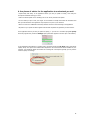
If the application informs you that you speak too quietly, i.e. you will see a comment saying Too quietly
above the progress bars, choose the Settings option (this button appears in the lower part of the window).
In the advanced sound settings for recording with a microphone choose the Mic Boost option (microphone
capacity boost). The layout of the window below depends on the sound card and drivers installed on your
computer. You should also adjust the loudness for recording with a microphone (possibly you may need to
lower the quality of recording).
24
Additional options
Course settings
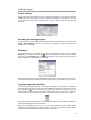
You can access the course settings from the main window of the application. You just need to click the link
change next to the course name. You will see a settings window where you can change the number of
exercises planned for a single session and the forgetting index. Additionally, with the buttons on the right
you can reset the learning progress, unsubscribe from a course or delete a course from the hard drive
completely.
Resetting the learning progress
To reset the learning progress (delete all repetition data and start from the beginning) you should use the
Course / Reset progress... option in the main menu of the application or use an alternative option
available in the course settings.
Dictionary
Some of the courses in our offer include a built-in dictionary. The option is available in the menu Tools /
Dictionary or by clicking the dictionary icon
. After running the dictionary you can look up a phrase by
typing it in the Look for phrase field or by searching it directly in the list. Before the search choose the
translation direction, e.g. English-Polish or Polish-English.
By clicking the right mouse button after having marked the word you do not know, you may also see in the
context menu its translations or defintions, depending on what course you have installed on your computer.
Language keyboard (diacritics)
Some exercises in language courses aim at checking your knowledge of the orthography. Some languages
use special letters which cannot be typed in from the standard Polish keyboard. In SuperMemo UX you will
find a keyboard icon
. next to the field where you have to type in a text. When you click the icon, you
will see a small window with diacritics characteristic of this language. When you click a letter, it will appear
in the field where you have to type in your answer. Double-click a letter if you want to type in a capital.
An alternative solution is to install a given language keyboard in Windows. Such an option is available in the
regional and language options of the Control Panel.
Starting with the SuperMemo UX version 1.3.1 you can write characters of a given language without
installing the necessary keyboard. Just click the keyboard icon next to a gap for entering a text and select
the appropriate letter. Press Shift while clicking to receive a capital letter.
25
The version 1.3.1 of SuperMemo UX and newer ones enable you to assign a different system keyboard to a
given course. This makes it possible to enter texts in a particular language simpler and more comfortably
without remembering about switching manually between the keyboards.
When learning with a language course, the most comfortable way to enter characters not existing in your
keyboard is to install an international keyboard that allows you to enter national characters easily. To do
that:
For Windows Vista:
•
•
•
•
•
click the Start button / Control Panel / Clock, Language, and Region / Change Keyboards...,
click Change Keyboards,
click the General tab, and then click Add...,
on the list find and select English (United States) - American - international,
click OK to accept the choice.
For Windows XP:
•
•
•
•
•
•
click the Start button / Control Panel / Date, Time, Language, and Regional Settings,
select Regional and Language Options,
click the Language tab, and then click Details...,
click the Settings tab, and then click Add...,
select [your language], as the regional settings and American - international as the keyboard
layout,
click OK to accept the choice.
For Windows 2000:
•
•
•
•
click the Start button / Control Panel / Regional Options,
click the Regional Settings tab, and then click Add,
select [your language], as the language and American - international as the keyboard layout,
click OK to accept the choice.
Now you can assign the international keyboard to every course.
When the international keyboard is activated, five accent buttons (' " ` ~ ^) change their functioning in this
way that the system waits for selecting the following button in order to present a combined symbol. For
example, after pressing apostrophe ', and then the a button, you will receive á. While after pressing the
tilde ~ and then n , you will get ñ. Similarly, first press ", and then u to get ü.
In addition, most of the national characters can be written by using right Alt. For example: alt + e = é, alt +
n = ń, alt + ? = ¿, alt + ! = ¡, itd.
Navigation panel
With the navigation panel you can move from page to page, mark yourself and use the basic application
functions. It is one of the most frequently used elements of the application. It is therefore possible to use
the keyboard to operate the navigation panel.
If NumLock is on, the navigation panel can be operated with the numerical keyboard:
•
the 4 button operates the left panel button,
•
the 5 button operates the middle one,
•
the 6 operates the right one.
The buttons can be assigned different functions in the application settings, available in the top menu
Tools / Options). In the application settings you can also change the button animation speed or switch to
the simplified panel version.
26
Multiple user management
The SuperMemo UX application enables many users to learn from the same course. You simply need to
open a separate account for each user of the application. After the user has logged in to the application,
they will see only their learning progress. It is possible to switch between the users while using the
application. To do this, click the round user switch icon
or choose the User / Switch … option from the
application menu.
Notes
You can now add notes with your comments to individual pages of the course while learning. To add a note
simply click the icon in the Table of contents or choose the Note option in the Page menu. Once a note
is created, it can be edited after double-clicking its field with the left mouse button.
Flexible display of exercise components
Configuration of visible page components is now possible in certain vocabulary courses. To change these
settings right-click the exercise field and then click on the Configure exercise... box. You can now choose
which elements of a given type of exercise will be displayed. Changes introduced via the form will be
automatically applied to all the pages of the same type in the course.
27
Application settings
The settings of the SuperMemo UX application can be changed according to the user's needs. In order to
change the settings, click
that opens Application settings.
In Settings it is possible to choose the user interface language. The languages available are: Polish,
English, German. All the information and texts in the application will be displayed in the language selected.
In Panels it is possible to change the display options. The user can switch on or off the Repetitions panel
that is displayed in the bottom left corner in the learning process. It shows detailed information on the next
scheduled repetition for a given page that has just been processed. When it is switched on, it requires an
extra click on the OK during the process of learning.
By choosing Transparent navigation panel the navigation panel buttons become transparent.
Here it is also possible to choose the speed of the animation for the navigation panel buttons.
With the options available in Performance it is possible to improve the performance of the application and
change the display settings.
In Audio it is possible to choose a mechanism for the media player. The user can switch on or off the
interface sounds or all the sounds.
28
Shortcuts include a list of keyboard shortcuts that allow easy navigation in the course. With the shortcuts a
wider scale of marks is available (0-5). The default setting are the shortcuts from Ctrl+1 to Ctrl+6.
The user can delete or change a given shortcut. Choose the option that you want to modify. Click Reset to
delete a given shortcut. Then click Change, and press the selected shortcut on your keyboard to modify the
settings.
In Misc we can choose old final drills to be deleted automatically.
29
Application update
The SuperMemo UX application contains an integrated mechanism of updating via Internet. The update
involves both the application and the courses in the learning process. Once a week the application tries to
establish Internet connection and check whether any application or course update in available. If there is
any update, the application suggests that the user download and install the update.
The download of application and course updates in performed automatically.
The update can also be started by choosing Tools – Check for updates in the application main menu. A
window for application update will be displayed. Click Check to see if any application or course update is
available. If there is any update, it will be installed. The user will see the progress of the operation and all
the messages.
In order to have an update on the Windows Vista system, the user has to run the application as the
administrator. On clicking Check a message will be displayed to inform that it is necessary to restart the
application.
Click OK. The application will be closed automatically and restarted. Allow the restart as the administrator.
30
Editing options of the application
The option of creating and editing one’s own courses is available in the latest version of the SuperMemo UX
application. A built-in course editor enables an intuitive and easy preparation of your own courses with a
variety of exercises. The application also enables you to illustrate the pages with graphics and sound
recordings. Your own recordings are compatible with the built-in speech analyser, therefore you can also
use it for the purpose of your own courses.
To create a new course in SuperMemo UX you have to click the select link in the main window of the
application or choose Course / Subscribe… from the menu. You will see a small window in which you
have to choose the option for creating a new course and type in its name. The application will create a
directory named after the course where all the course data will be saved.
Click the name of the course to enter the learning mode of the newly created course. The new course
contains only one empty page displayed with a default template. To start editing the course you have to
switch to the editing mode by clicking
button or by pressing F9. You will then see an additional tool bar
with the basic editing options.
More advanced options are available in the top menu of the application.
31
The tool bar is comprised of two lines. The upper line comprises basic options that enable you to:
Edit the entire course page
•
change the page template,
•
add a new page at the end of the current chapter,
•
insert a new page before the current page,
•
cut a page,
•
copy a page,
•
paste a page before the current page,
•
delete a page,
Use multimedia options
•
open a window with a media list for the current page,
•
define an automatic question sound,
•
define an automatic answer sound,
Use course options
•
edit course properties (course description, authors, Internet address, etc.)
The lower line of the tool bar comprises options that enable you to:
Edit particular areas of the page
•
•
•
•
•
•
•
•
•
•
bold,
italics,
underline,
cross-out,
superscript,
subscript,
default format,
numbered list,
bulleted list,
table,
Define interactive page elements
•
•
•
•
•
•
•
additional graphics,
additional sound recording to be played if clicked,
spellpad,
multiple choice with 1 correct answer,
multiple choice with more than 1 correct answers,
droplist,
“true - false” component.
For more details place the mouse cursor over a particular option.
32
Creating your own courses
After you have created your own course (for details go to the Editing options of the application
chapter) and entered in the edit mode, you can start adding texts and defining the exercises.
Creating the structure
First it is recommended to give the page a title. To do this, click the page name in the table of contents or
press F2. After you have entered the title, press ESC.
Then click page parameter button
to change the page template and type. Choose Chapter to be the
page type and click OK. Notice that the page icon
in the table of contents has changed and that a
plus symbol has appeared to show that the page is now a chapter and that it contains other pages. Open
the branch in the table of contents and click the only page in the chapter.
Now choose the option to add a new page at the end
or to insert a new page
in order to add more
pages in this chapter. While adding new pages you define their template and type. Notice that by adding
pages in the chapter and changing them into chapters you can create a complicated tree structure of the
course. Create a page of the SuperMemo exercise type.
Edit the contents of the page
A page contains several areas that can be edited. For exercises, in the Question / Information area the
content of the question is presented, whereas for presentations a text is shown. The Answer area contains
the answer. It is displayed only in the answer mode. Now click the question area and enter the question. To
finish editing the page press ESC or click anywhere outside the edited area. Proceed analogically with the
answer.
You have already defined the most basic type of “question – answer” exercise. You can now add sound
recordings to it. If you want to an automatic question sound, click the question sound icon
. Notice that a
has appeared above the question. There is a “no entry” sign on the icon, which means
sound player icon
that no sound has been defined to be played on this page. Click the player icon and choose the mp3 file that
you want to be played on this page.
The selected file will be added to the media list of the current page. To see which files are used by a given
page click the
icon to open the file list. In this window you can change files, add new ones, play them,
etc.
Adding other media
Now try to insert additional graphics to your question. Click the question area to enter the edit mode of the
question, place the mouse cursor where you want to insert the graphics and click the graphics icon
. You
will see a window that enables you to define the graphics parameters. Choose the Image embedded on
the page option, and then click the Add button. You will see a familiar window with a media list of the
current page. Use the Add option to add any graphics to the current page. While adding the file the
application will ask you about the index for it.
All multimedia files added to a given page are indexed with successive letters of alphabet. The letters “q”
and ”a” have a special purpose: a sound recording indexed as “q” will be automatically played with the
question, whereas a sound recording indexed as “a” will be automatically played with the answer. The
application automatically suggests the following free letter, so you just have to click OK, and then Close.
Notice that you can now choose an image to be embedded on the page (the selected image will appear in
the preview window). Click OK to finish embedding the image.
Analogically, you can add sound recordings (to be played if clicked). You just have to use the sound icon
while editing the question.
Interactive exercises
Now try to create another exercise, this time an interactive one. Such an exercise usually does not contain
any answer, whereas there are interactive components inserted in the question. The most basic type of this
component in Spellpad. Try to create a simple exercise with the spellpad component. Go to the edit mode
of the question and type in any sentence. Then using the mouse select the word instead of which a gap will
appear in the learning process. Then click the spellpad icon
. The selected text will appear in a new
window as one of the possible answers. You can add alternative correct answers in separate lines. In the
Settings tab you can define additional spellpad settings. Click OK to finish defining the spellpad.
33
You can create other exercises with interactive components in a similar way. For example, it is often
necessary to create a multiple choice exercise with one correct answer. For this, you can choose either
Multiple choice single select
or Droplist
. A similar type of exercise is Multiple choice
multiple select
, however here the user can choose more than one possible options. Notice that the
options are ordered randomly every time the exercise is displayed so that the user cannot simply memorize
the position of the correct answer.
The last component you can choose while creating exercises is the “True-false”. The component enables the
user to choose e.g. if a given sentence is true or not.
Of course, many components can be mixed in one exercise. In more advanced exercises you can use tables
which can be defined using the icon
.
The exercises that you created earlier can be later edited. To change the properties of a component you
simply need to double-click the component and the settings window will open.
Course properties
Now you only need to open the course properties window
and complete the course information, i.e. the
description, authors, etc. In this window you can also change the name of the course. You can also provide
a link to the course description in the Internet and define an icon symbolising the course.
To view your course in the learning mode, click the
button or press F9 to exit the edit mode.
This is the end of the description on how to create your own course. Have a go on your own and create
your own courses.
Note: the editing options of the application are simplified in order to make the application maximally userfriendly. In the SuperMemo World offer there is also a separate professional version of the Editor used in
commercial courses. For more information go to our website at http://www.supermemo.eu.
34
Problem solving
In case of any questions or problems with the correct functioning of the application, follow these steps:
•
read the brochure How to learn with SuperMemo UX (this text); press F1 to access its full version in the
SuperMemo UX application,
•
if you do not find the answer to your question there, go to our website at http://www.supermemo.eu.
The Help tab includes answers to FAQs and solutions to the most common problems.
35