1
Hark Systems, Inc.
Verifier II – October 1998
The messages are stored in the internal memory and can be viewed using the
Show Captured Messages option discussed in the following section.
8.7 Show Captured Messages
The Show Captured Messages option provided on the Search Menu allows
you to view the contents of captured messages. A message is captured if either
the capcode referenced in the message matches a capcode referenced in the
search list, or a character string in the message matches one of the search
strings.
Perform the following steps to view the contents of the captured messages.
1.
Select the Search Menu option from the Main Menu by keying a 2 at the
Enter Command prompt.
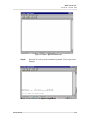
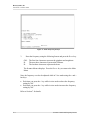
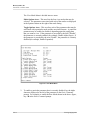
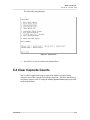
The Search Menu displays. As messages are captured, the amount of
message memory being used, the percentage of message memory being
used, and the number of captured messages displays below the Show
Captured Messages option. Refer to Figure 27 for the location of this
information.
2.
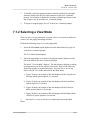
Select the Show Captured Messages option by keying a 7 at the Enter
Command prompt.
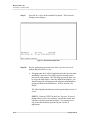
The Enter Capcode to Display or <CR> for All prompt displays.
3.
If you only want to view the messages that reference a particular capcode,
enter the capcode at the Enter Capcode to Display or <CR> for All
prompt and press the ENTER key.
If you want to view all messages, regardless of the capcode, simply press
the ENTER key while the prompt is displayed.
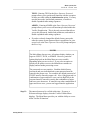
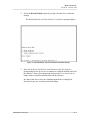
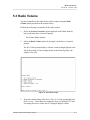
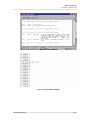
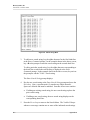
In either of the above cases, the appropriate messages are displayed.
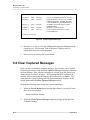
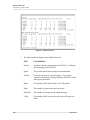
Refer to the following figure for a sample. The receiving capcode, page
type, date and time page was sent, and contents of the message are listed.
Appendix B
B-9