1
Multi-criteria analysis
In this step, the user is required to set weights for all the selected criteria
according to their importance and set value functions for each lowest level
criterion according their understanding of the relationship between the
criterion natural scales and their utilities in the evaluation system. These
settings will be applied to all the alternatives and the calculated result will be
visualised directly at the end of the step. Details about the MCA, additive
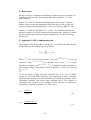
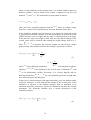
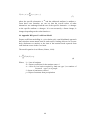
utility analysis are described in Appendix A.
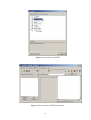
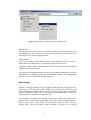
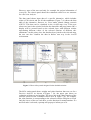
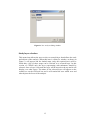
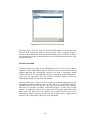
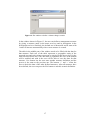
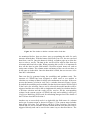
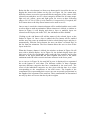
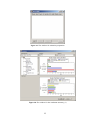
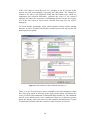
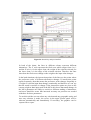
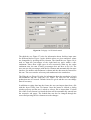
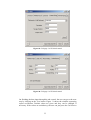
Once the Multi-Criteria Analysis item is clicked, the window shown in Figure
16 appears for setting weights and value functions. The top drop-down menu
is used to select a criterion. The user can select an arbitrary one from the drop
down list of the decision criterion combo box or press the ext button to select
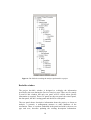
next one in order. For each selected criterion, the weights setting part will be
always enabled, but the right part of the window will be enabled only when
the selected criterion is one of the lowest level criteria.
Figure 16: Interface for MCA
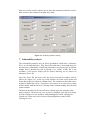
In weight setting, any non- negative integer can be given as a weight for the
selected criterion. This non-negative integer should be typed in the textbox
below the criteria tree and when the Set is pressed, the weight will be written
in between brackets at the end of the criterion in the criteria tree. A cross will
disappear when that is done.
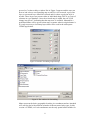
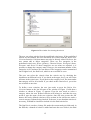
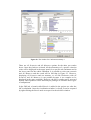
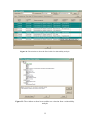
There are two crosses at the end of each lowest level criterion. The second
cross will disappear when its value function has been set. The user can press
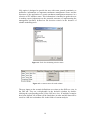
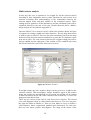
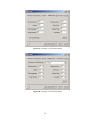
the right Set button to finalise it. There are four kinds of curves to define a
value function: linear, exponential, parabola and customised. For each one,
there are two slopes: positive and negative. The range of the values of the
20