1
The General Tab
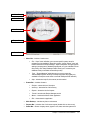
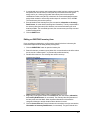
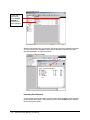
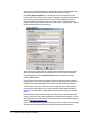
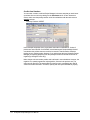
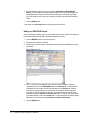
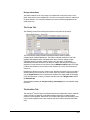
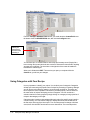
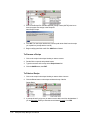
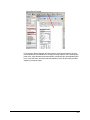
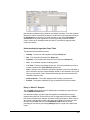
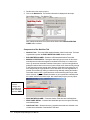
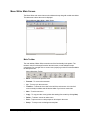
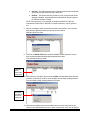
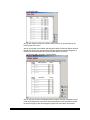
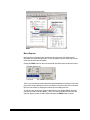
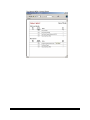
The center of the General tab shows you the list of all recipes currently using this
inventory (ingredient). Note that if you open a popular item used in many recipes, it may
take a while to open this tab.
Recipe Costing Methods
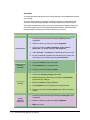
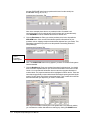
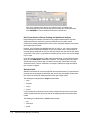
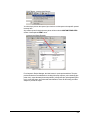
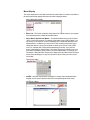
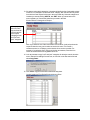
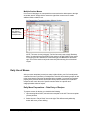
This field allows you to price an inventory item in one of five ways. The most common
method is to use the last price available and is also the default. This way your recipe costs
will best reflect inventory item costs, but you may choose to use one of the other methods.
Use Last Purchase will allow recipes to always reflect the most current prices that you
have paid for.
Use Highest Cost Paid can be used to insure that a specific profit margin or percent food
cost is maintained when costing recipes.
Use Lowest Cost Paid is useful for caterers when bidding jobs, when it is necessary to
be highly competitive.
Preferred Vendor is generally used when this item is often purchased from one single
vendor and that reflected cost is what needs to be used. So in situations where you
bought from another vendor in an emergency situation, this will not affect your costing
strategy.
Average Cost Accounting is used to average the cost of all purchases to date. This
average cost will be the number used in all calculations.
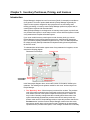
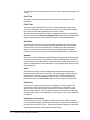
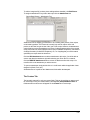
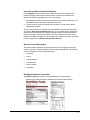
Flag When Last Purchase is…
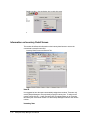
This field allows you to flag an inventory item when it fails to satisfy predetermined
specifications. These two specifications are time and cost.
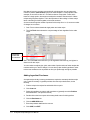
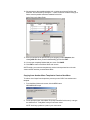
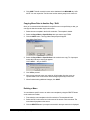
1. Cost Flag - If you want to have the program warn you when the price of an inventory
item has gone above a maximum price, choose the "Above $xxx.xx" field. You may
enter the maximum price / unit that you want to pay for the inventory item. Now
whenever the price of the inventory item rises above this number, the item will be
flagged a bright red color in the inventory screen and the recipe "Cost" screen. You
will see when you repriced a recipe that this inventory item has exceeded this price
barrier.
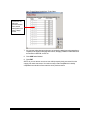
2. Time Flag - If you want to have the program warn you when the price of an inventory
item has not been updated for a predetermined period of time, enter the period here.
By doing so, the item will be highlighted in gray when this period of time has expired.
This too will be flagged in the inventory screen and the recipe "Cost" screen.
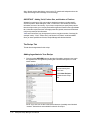
The Unit Conversion Tab
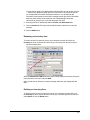
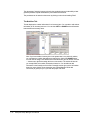
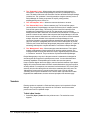
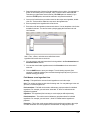
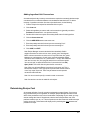
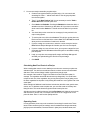
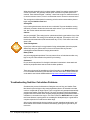
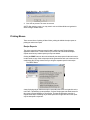
This tab will allow you to enter or display different unit conversions for this inventory item.
Unit Conversions are necessary for recipe costing, nutritional analysis, and for doing
inventory. For recipe costing and nutritional analysis, they only need to be added when
Recipe Manager cannot automatically convert from one unit to another.
2-13