1
C SV I MP O RT : USER MA NUA L
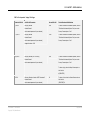
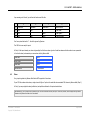
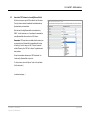
Introtext: Handles full text and HTML
Full text: Handles full text and HTML
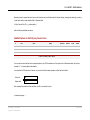
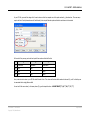
Section ID & Category ID (Optional): If you would like to assign content within a CSV file to different categories and sections, create TWO columns
in your CSV file, and provide the numeric ID of your Joomla section/category in the CSV cell.
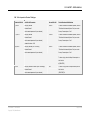
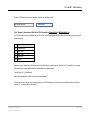
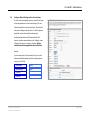
Additionally, you may set global settings that will be applied to all imported content items. This is a very useful feature that eliminates the need to add Joomlaspecific columns to your CSV file. Simply set these options once, and they will be applied to all imported content items:
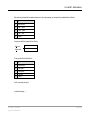
Author ID: User ID of the author that will be attributed to the new content items
Section ID: (Required) Any items that do NOT have a value for section ID in the CSV file (either because there is no column or because there is no
value in the source cell) will be assigned to this section
Category ID: (Required) Any items that do NOT have a value for category ID in the CSV file (either because there is no column or because there is no
value in the source cell) will be assigned to this category
Published Status: the default publish state (yes = published, no = not published) of the new content items
Meta Keywords: keywords for all items (optional)
Meta Description: description for all items (optional)
Create Date, Publish Start Date, Publish End Date
Access Level: controls content user group permissions for the all new content items
Show/Hide Parameters for Back Button, Author Names, Created Date, Modified Date: basic settings under the “Parameters” tab of Joomla
content items
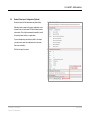
Default Image: Image will be associated with all content items. Very useful for attaching a logo or “Image coming soon” or “No Photo” image to
content items.
3 . USI NG C SV I MP O R T WI TH JR EVI EWS
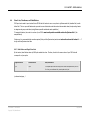
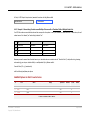
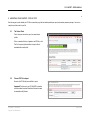
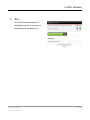
CSV Import allows content from CSV cells and columns to be associated with any of your defined jReviews fields. The CSV Import wizard will read the columns
from your CSV file (by interpreting the header row of the file) and give you the option to associate each column with a corresponding field in jReviews.
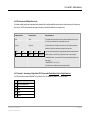
Upon import, a new Joomla content item will be created, and the corresponding cell text will be saved to the database in the corresponding jReviews field,
regardless of compatibility; there is no validation in the import process (e.g., validating that the imported content for an “integer” field is in fact an integer).
CSV IMPORT :: User Manual
Copyright 2008, NakedJoomla
Page 3 of 21