1
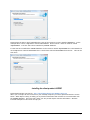
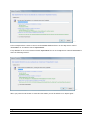
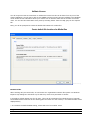
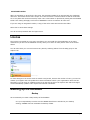
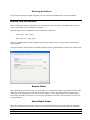
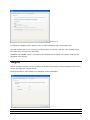
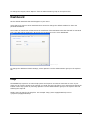
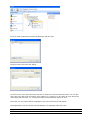
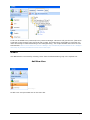
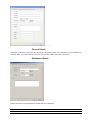
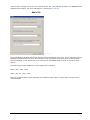
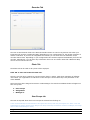
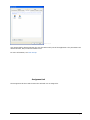
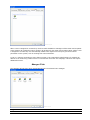
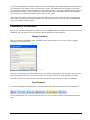
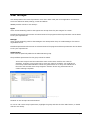
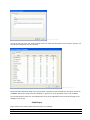
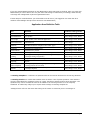
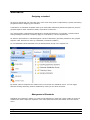
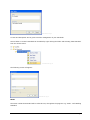
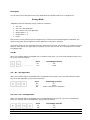
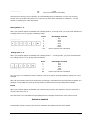
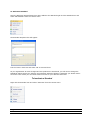
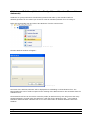
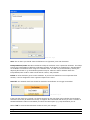
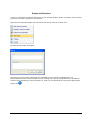
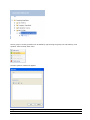
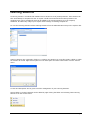
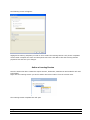
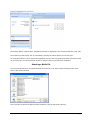
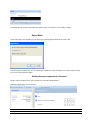
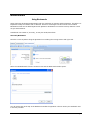
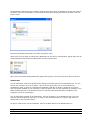
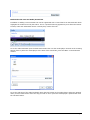
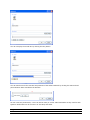
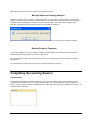
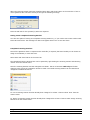
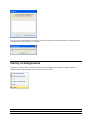
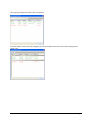
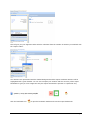
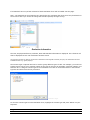
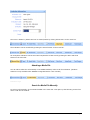
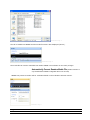
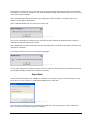
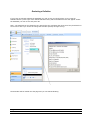
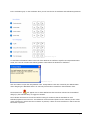
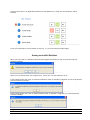
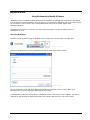
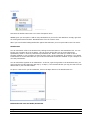
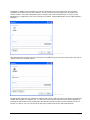
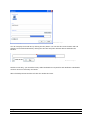
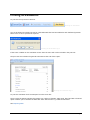
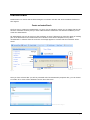
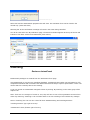
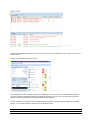
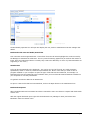
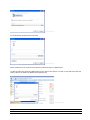
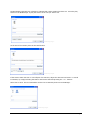
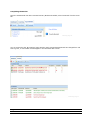
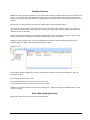
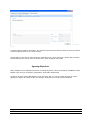
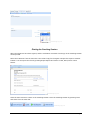
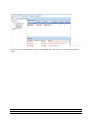
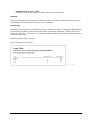
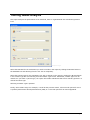
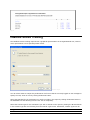
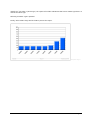
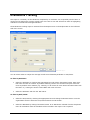
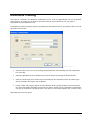
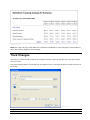
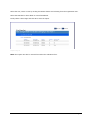
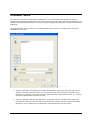
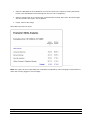
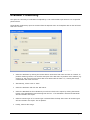
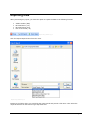
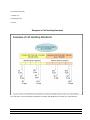
Printing an Evaluation To print the form press Print Preview. Printing an Evaluation Fig.1 You are prompted to include the text for each bookmark that has been added to each definition/question. Select „Yes‟ or „No‟ to proceed as required. Printing an Evaluation Fig.2 If the score is hidden on the evaluation screen then the score will not be included in the print out. The print out also includes the general Comments at the end of the report. Printing an Evaluation Fig.3 To print the evaluation click „Print Report‟ from the menu bar. There is also the option to Export the Report in a number of formats: PDF, Excel, Word and RTF. The Excel option enables you to combine the data with other data sources e.g. balanced scorecard. See Exporting Data. ASPIRE User Manual 81