1
Dataloy v3.1 - User Manual – Booking and Operations
Basic
Release 1
16 August 2004
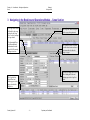
2 Navigating in the Booking and Operations Module – Voyage and Schedule Section
Vessel List. Use
this list to find the
vessel you want to
work with by
scrolling or keying
in the vessel name
in the search
column. The
second search
field, key in you
initials if you only
want to see vessels
you are
responsible for
operating.
When you click on a vessel or trade in the search
tree, all voyages for the selected vessel/ trade will
be shown. The last voyage for the vessel is always
showing on top.
Click on these tabs to view and edit
additonal details about the ports for
the voyage and the utilisation.
Switch to View by
Trade if you
prefer to work by
trade. Use the
search field to find
the trade you want
to work with.
The port rotation schedule, bunker plan, cost,
performance data and vessel utilisation for the
voyage is displayed in this panel when you select a
voyage. NOTE: this list will always show the
selected voyage in green color. In addition it will
show one previous voyage and all future voyages'
ports in the list. You can work on any port,
irrespective of which voyage you have selected in
the voyage list.
Dataloy Systems AS
–2–
Port information for the selected
port is shown on top of the
schedule. If maintained in the
vessel data, this will also show the
current Master of the vessel and the
next dry dock date.
Use the GMT checkbox to view all
dates in GMT. Use the Filter DD
checkbox to view only dry dock
ports (typically to easily find the
last drydock for the vessel).
Proprietary and Confidential
Dates coloured in red
are sundays. Dates in
blue are saturdays.