1
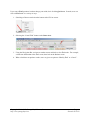
6)
7)
8)
9)
10)
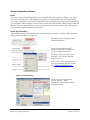
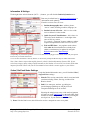
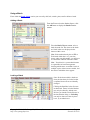
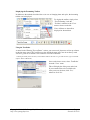
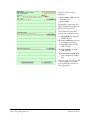
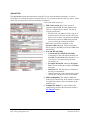
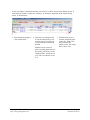
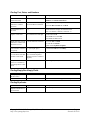
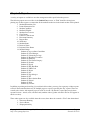
Admin – Access administrative functionality (access limited to administrators);
Find - Search for a subset of students, forms, etc.;
Help - Activates help shortcuts for various features throughout the application;
Quit - Close out of the application;
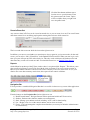
Found set arrows - Navigate within the current set being viewed; the circle in the center of the
arrows will show all records when selected.
Help
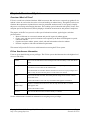
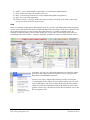
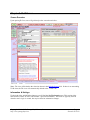
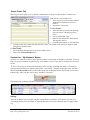
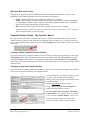
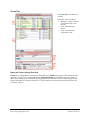
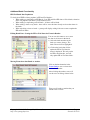
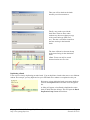
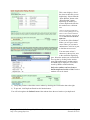
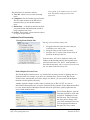
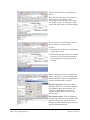
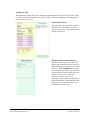
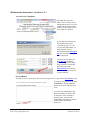
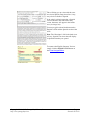
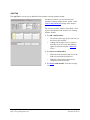
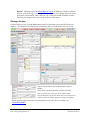
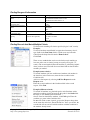
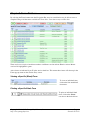
There are a number of Help options throughout E-Com. If you click on the Help button on the navigation
bar, the system will display blue question marks that link to the related topics in the User’s Manual. Click
on any blue help icon to go to the webpage where the help topic is available. In addition, there are
filmstrip icons that will bring you to a video on the topic. As you can see in the image below, there are
textual help links for Find, Go to..., Reports, and Batch, and there are videos available for three of those.
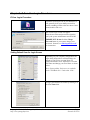
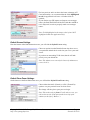
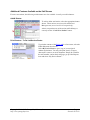
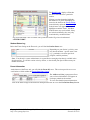
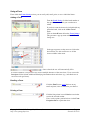
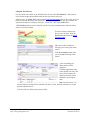
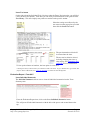
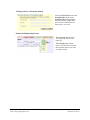
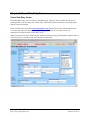
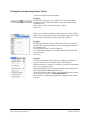
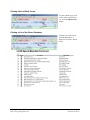
In addition, you can access the admin manual, the user manual, and the
most up-to-date release notes from inside E-Com, by going up to the
Help menu on the FileMaker menu bar.
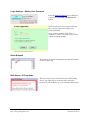
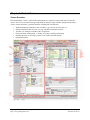
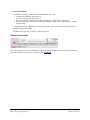
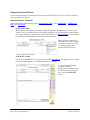
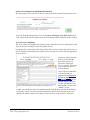
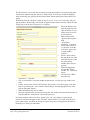
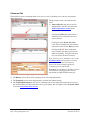
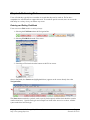
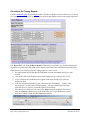
You may also create a support ticket directly from E-Com using the
“Create Support Ticket” option. For non-administrative users, an email
with a blank address will come up; they should enter the email address
of their local E-Com administrator, along with additional details of the
problem. (If necessary, the admin user may then forward the issue to the
E-Com support email.)
Copyright © 2000-2013, Portage Bay Solutions, Inc.
http://www.portagebay.com
Page 8
Printed: 05/30/13