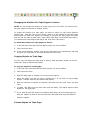
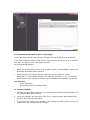
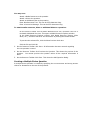
1
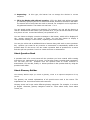
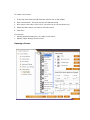
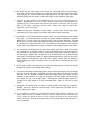
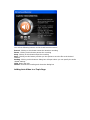
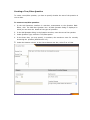
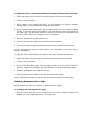
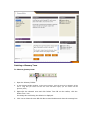
Preview: Gives you the Preview of the Course Outline.
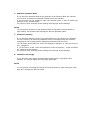
Add Course Explorer: Allows you to insert a Course Explorer. There can be only
one Course Explorer on the Course Outline Page.
Add Prerequisite Placeholder: Allows you to insert the placeholder for Prerequisite.
Add Learning Objective Placeholder: Allows you to insert the placeholder for
Learning Objective.
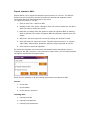
Add Welcome Message: Allows you to insert the Welcome Message, which can be
shown in one color and one font. The Course Outline can contain only one box of
Welcome Message, with a maximum of 250 characters. You can edit the Welcome
Message. There can be only one Welcome Message.
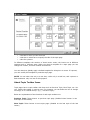
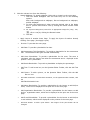
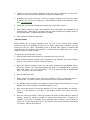
Add Glossary Link: Clicking this icon allows you to insert the link, which opens the
Glossary in a new window. There can be only one Glossary link on the Course Outline
page. On double clicking the image for Glossary link, you get an option to do the settings
for the Glossary link.
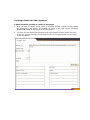
Under settings, you can set the Image, MouseOverImage and the Tool Tip for the
Glossary link.
Add Finish Course Button: Allows inserting the Finish Course Button. When the learner
clicks on the Finish Course Button, it finishes the course by closing the window. If the
course is opened in the same window as that of the Learning Management System
(LMS), clicking on Finish Course Button does not perform any visible action. It only sends
the data to the LMS. However, if the course is opened in a new window other than that
of the LMS, clicking Finish Course Button closes the Course window and sends the data
to the LMS. You can add only one Finish Course Button on the Course Outline page.
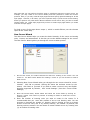
On double clicking the Finish Course Button, you get an option to do the settings for the
Finish Course link. Under settings, you can set the Image, MouseOverImage and also the
Tool Tip for the Finish Course button.
Add Text: Allows you to insert a text box.
Add Picture: Allows you to insert a picture placeholder.
Add Flash Animation: Allows you to insert a placeholder for Flash Animation.
Delete Control: Allows you to delete the selected control. Cancel Selection: Allows you
to cancel the current selection.
Set Attributes: Allows you to set the left, top, height and width attributes of the
selected control. Save: Saves the settings.
Help: Displays help.
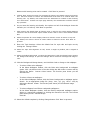
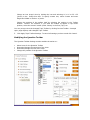
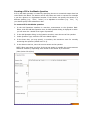
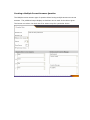
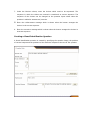
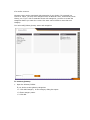
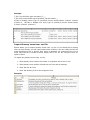
Course Explorer