1
INDTB_02.book Page 241 Friday, April 14, 2006 12:19 PM
have a serious problem if the drive breaks down. You must make your own
restore disk before the hard drive fails.
When you unpacked the computer, the instructions for assembling the
system and starting Windows probably included a section about making
restore disks: almost nobody pays any attention. By that time, your shiny new
computer was up and running, and you were exploring all the exciting new
bells and whistles that came with it.
Now that you have had plenty of opportunity to ring the bells and blow
the whistles, take the time to make your restore disks now. There’s probably a
command in the Windows menu that will start the process: if you can’t find
it, look for instructions in the startup guide and other manuals that came
with your computer.
Make a Boot Disk
When the system drive won’t load Windows, even in Safe Mode, it’s often
helpful to start the computer from a “boot disk” that loads a simple operating
system. You can use this system to examine and evaluate the contents of your
drives and possibly create copies of data files that you can use on another
computer. If the computer has a floppy disk drive as well as a CD drive, you
should make boot disks in both formats.
To create a simple startup diskette (a floppy disk), follow these steps:
1.
Insert a floppy disk in the diskette drive.
2.
Open My Computer from the desktop, and right-click the floppy disk
drive. It’s almost always the A: drive.
3.
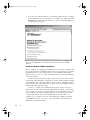
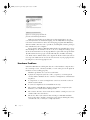
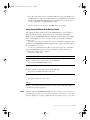
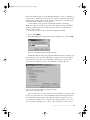
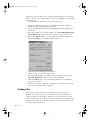
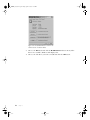
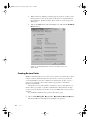
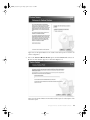
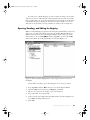
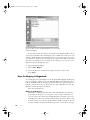
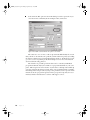
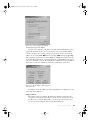
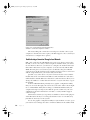
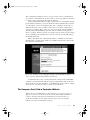
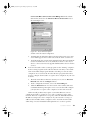
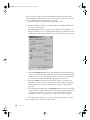
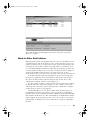
In the pop-up menu, click the Format command. When the Format window shown in Figure 20-5 appears, check the Create An MS-DOS Startup
Disk option.
Figure 20-5: Use the Format tool to
create an MS-DOS Startup Disk.
4.
Click the Start button.
T h in gs t o Do Now , B ef ore You r C om pu t er C r as h es
241