1
INDTB_02.book Page 12 Friday, April 14, 2006 12:19 PM
If the bad component is something more expensive, such as a printer,
you might want to either try to repair it yourself or take it to a service center.
But don’t be surprised if it costs more to repair the original unit than to buy
a new one. Technicians’ time is often a lot more expensive than hardware,
and the price of many computer components is dropping, so it’s often not
worth the time and trouble to spend an hour or more fixing something like a
$15 network interface or a $25 keyboard.
Monitors are especially notorious for costing more to repair than to
replace. The price of old-fashioned video displays with cathode ray tubes
(CRTs) has dropped through the floor as the newer flat-panel displays have
taken over the market. You can find new high-quality brand-name 17-inch
CRT monitors for less than $150; it could cost that much or more to repair
an old one, if your technician can find the parts. I’ve also seen decent used
15-inch units for as little as $5. At that kind of price, you’re ahead of the
game if the thing lasts more than three or four months.
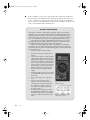
NOTE
Don’t try to repair a monitor yourself unless you know exactly what you’re doing.
Unlike the low voltages inside a computer, a video display can contain high-voltage
capacitors that can kill, even if the power is disconnected.
Isolate the Problem: Software
Similar techniques can also work with software. When a problem appears, try
closing each active program, one at a time. If the problem disappears once a
particular program has been shut down, that program could be the source of
the problem.
If you recently installed a new device driver, a software patch, or a completely new program, try uninstalling the new software and reinstalling the
original version.
Software problems can occur when there’s a conflict between two programs that try to use the same portion of the computer’s memory at the same
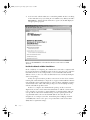
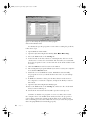
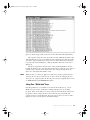
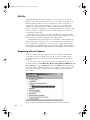
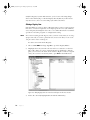
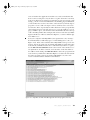
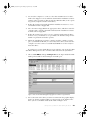
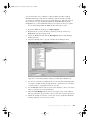
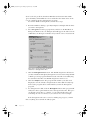
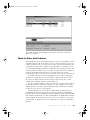
time. To identify the program that is causing trouble, use the Services tool to
disable the active background software services, one at a time. Follow these
steps to use the Services tool:
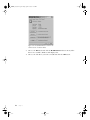
1.
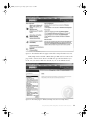
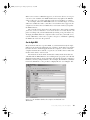
From the Start menu, open Run and enter services.msc.
2.
The line for each active service includes the word Started in the Status
column. To turn it off, right-click the name of a service, and select Stop
from the pop-up menu.
If the problem goes away when you shut down a service, that service
could be related the problem. If stopping a service makes no difference,
turn it back on and try the next one.
Use Safe Mode to Simplify the System
If the problem persists, try restarting the computer in Safe Mode, which
loads a bare-bones version of Windows XP without any extra programs or
services. If the problem still occurs when you boot into Safe Mode, and
you’ve eliminated hardware issues, you can pretty well assume that there’s
12
C ha pt er 1