1
ReadyNAS OS 6.0
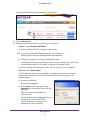
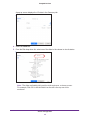
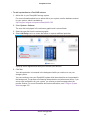
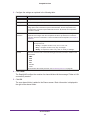
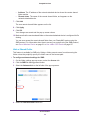
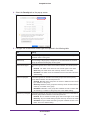
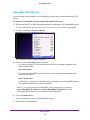
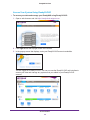
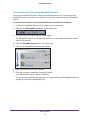
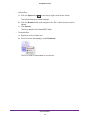
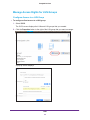
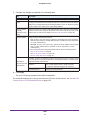
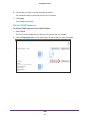
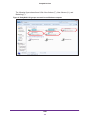
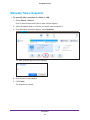
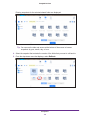
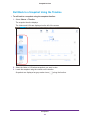
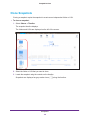
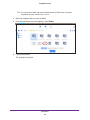
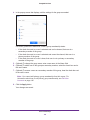
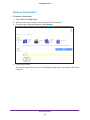
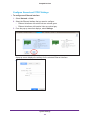
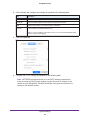
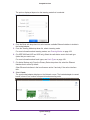
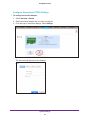
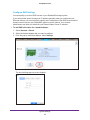
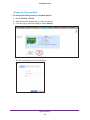
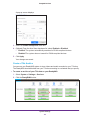
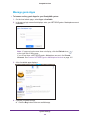
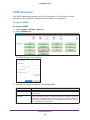
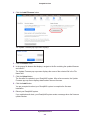
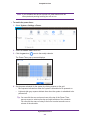
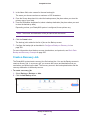
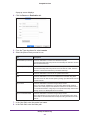
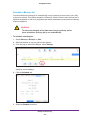
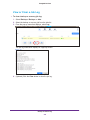
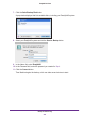
4. Click the Install Firmware button.
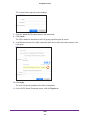
The Update Firmware pop-up screen displays.
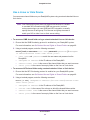
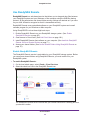
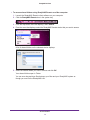
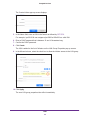
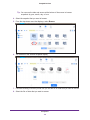
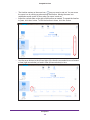
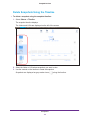
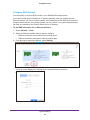
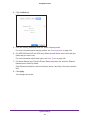
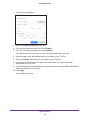
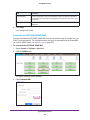
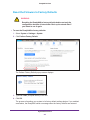
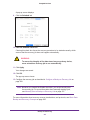
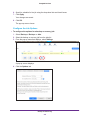
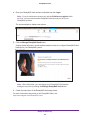
5. Click the Browse button.
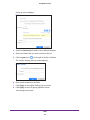
6. In the pop-up file browser that displays, navigate to the file containing the updated firmware
and select it.
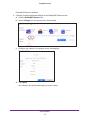
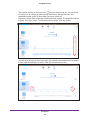
The Update Firmware pop-up screen displays the name of the selected file in the File
Name field.
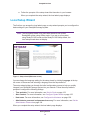
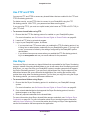
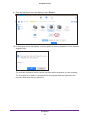
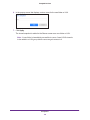
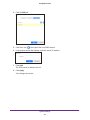
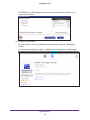
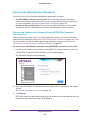
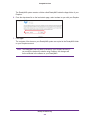
7. Click the Upload button.
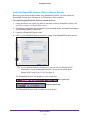
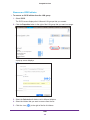
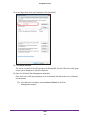
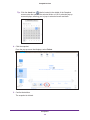
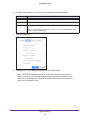
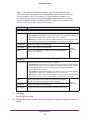
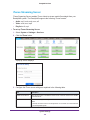
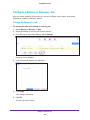
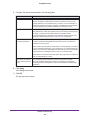
The firmware file uploads to your ReadyNAS system. After a few moments, the Update
Firmware pop-up screen displays details about the new firmware.
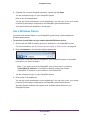
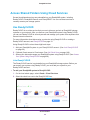
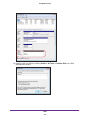
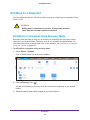
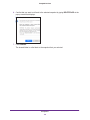
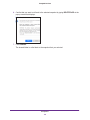
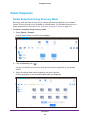
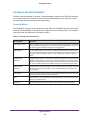
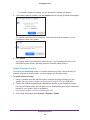
8. Click the Install button.
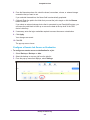
You are prompted to reboot your ReadyNAS system to complete the firmware
installation.
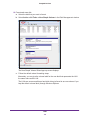
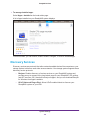
9. Reboot your ReadyNAS system.
If you enabled email alerts, your ReadyNAS system sends a message when the firmware
update finishes.
System Maintenance
206