1
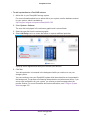
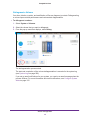
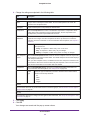
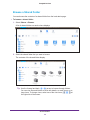
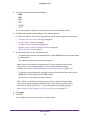
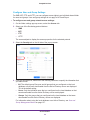
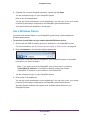
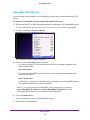
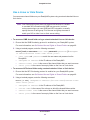
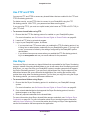
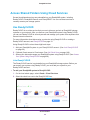
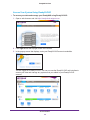
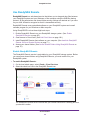
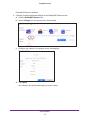
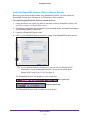
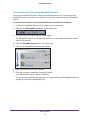
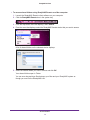
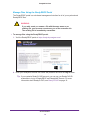
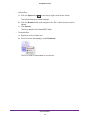
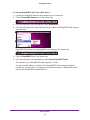
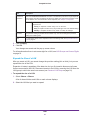
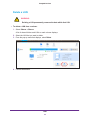
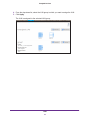
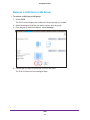
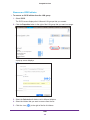
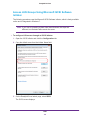
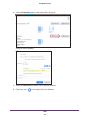
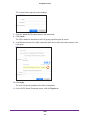
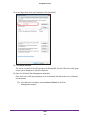
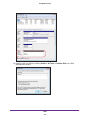
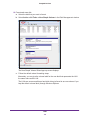
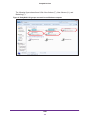
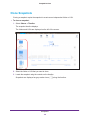
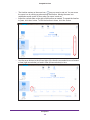
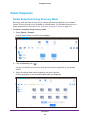
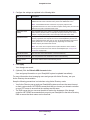
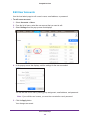
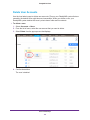
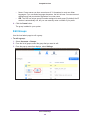
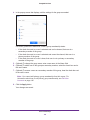
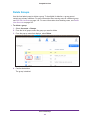
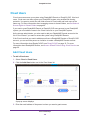
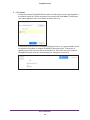
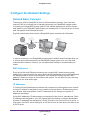
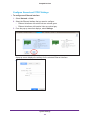
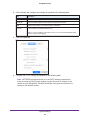
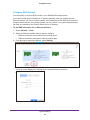
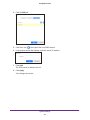
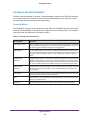
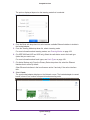
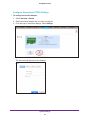
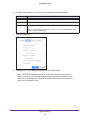
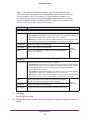
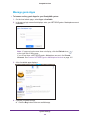
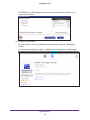
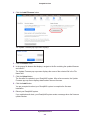
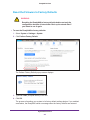
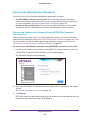
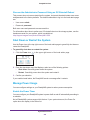
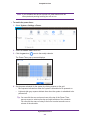
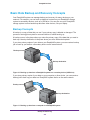
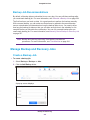
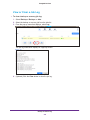
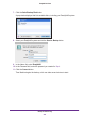
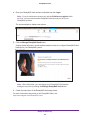
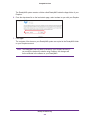
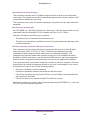
ReadyNAS OS 6.0 Install the ReadyNAS Remote Client on Remote Devices Before you can access shared folders using ReadyNAS Remote, you must install the ReadyNAS Remote client software on your Windows or Mac computer. To install ReadyNAS Remote client on remote devices: 1. Using the device from which you want to remotely access a ReadyNAS system, visit http://www.netgear.com/ReadyNAS-remote. 2. Download the appropriate client software for your operating system and install it according to your operating system’s instructions. 3. Launch the ReadyNAS Remote client. 4. Log in to your ReadyNAS Remote account or create a free ReadyNAS Remote account. Tip: If you created a ReadyCLOUD account, you can use your ReadyCLOUD credentials to log in to ReadyNAS Remote. For more information about ReadyCLOUD, see ReadyCLOUD on page 10. The ReadyNAS Remote icon displays in your system tray. Mac system tray Windows system tray The ReadyNAS Remote client is installed on your device. Shared Folders 71