Download Quick Start Guide

Transcript
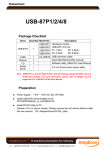
USB-87P1/2/4/8 Quick Start 1.00
ICP DAS, Co., LTD
www.icpdas.com
Original Writer : Eva Li
Last Editor : Eva Li, 03/17/2008
 Package Checklist
Items
Quantity Model No.
USB-87P1
USB-87P2
USB-87Pn
1
USB-87P4
USB-87P8
Cable
1
CA-USB18
Manual
1
CD
1
Screw
1
Driver
Description
Hardware module:
USB-87Pn I/O Unit
P1: 1 Slot
P2: 2 Slots
P4: 4 Slots
P8: 8 Slots
USB connector cable
Quick Start Manual (this manual)
Software utility, USB-87Pn User Manual
2.4 mm Screw driver (minus style)
Note:USB-87Pn is only for High Profile I-87K I/O modules, please DO NOT use Low
Profile I/O modules. For more information, please refer to Chapter 2.2.5 &
Appendix B of “USB-87P1/2/4/8 User Manual”.
 Preparation
z
Power Supply: +10V ~ +30V /DC (Ex: DP-665)
http://www.icpdas.com/products/Accessories/power_supply/power_list.htm
z
Install USB-87Pn DriverInstaller to PC
CD:\NAPDOS\87pn_io_unit\USB-87Pn
or ftp://ftp.icpdas.com/pub/cd/8000cd/napdos/87pn_io_unit/USB-87Pn/
z
Install DCON Utility to PC
(Version 4.5.2 or above version. Please remove the old version before install
the new version) CD:\ Napdos\Driver\DCON_Utility
or ftp://ftp.icpdas.com/pub/cd/8000cd/napdos/driver/dcon_utility/
p. 1
 Hardware Configuration
1. View of the USB-87Pn
Power Module
CPU Module
87Pn Power CPU Power
Auto Configuring
Dip Switch
High Profile i-87K I/O Slots
System ready
Auto Configuration Enable/Disable
Slot 0
Slot 1
Slot 2
Slot 3
Power connector
USB port
Slots LED indicators
2. Wire the 87Pn to power and PC
Power Supply
+10~+30 VDC
GND +Vs
USB-87P4
To USB port
+Vs
GND
PC (COM X)
USB Connector Cable
(CA-USB18)
p. 2
To USB port
3. Configure CPU module
Switch
Label
Dip
Switch
Auto Config.
Setting
Description
ON
Enable (Switch to ON)
OFF
Disable
4. Plug in the High Profile I/O modules
Example: Plug in i-87019R to Slot 0.
p.s. i-87019R is an AI (Analog Input) High Profile module
Slot: 0
Ð
1
Ð
2
Ð
High Profile
Low Profile
81.08
102.14
66.7
87.46
3
Ð
i-87019R is auto-configured:
Baud Rate: 115200
Checksum: Disable
Net Address: 2
Note: The Net Address of
USB-87PN is always 1.
Ï
Net Address: 1
Ï
2
Ï
3
Ï
4
Ï
5
„ After plugged in, the slot indicator is
flashing per 100 ms.
„ When software configuration is
completed, the LED becomes off.
„ If configuration is failed, the LED is
always on.
p. 3
 Software Configuration
1. Run DCON Utility to Search the USB-87Pn (Ex: USB-87P8)
Note:Please finish the “Preparation” (P.1) before Software Configuration.
1
2
Check “Device Manager” of your
PC to see the connecting COM.
3
When the USB-87Pn is found, click
to stop the searching.
The “X” of “[X,0,0,0,...]” means “The configuration of that slot is not
completed or not correct.
p. 4
2. Click “USB-87Pn” to setup slots
2
1
3
4
If the status code is not [01H],
click
button and follow the
instruction please.
3. Configure the 87K I/O module
2
1
3
4
p. 5
4. Click “Write To 87Pn” button
1
After “Write To 87Pn”, the Status
Code is changed to “[00H] OK” that
means “The configuration is correct”.
2
5. Click “Start Search” button
Now the configuration is done!
“[0,0,0,0...]” of “Status” means “The I/O configuration of each slot is
correct”. Each plugged I/O module will be listed under the USB-87Pn.
User can click the name of I/O module to watch its configuration.
Note:
1. For changing the configuration of 87K I/O module, please repeat
from the STEP 2 of the Software Configuration.
p. 6
 Change the hardware I/O module
User doesn’t need to configure I/O module again!
Remove the
damaged
module.
Plug in a new one with the
same model number.
Easy! Convenient!
 Technical Support
1. USB-87P1/2/4/8 User Manual
CD:\NAPDOS\87Pn_io_unit\USB-87Pn or
ftp://ftp.icpdas.com/pub/cd/8000cd/napdos/87pn_io_unit/usb-87pn/
2. DCON Utility User Manual
CD:\ Napdos\Driver\DCON_Utility\Manual or
ftp://ftp.icpdas.com/pub/cd/8000cd/napdos/driver/dcon_utility/manual/
3. I-87K high profile series I/O modules selection guide
http://www.icpdas.com/products/PAC/i-8000/8000_IO_modules.htm
4. Our service email account : [email protected]
5. Our website : www.icpdas.com
p. 7