1
AGREN® BasinBuilder
Initial Subscriber Login
When your account is created by Agren, the subscriber for your account will receive an activation
email containing an activation link. The activation link is valid for 30 days. If 30 days has elapsed
and the link has not been used, you will need to contact [email protected] to have a new
activation link sent.
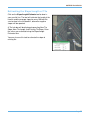
When the subscriber clicks the activation link, they will be prompted to choose a password (see
following pages for password requirements).
Enter and confirm your chosen password and click Activate My Account. You will be redirected to
the login screen, where you will need to log in again with your username (typically your email
address) and password.
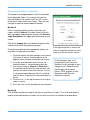
Executing the End User License Agreement (EULA)
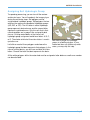
As the Subscriber, you must execute the End User License Agreement (EULA) before accessing
any part of the tools. Click on Click here to execute the EULA. Read the EULA and if you agree
with the terms, click I Agree to execute the EULA.
The current copy of the EULA can always be found by clicking EULA in the footer of the login
system.
Managing M y Users
Part of the responsibility of the subscriber is to manage the users assigned to their license. Initially,
this requires setting up users that can access your license.
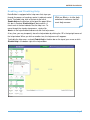
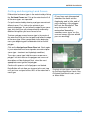
Upon executing the EULA, the subscriber will be redirected to the Manage My Users page. The
Manage My Users page contains three sections, Add New User, Search & Add Existing User, and
Edit Licensed Users.
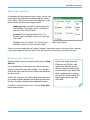
To add a new user, type in the user’s first name, last name, email and company/agency under the
grey bar Add New User. The user name will automatically populate when you enter the email
address. Clicking Add New User will add the user to the license you are logged in to and email
them an activation link. (If the user needs to be added to another license you are the subscriber
for, you must log into that license and repeat the steps.)
If you would like to add a user that is an existing user on another license, you may enter their user
name (typically their email address) under the grey bar Search & Add Existing User. Clicking Add
Existing User will add the user to the license you are logged in to.
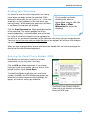
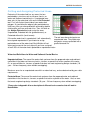
It is the responsibility of the subscriber to keep their license information current as employees are
hired or terminated. To remove a user from a license, click Remove From License to the right of
the user’s name under the grey bar Edit Licensed User.
To edit first name, last name, or company, click on the user’s name in the first column of the Edit
Licensed User table. If you need to change a user’s email address or user name, contact
Page 2