1
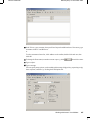
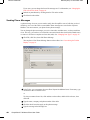
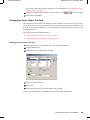
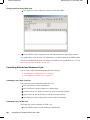
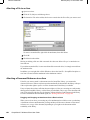
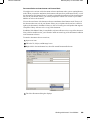
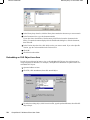
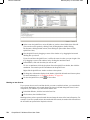
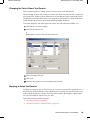
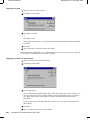
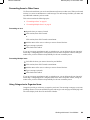
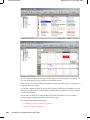
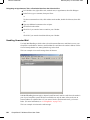
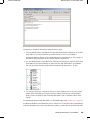
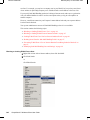
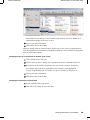
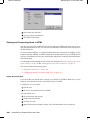
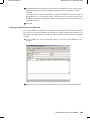
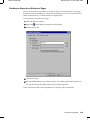
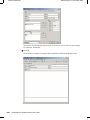
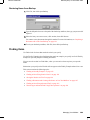
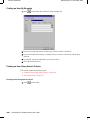
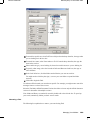
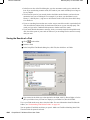
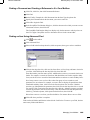
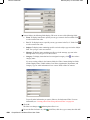
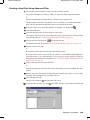
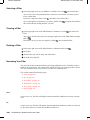
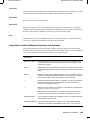
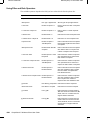
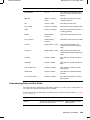
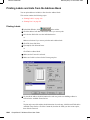
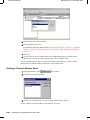
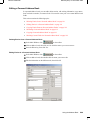
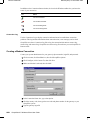
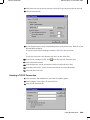
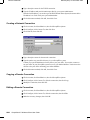
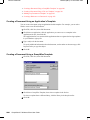
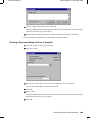
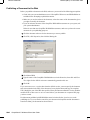
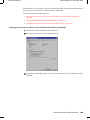
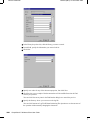
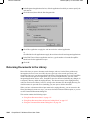
Novell Confidential Manual (99a) 21 December 2004 You can create your own Find Results folders and define the search criteria you want, such as all items from a particular address or all items with a certain word in the Subject line. The Sent Items Folder and the Task List Folder (if you have them) are both Find Results folders. Sent Items searches for every item you have sent, no matter which folder or subfolder it’s now stored in, and displays the results. The Task List searches the Calendar and displays all of your completed and uncompleted tasks. If you accidentally delete your Sent Items folder or Task List Folder, you can restore it. This section contains the following topics: “Creating a Find Results Folder” on page 143 “Restoring Your Sent Items or Task List Folder” on page 143 Creating a Find Results Folder 1 Click the Folder List, click File, click New, then click Folder. 2 Click Find Results Folder. 3 To create a Find Results folder with your own search criteria, click Custom Find Results Folder, then click Next. or To create a Find Results folder based on Find By Example, click Custom Find By Example Folder, then click Next. or If you want to use a predefined Find Results folder as a template for creating a custom folder, click Predefined Find Results Folder, select the predefined folder you want to base your folder on (for example, Sent Items), select Modify Predefined Find Results Folder, then click Next. 4 Type the name and the description for your folder. 5 Click Up, Down, Right, or Left to position the folder where you want it in the Folder List, then click Next. 6 Specify the search criteria, find by example criteria, or information for items you want to find. 7 If you don’t want the folder to update results each time you open it, deselect Find New Matching Items Each Time the Folder Is Opened. 8 Click Next. 9 Specify any display settings you want for this folder, then click Finish. Restoring Your Sent Items or Task List Folder The Sent Items folder and Task List folder in versions prior to GroupWise 6.5 were Find Results (query) folders, which had some differences from the current Sent Items folder and Checklist folder. This procedure restores the previous Sent Items folder or Task List folder. For a comparison between the current Sent Items folder and previous Sent Items folder, see “Sent Items Folder” on page 23. For a comparison between the current Checklist folder and the previous Task List folder, see “Checklist Folder” on page 23. 1 In the Folder List, click File, click New, then click Folder. 2 Click Find Results Folder, then click Predefined Find Results Folder. Managing Your Mailbox 143