1
Novell Confidential
Manual (99a) 21 December 2004
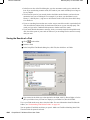
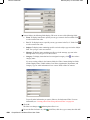
computer's temporary files directory. Do not change the path, or your changes will not be
included when the routed item is sent to the next recipient. Close the application.
IMPORTANT: To be able to edit attachments in a routed item, you must have the GroupWise 5.5
Enhancement Pack or higher installed.
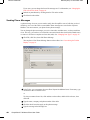
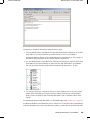
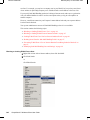
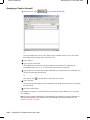
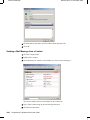
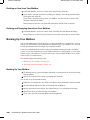
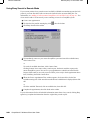
3 In the item, select Actions, click Mark Completed, then click OK.
You can also select the Completed check box in the item header.
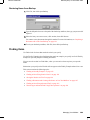
4 If the sender has required a password to complete the item, type your GroupWise password,
then click OK.
The item is sent to the next user on the route.
5 Click Close.
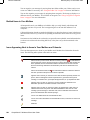
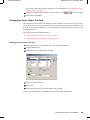
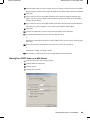
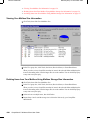
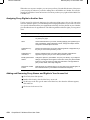
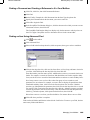
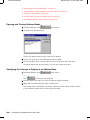
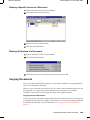
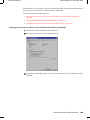
Addressing a Routed Item with an Address Book
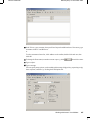
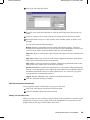
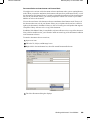
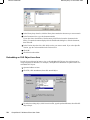
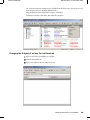
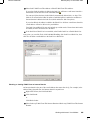
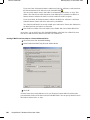
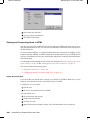
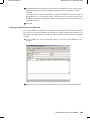
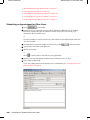
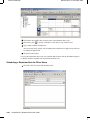
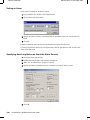
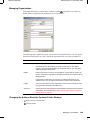
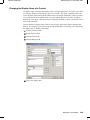
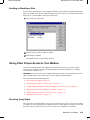
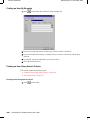
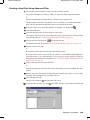
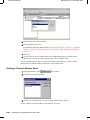
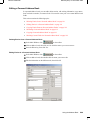
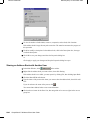
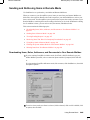
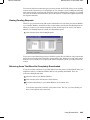
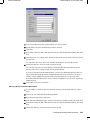
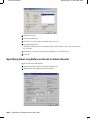
1 In a mail message or task, click Address on the toolbar.
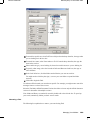
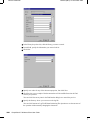
2 Select the Routing Slip check box.
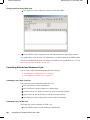
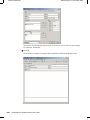
3 Ctrl+click names in the order you want to route the item, then click Route.
or
Double-click names in the order you want to route the item.
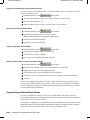
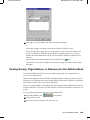
Use drag and drop to change the order of names in the list of addresses.
4 Click OK.
Working with Items in Your Mailbox
57