1
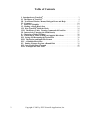
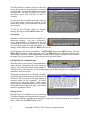
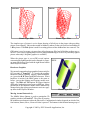
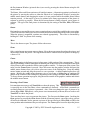
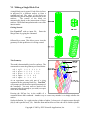
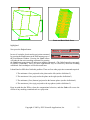
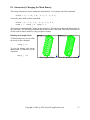
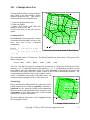
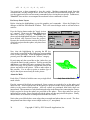
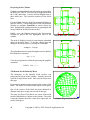
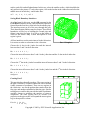
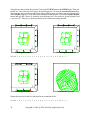
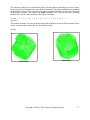
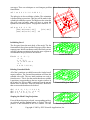
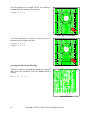
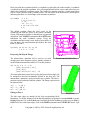
The Physical Window contains a picture of the actual
mesh. To distinguish between geometry and mesh,
mesh lines are green, surfaces are red, and curves are
Setting the Window
yellow. Of course, highlighting changes the color of the
highlighted object. Any time the physical window is
drawn, all buffered commands are executed and the
actual mesh is displayed.
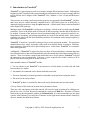
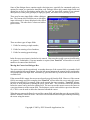
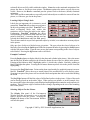
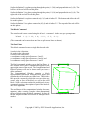
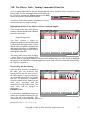
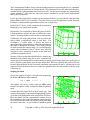
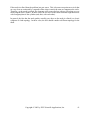
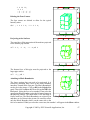
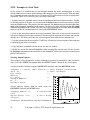
Because there are two graphics windows in the Part
Phase, you must choose which windows are to be acted
upon. This is done by pressing the left mouse button on
either the Physical, Computational or Both button.
Physical Window
When either the Draw, Center or Restore buttons is pressed, the appropriate window is redrawn.
The same is true of manually issued commands such as rx, ry, rz, etc. The user should also be aware
that commands such as those to reset the angle of perspective are also directed to the window
indicated by the setting of Phys, Both and Comp button group.
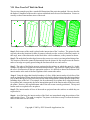
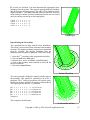
Selecting a Surface
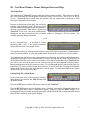
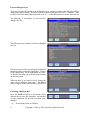
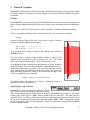
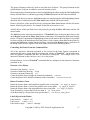
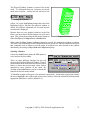
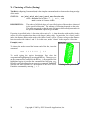
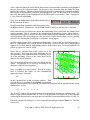
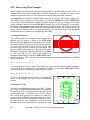
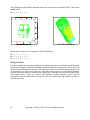
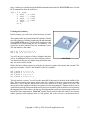
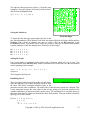
Choose the Label button under the Pick panel to
select surfaces by their labels.
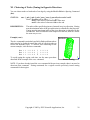
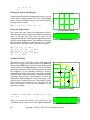
There are three different functions for the left
mouse in the Part Phase Physical Window. The left
mouse button can be used to choose objects by their
labels, to choose the nearest mesh vertex, and to
interactively move portions of the mesh. By
clicking on the Label button, you have chosen the
function for the left mouse button.
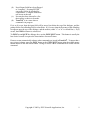
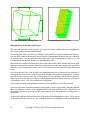
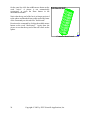
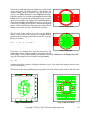
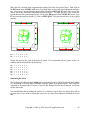
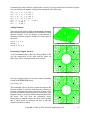
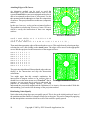
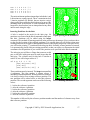
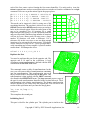
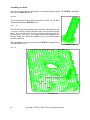
To finish the example will require a few interactive projections. An interactive projection requires
the user to highlight a face of the mesh, and to select a surface. Select the cylinder by clicking on the
appropriate label (this is surface definition 1).
Copyright © 2005 by XYZ Scientific Applications, Inc.
21