1
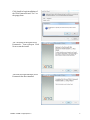
If the XNA Framework is already
installed on the computer, the user
will be given the option to Repair,
Remove, or Cancel. Choose Cancel
and the form to begin installation of
ImageInspector™ will open.
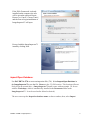
Proceed with the ImageInspector™
install by clicking Next.
Import/Open Database:
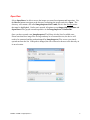
Use PAVER™ 6.5/7.0 to create an inspection file (.i70). Select Import/Open Database in
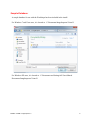
the ImageInspector™ to use the file. Browse to the .i70 file location. This location will most
likely be on an external drive. (ImageInspector™ install comes with one sample .i70 for use
with the Workshops, which is automatically installed in the Documents folder under
ImageInspector™. It can be used and/or deleted as desired.)
The user can accept the Inspection database name or choose another; then, select Import.
ReadMe – PAVER™ ImageInspector™
3