1
button (see item 6 in Figure 1-2 on pg. 10). The “Back/Menu” button (see item 15 in Figure 1-2
on pg. 10) allows you to access the Shockwave Remote menu configuration and step back one
level in the menu system.
4-4
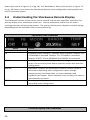
Understanding the Shockwave Remote Display
The Shockwave remote control screen can be viewed in three main segments: top status line,
primary display area, and bottom status line. The top and bottom status lines are static—
meaning that they will always be present. The primary display area is dynamic and will change
depending upon the operation that you are performing.
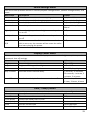
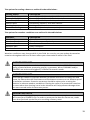
Top Status Line Overview
Name
FM
FB
MOON
BAROM
TEMP
Details
FOXMOTION status indicator. Displays either On or Off.
FOXBANG status indicator / FOXGRIP status indicator. Displays “FB”
if FOXBANG is activated. Displays “FG” if FOXGRIP is activated.
Displays “FB/FG” if both FOXBANG and FOXGRIP are activated.
Moon phase indicator. Displays an icon depicting the current moon
phase. Correct moon phase display requires proper date and time
configuration.
Barometer. Displays the barometric pressure in either inches or
millimeters depending upon configuration. When enough
measurements have been taken, an arrow showing trend
(up/down) will appear. When elevation is set correctly, this value is
automatically corrected.
Thermometer. Displays the current temperature in either C or F
depending upon configuration.
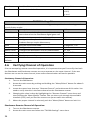
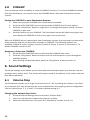
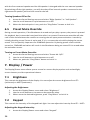
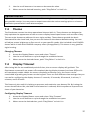
Primary Display Area Overview
20