1
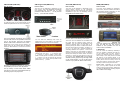
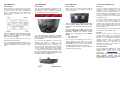
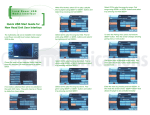
VW CAN BAP (GW17V21) VW Peugeot CAN (GW17PC1) Audi CAN (GW17AC1/2) BMW (GW17BM1/4) How to control How to control How to control How to control The menu of the iGateway is displayed on the main screen. The music playback and settings are controlled from the radio, but it is also possible to select the next ( ) or the previous track ( ) from the stalk controller. The menu of the iGateway is displayed on the central display (cluster) on the dashboard (between the two main instruments). Due to the capabilities of your car, the iGateway menu is not visible on the radio screen. The menu of the iGateway is displayed on the main screen, which is located in the radio, MID or the Navigation display (depending on the Head Unit type and the car specification). The menu of the iGateway is displayed on the car radio and partly on the central display on the dashboard (between the two main instruments). The music playback and settings are controlled from the radio, but it is also possible to select the next or the previous track from the steering wheel if Audio screen is selected on the cluster. You can enter the iGateway main menu by pressing disc 6 on the Radio or by rolling the ‘MEMO’ wheel down on the stalk controller. Depending on the Head Unit (Car Radio), the music menu can be browsed with the softkeys and Next / Back buttons or via the touch screen / scrollbar. Toggling between different menu options is possible with the next ( ) or previous track ( ) buttons. In order to select a menu item, press and hold (about 3 seconds) the next track ( ) button. You can get back to the previous menu level if you do the same procedure with previous back ( ) button. Browsing and selecting a directory or menu item are possible by the soft- or touch-key buttons. The Up soft-key or touch-screen button makes one step up in the menu and the Back button (in the menu) jumps to the play screen. The music playback and settings are controlled from the radio and the steering wheel button. The menu can be selected and controlled from the radio and the steering wheel control (if available). You can enter the iGateway’s main menu by selecting disc 6 on the radio or by pressing shortly the “Menu” multifunction button. Use the same button for browsing, roll down () or up () or press next / previous buttons for accessing different menu options. Press FF to select a menu item or press REW on Radio to get back to the previous menu level. On Steering wheel press shortly the “Menu” button to enter a submenu or press and hold longer to return to the previous level. Please note: If song already selected (currently played song’s id3 tags visible on the cluster display), you can get back to the submenu if you press the “Menu” button shortly. The music playback and settings are controlled from the radio but next and previous track selection is also possible from the steering wheel controls (if available). 3. OPERATION You can enter the Gateway iGateway’s main menu by pressing / selecting the ‘Disc 6’ button on the Radio. Use the next, previous track buttons (on Business radio you need to press them twice) or the rotary knob for browsing on the radio or on the steering wheel. In order to select a menu item press and hold the next track button (like for the FF function) on the radio or press and hold the previous track button (REW function) to return to the previous level. Please note: Depending on your Head Unit type, you may need to press the ‘m’ button in order to get the Fast Forward / Rewind function. If a song is selected the currently played song’s title is visible on the display.