1
LAKEWOOD INSTRUMENTS
REMOTE
WINDOWS SOFTWARE
VERSION 4.01
USER’S MANUAL
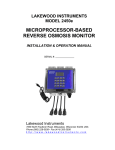
Unit Shown is 2430-RTC-RS2l-NIN with additional nodes (NpH, NRLY, NCON)
Lakewood Instruments
7838 North Faulkner Road, Milwaukee, WI 53224 USA
Phone (800) 228-0839 • Fax (414) 355-3508
http://www.lakewoodinstruments.com
Lakewood Instruments
We thank you for your selection and purchase of an Lakewood Instruments
software product.
Please take the time to read and understand this User’s Manual, paying special
attention to the information about INSTALLATION, OPERATION and TECHNICAL
SUPPORT.
If, in the future, any customer or technical support is required, we strongly
recommend that you contact us for assistance. Our Customer Service Department
is happy to assist you with all your product and information requests.
Lakewood Instruments Customer Service and Technical Support Departments
can be reached by calling (800) 228-0839 or faxing (414) 355-3508, Monday
through Friday, 7:30 a.m. – 5:00 p.m. Central time.
Mail should be sent to:
Lakewood Instruments
7838 North Faulkner Road
Milwaukee, WI 53224 USA
1
2
LAKEWOOD REMOTE WINDOWS SOFTWARE (LRWS)
Table of Contents
1.0 Introduction........................................................................................................... 5
2.0 Features, Benefits and Specifications................................................................... 6
2.1 Features...................................................................................................... 6
2.2 Benefits........................................................................................................ 7
2.3 Specifications............................................................................................. . 7
3.0 Software Contents................................................................................................. 8
3.1 Installation............................................................................. ..................... 9
3.1.1 Lakewood Remote Windows Software .......................................... 9
3.1.2 Com Port Redirector (Required for Internet Connections) ............. 11
3.1.3 .NET Framework............................................................................ 12
3.3 Starting up Lakewood Remote Windows Software..................................... 13
4.0 Functional Overview.............................................................................................. 13
5.0 Lakewood Remote Program Operation................................................................. 14
5.1 Lakewood Remote Setup ........................................................................... 14
5.1.1 Modem Settings ............................................................................. 15
5.1.2 Automatic Download ...................................................................... 16
5.2 Auto-Answer ................................................................................................ 20
5.2.1 Launch Auto-Answer...................................................................... 20
5.2.2 Settings.......................................................................................... 22
5.3 Configuring Controller Connection.............................................................. 23
5.3.1 The Controllers Screen....... ........................................................... 23
5.3.2 Add a New Controller.................................................................... 25
5.3.2.1 New Controller Modem Connection ................................ 26
5.3.2.2 New Controller RS232 Connection ................................. 27
5.3.2.3 New Controller Internet Connection ................................ 28
5.3.3 Delete an Existing Controller......................................................... 29
5.3.4 Modify an Existing Controller ........................................................ 30
5.4 Connecting to a Controller .......................................................................... 31
5.4.1 The Main Screen........................................................................... 32
5.4.1.1 Process Variables ............................................................ 33
5.4.1.2 Alarms and Messages...................................................... 33
5.4.1.3 Flow Rates and Flow Totals ............................................. 34
5.4.1.4 Flow Indication ................................................................. 34
5.4.1.5 MTR1 + MTR2 and MTR1 - MTR2 ................................... 34
5.4.1.6 Relays .............................................................................. 35
5.4.1.7 Download Datalog ............................................................ 36
5.4.1.8 Main Menu ....................................................................... 39
5.4.1.8.1 Calibration .......................................................... 39
3
5.4.1.8.2 Configuring Relays .............................................40
5.4.1.8.3 Feed Schedule....................................................41
5.4.1.8.4 Alarms ................................................................42
5.4.1.8.5 Water Meters ......................................................42
5.4.1.8.6 4-20 mA outputs .................................................43
5.4.1.8.7 System Setup .....................................................44
5.4.1.8.8 Alarm Callouts ....................................................47
5.4.1.8.9 Datalog ...............................................................48
5.4.1.9 Date and Time ..................................................................49
5.4.1.10 Disconnect from a controller...........................................49
5.5 Lakewood Graph Program Operation............................... ................50
5.5.1 Datalog File................................................................... ......50
5.5.1.1 Open a Log File .....................................................50
5.5.1.2 Graph Datalog Objects ..........................................51
5.5.1.3 Export Datalog .......................................................53
6.0 Technical Support............................................................................................ 54
6.1 Troubleshooting.....................................................................................55
4
1.0 Introduction
2175e-RTC-RS2L-NIN Controller with optional 2 Relay (NRLY) Nodes totaling 8 additional
relays, 5 Sensor Nodes, 2 4-20mA inputs (N420I) nodes totaling 8 inputs, 2 Digital Input
(NDIG) Nodes totaling 8 addtional switched inputs
Lakewood Remote Windows Software (LRWS) is a windows-based communications
program that allows you to remotely access Lakewood Instruments 2000e Series
Controllers (with the -RS2L option) for water treatment and process control via external
modem over telephone lines, direct connect via RS232, or via Network connection over the
internet/ intranet with the use of the WEBNode. This communications can also be
accomplished wirelessly over the internet with the use of the Lakewood Instruments
EZWeb Wireless option.
When your computer is directly connected to a 2000e series controller, Lakewood Remote
will establish an RS-232 connection between your computer and your controller over a
serial port. If your controller is also equipped with a modem, Lakewood Remote will dial
out to the controller and initiate a modem-to-modem connection. If your controller is
equipped with a WEBNode, Lakewood Remote will initiate a connection over the internet/
intranet or directly via a network card through a crossover network cable.
Lakewood Remote allows you to access and change the settings of your controller without
having to be standing in front of the controller. Virtually all (99%) of the programming
options that you can access through the controller's menu/keypad is available over the
above communication methods, as well as additional features such as auto download and
alarm callout.
Lakewood Remote also allows you to download and manipulate the controller's datalog.
5
2.0 Features, Benefits, and Specifications
2.1 Features
LAKEWOOD REMOTE WINDOWS SOFTWARE (LRWS)
FOR MODEL 2000E SERIES CONTROLLERS
LAKEWOOD REMOTE
Lakewood Remote is a Windows-based program that accesses all the features of
Lakewood 2000e Series controllers remotely. Communication is direct-connect via RS232 or remotely over phone lines with a modem. A user-selectable password is
required to access any feature beyond viewing. The password is programmable only at
the controller through the menu system (see 2000e Manual).
Lakewood Remote allows access to various controllers via phone numbers, IP
addresses and passwords. Using standard Windows-format mouse-click buttons, all
features of the controller can be accessed. The datalog stored in the controller can be
downloaded into a comma- delimited file. This can also be used by Lakewood Graph or
imported into other applications, such as spreadsheets.
LAKEWOOD GRAPH
Lakewood Graph is a Windows-based program that takes delimited datalog files created
by Lakewood Remote and plots the data on a time line.
6
2.2 Benefits
Lakewood Instruments Remote Software gives you the flexibility to monitor, control, and
receive notices from your 2000e series controllers locally using direct connect with RS232,
via Modem, or over an TC/IP protocal network crossover cable or intranet via the
WEBNode.
The program allows the user to remotely access all features that are available while
actually standing in front of the controller. This includes programming menus/features and
alarm messages of the controller, as well as the abiity to alter the control and feed
parameters of relays, external nodes, and interconnected devices.
The user can also remotely download a datalog consisting of monitored points for sensors,
relay’s, nodes, alarms, and raw values. The datalog is configurable to optimize the
memory space used and retain the desired functions. The datalog also allows the creation
of reports and LRWS can export data for integration into other programs.
An additional feature allows the PC, where LRWS resides, to initiate automatic downloads
of datalogs from controllers within the known controllers list. This can be a mix of modem,
direct connected, and Internet connected systems. The timeframe allows for off hours
download scheduling.
LRWS is password protected and each controller requires a specific password in order to
allow remote changes to occur (can only be changed at the controller), to limit the ability of
un-authorized users to create havoc. The proprietary software format keeps “hackers” with
only a web browser (and no way to interpret the information to or from the controller
without the LRWS software) from accessing the units via the an un-secured web browser.
The alarms you choose will trigger either a modem based or internet based alert. This
allows for timely response to the site for any specific (user defined) alarm conditions.
2.3 Specifications
SYSTEM REQUIREMENTS
Lakewood Remote runs in Windows 95, 98, 2000, NT, XP, or Vista.
Lakewood Remote requires approximately 2Mb of hard drive space.
For use with a Lakewood Instruments WEBNode, Windows 98 or later software,(Requires
installation of Com Port Redirector, and .NET Framework rev 2.0 or higher). Windows
Vista already includes .NET Framework.
Platform required:
• Pentium I or better with 256M of RAM.
• Any machine that can run Windows 98, NT, 2000, XP or Vista.
• 3M of hard drive space for LRWS.
• 30M of hard drive space if using CPR.
• 280M of hard drive space if using .NET Framework.
• Modem, network cards, and WEBNodes are optional.
7
Direct Connect RS-232:
• 1200, 2400, 4800, 9600 or 19200 baud.
• 8 data bits, 1 stop bit, NO parity.
Modem Requirements:
• Hayes AT command set
• 14,400 baud or higher.
Datalog:
• 1 hour of 1 minute intervals.
• 28 days of hourly intervals.
• Both logs include process minimum, maximum, average pump run times
and water meter totals.
• Minimum, maximum and average pump run times reset at the top of the
hour.
• Downloaded by Lakewood Remote into a file of comma-delimited ASCII
data that can be used by Lakewood Graph or imported into other
applications, such as spreadsheets.
Security:
• View-only mode unless correct password is entered.
• 8-digit password can be changed only at the controller.
3.0 Software Contents
Lakewood Remote Windows Software (LRWS)
Lakewood Remote is a Windows-based program that accesses all the features of
Lakewood 2000 Series controllers remotely. Communication is direct-connect via RS232 or remotely over phone lines with a modem. A user-selectable password is
required to access any feature beyond viewing.
Lakewood Remote allows access to multiple controllers, phone numbers and
passwords. Using standard Windows-format mouse-click buttons, all features of the
controller can be accessed. The datalog stored in the controller can be downloaded into
a comma- delimited file. This can be used by Lakewood Graph or imported into other
applications, such as spreadsheets.
LAKEWOOD GRAPH
Lakewood Graph is a Windows-based program that takes delimited datalog files created
by Lakewood Remote and plots the data on a time line. Lakewood Graph is an integral
part of Lakewood Remote.
8
Com Port Redirector (CPR)
Com Port Redirector v.4, powered by TruPort™ technology, is a software utility for
network-enabling software applications that do not have network support. Com Port
Redirector installs virtual communication (COM) ports, which are redirected over a
network to the serial port of a device server. TruPort® Technology combines RFC2217
Com Port control protocol with data handling, discovery, and device server technology,
enabling advanced remote serial interface control.
Com Port Redirector consists of the following modules:
•
CPR Manager enables you to map com ports to device servers, configure, and test
com ports.
•
CPR Monitor enables you to identify and troubleshoot problems.
.NET Framework
The Microsoft .NET Framework version 2.0 (x64) redistributable package installs the .NET
Framework runtime and associated files required to run 64-bit applications developed to
target the .NET Framework v2.0.
The .NET Framework version 2.0 (x64) improves scalability and performance with
improved caching, application deployment and updating with ClickOnce, support for the
broadest array of browsers and devices with ASP.NET 2.0 controls and services and 64-bit
support.
3.1 Installation
3.1.1 Installation of Lakewood Remote Windows Software
The following items are required to run LRWS:
1. Windows 98, 2000, XP, or Vista.
2. 3M of hard drive space.
INSTALLATION
Lakewood Remote is designed for easy installation and ease of use. Follow these simple
steps to install your copy of Lakewood Remote:
Insert your Lakewood Remote disk into your CD-ROM drive.
Browse to the LRWS folder and unzip the LRWS application.
After you have unzipped LRWS, run the application install.exe.
You will be given the opportunity to determine the directory where the program files will be
installed (see Figure 2 below). LWREMOTE is the factory default that you can select by
clicking on OK. Otherwise, type in a different name using the proper hard drive designator
(i.e., C:\) then click on OK.
9
If you have already installed Lakewood Remote on your hard drive, you will see the
screen below (Figure 3) . Click on YES to reinstall the software. Click on NO if you
want to retain the previously installed version.
The screen below (Figure 4) will appear as your program is being installed. The names
of the files will appear in the first box and the second box will show you the percentage
installation done.
On most computers, the installation process will take very little time. Upon completion,
you will see the following dialog box, indicating that LRWS Versions 4.00 and higher are
Year 2000 compliant.
10
Click on OK and you will see that a Windows Program Group was established with a
Lakewood Remote icon and a Lakewood Graph icon.
If you have difficulties at any time during the installation processs, you may see a screen
showing that the installation was unsuccessful. In most instances, simply closing all other
open programs, and attempting installation again will prove successful.
3.1.2 Installation of Com Port Redirector (Requires .NET be installed)
The following items are required to run CPR:
1. Windows 2000, 2000 Server, XP, 2003 Server, or Vista.
2. Microsoft .NET Framework v2.0.
3. 30MB free hard drive space.
11
Installation
With your Lakewood Remote disk in your CD-rom drive, browse to the Com Port
Redirector folder on the LRWS CD rom.
Doubleclick on the the Setup application. This will install CprDotNetCDGen4.1.1.3.
The application installation directory defaults to C:\Program Files\CPR, unless another
folder is selected during the installation process.
A shortcut to this application is created on the Start/Programs menu for CPR Manager
and CPR Monitor.
3.1.3 Installation of .NET Framework
System Requirements
Supported Operating Systems: Windows Server 2003, Datacenter x64 Edition;
Windows Server 2003, Enterprise x64 Edition; Windows Server 2003, Standard x64
Edition; Windows XP 64-bit
Required Software:
Windows Installer 3.0 is required. Windows Installer 3.1 or later is recommended.
IE 5.01 or later: You must also be running Microsoft Internet Explorer 5.01 or later for all
installations of the .NET Framework.
Disk Space Requirements: 280 MB (x86), 610 MB (x64)
Important: Make sure you have the latest service pack and critical updates for the
version of Windows that you are running. To find recent security updates, visit Windows
Update.
Installation
With your Lakewood Remote disk in your CD-rom drive, browse to the dot net
framework folder on the LRWS CD rom.
Double click on the dotnetfx application (.MSI extension).
Framework.
This will install .NET
Notes: If the program will not install (error message gives previous version issues) then
continue with CPR installation. CPR will not install if the .NET is the incorrect version. If
CPR continues its installation, all is OK.
12
3.2 Starting Up Lakewood Remote Windows Software
To start Lakewood Remote:
Click on the START button at the bottom of your screen.
Select Lakewood and click on Lakewood Remote 4.01.
4.0 Functional Overview
MAIN MENU BAR
The screen below is the first screen you will see when you start Lakewood Remote. It is
the Main Menu Bar.
The Main Menu Bar has the following sections:
FILE
File is used to open a Log file, open an Alarm file, or to Exit the program.
CONTROLLERS
Controllers is used to access the Controller Selection screen to connect to your 2000
series controllers.
SETUP
Setup is used to set your Modem Settings or to set up the Automatic Download
functions.
AUTO-ANSWER
Auto-Answer is used to set up your Auto-Answer settings and to Launch Auto-Answer.
HELP
Help is used to access the Help files and to display the software version number.
13
OTHER PROGRAM FEATURES
LAKEWOOD GRAPH
Lakewood Graph is a graphing program that is integrated into the LRWS software
that is used to graph the data from the datalog downloads. Lakewood graph is
started when you open a log file or an alarm file under File.
AUTOMATIC DOWNLOAD
Automatic download is a function built into the LRWS software that enables you to set
up your computer to automatically download the datalogs from yor controllers at a
user specified interval. Automatic download is accessed from the Main Menu under
Setup.
ALARM CALLOUTS
The Lakewood Instruments 2000 series controllers are able to perform an alarm
callout on user selectable alarms. This callout can take the form of an alarm log if
using a modem, an e-mail or text message if using the WEBNode.
COM PORT REDIRECTOR (CPR)
Com Port Redirector (CPR) is a software utility that installs virtual communication
(COM) ports, which are redirected over a network to the serial port of a device server.
CPR will be used when using the WEBNode. CPR is started under your Windows
Start menu.
5.0 Lakewood Remote Program Operation
Once LRWS is started, there are certain setup steps that need to be performed to use
the different features of the software.
5.1 Lakewood Remote Setup Menu
The Setup Menu is used to configure your computer modem for use with the LRWS
software or to set up Automatic downloads of your datalogs.
14
5.1.1 Modem Settings
If you are using LRWS with a modem, you may need to configure your modem settings
to work with LRWS. This is performed in the Modem Settings screen.
MODEM SETTINGS
Click on Setup, then Modem Settings.
The values shown in the Modem Settings screen on the next page are typical settings.
For different modem strings, use your modem software reference manual. For many
modems, but not all, these factory-preset defaults will be the proper settings.
Click on OK to return to the Main Menu after you make your changes to these settings.
15
5.1.2 Automatic Download
Automatic Download is used to configure Lakewood Remote to call up one or more
controllers at user-specified dates and times automatically. NOTE: To use this
feature LRWS must be running during the user specified download times.
Automatic Download
Click on Setup, then Automatic Download.
Yoru PC must be turned on, Connected via Phone line for modem units and/or to an
active network for Internet/intranet units. Lakewood Remote must be running at the
date(s) and time that you select in order for the automatic download to occur. If
Lakewood Remote is in Auto-Answer mode, then the Auto-Answer process will be
interrupted for the duration of the automatic download and then resumed at the
conclusion of the download. Auto answer does not work with internet communicating
units.
MONTH AND CALENDAR
Select a month during which you want to perform automatic downloading. The date
calendar to the right will change with the selected month. Each month must be
configured separately.
Click on the squares that correspond to the dates on which you want to perform an
automatic download.
16
START TIME
Select the time (Hours:Minutes, 24-hour clock) when the download is to take place.
Lakewood Remote will attempt to execute the download at this same time on each one
of the selected dates.
CHECK ALL
Push this button to darken every date shown on the calendar for the selected month.
RESET ALL
Push this button to deselect every date shown on the calendar for the selected month.
REPORT
Push this button to bring up a report of automatic download attempts (successes and
failures). The report shows (a) the date and time that Lakewood Remote attempted the
download, (b) the name of the controller, (c) the event (what happened), which may be
one of the following:
Successful Download: The automatic download took place
as scheduled.
Com Port Error: Lakewood Remote could not open the com
port for the indicated controller. You may want to inspect the
com port settings for this controller.
Modem Dial Error: Lakewood Remote could not connect to
the controller via the modem. You may want to test this by
connecting to the controller manually.
User Abort: The user pressed the Cancel button on the
modem dial dialog before Lakewood Remote could connect
to the controller.
Error During Download: An unknown error occurred during
the download. Some of the controller data may have been
saved to the indicated file.
…and (d) the name of the datalog file that contains the downloaded data. The first five
characters of this filename are the same as the File ID that you program via the Add or
Modify buttons; the last three characters are digits with the value 000 through 999.
Lakewood Remote increments this 3-digit value each time it automatically downloads
data from a particular controller.
17
Report entries are logged in order of most recent download attempt first. A sample
report listing might appear as follows:
If you have never downloaded anything, you will get the following screen and a new
DOWNLOAD.TXT file will be created when you click on “Yes”..
Other examples of what may appear in the automatic download report are seen
below:
Time:
Fri 2 Feb 18:48:55
Controller:
West Tower
Event: Successful Download.
File:
WTOWR008.LOG
Time:
Fri 2 Feb 18:47:48
Controller:
East Tower
Event: Com Port Error.
18
ADD, MODIFY, or DELETE
If you click on the Add or Modify buttons on the Automatic Download Schedule screen
(see Figure 24) shown earlier, the following screen will appear:
ADD
Click on this button to add a controller to the Automatic Download list. A dropdown list
will appear with all of the controllers in your controller list. Select the controller you want to
add to your download list.
Add a five digit identifier in the FILE ID box by clicking in the FILE ID boxand typing your
desired identifier. This five digit identifier will be used to identify the downloaded datalog.
The RETRIES box is used to set the maximum number of communication retries that will
be performed before moving on to the next controller in the list.
Click the OK button to complete the addition of a controller to your download list.
MODIFY
Click on this button to modify the Indetifier and Retry information for a selected controller.
DELETE
To remove a controller from your download list, click on the controller you want to remove
and click on the DELETE button to remove a controller from the download list. The
following screen will appear confirming your deletion request. Click the OK button to
confirm the deletion.
19
5.2 Auto-Answer
Auto-Answer is used to record alarm callouts from the controller when using a modem
connection. The controller will dial out to the computer when it receives a user
selectable alarm. This call is recorded in an ALARM file.
5.2.1 Launch Auto-Answer
LAUNCH
Lakewood Remote has an Auto-Answer feature that allows you to monitor on your
screen any alarm calls from a controller. All alarms are also logged in a text file
(alarmlog.txt is the default name).
To set up your computer to Auto Answer alarm calls, click on Auto-Answer in the Main
Menu and select Launch…
…and the screen Waiting for Alarm Call will appear as shown below.
20
Click on the View button to display the contents of the Alarm Log. The Alarm Log file
contains a history of callouts from one or more controllers. With Lakewood Remote set at
this Waiting for Alarm Call screen, the program will log the time of the call as read from
both the PC and the controller and documents the alarms that are currently present on the
controller.
Here is an example of a typical entry in the Alarm Log file:
Thu 29 Mar 14:51:15 (PC)
Thu 29 Mar 14:48:19 (West Tower)
NO FLOW
LOW CONDUCTIVITY
The call in the above example arrived on Thursday, the 29th of March at 14:51:15
(according to the PC). The call was made by the controller called “West Tower.” The time
of day read from the controller was Thu 29 Mar 14:48:19. The alarms present on the
controller at the time of the call were NO FLOW and LOW CONDUCTIVITY.
New alarm calls are logged at the top of the Alarm Log file. Lakewood Remote does not
allow the file to exceed 43,000 bytes. Once the file exceeds that size, the oldest data at
the end of the file starts to disappear.
21
5.2.2 Auto-Answer Settings
SETTINGS
Auto-Answer is only used when using a modem to communicate with controllers.
Select this the Settings option from the Auto-Answer menu to configure your modem
for answering a call from a controller.
In order for Lakewood Remote to receive an alarm call from a controller, it must use the
specified com port and baud rate to access your computer's modem. Select the
appropriate COM PORT and BAUD RATE settings for your computer.
22
5.3 Configuring Controller Connections
5.3.1 The Controllers Screen
The Controllers portion of the Main Menu Bar allows you to access your controllers.
Click on Controllers to enter this portion of the Menu.
The Controllers Information screen is used to select and connect to a controller,
configure the controller connection, add controllers, and delete controllers.
As you can see in Figure 10, the Controllers Information screen lists all controllers
that have been entered in the software in alphabetical order. By default, three
controllers that are located at the Lakewood Instruments factory have already been
entered. These three controllers are connected to modems and are accessible by the
public.
To see or change the controller setup information for a specific controller, click on that
controller in the left-hand side of the screen and the setup information will be displayed
on the right-hand side of the screen.
23
In the future, all controllers you have entered will be listed on this screen for quick
and easy selection. Once you’ve entered this information, you can simply select the
controller you want, then click on Connect and Lakewood Remote will connect to that
controller.
The controller setup information includes:
NAME : a customizable name for your controller (34 characters maximum).
NUMBER: a telephone number to the modem connected to your controller when
MODEM is selected.
INTERNET PORT: a com port (from com 1 to com 252) to access your controller
over the internet or intranet with the use of the CPR (Com Port Redirector) program
when INTERNET is selected.
PASSWORD: a remote access password.
unauthorized access to your controller.
This password is used to prevent
I.D.: This is a unique identification number assigned to your controllers at the factory.
The program will automaticallt enter this information the first time you access your
controller.
COM PORT: a com port (from com 1 to com 4) that is the com port number of your
serial port or the com port number of your computer modem when MODEM or RS232 is selected.
BAUD RATE: This is the baud rate that you want to use to communicate with your
controller. If using RS-232 this baud rate must match the baud rate that is set at your
controller. If using INTERNET this baud rate should be set to 19200.
CONNECTION: This is the connection type that you want to use to communicate
with your controller. Select MODEM if you will be communicating over the telephone
lines via modem. Select RS-232 if you will be directly connecting your computer
serial port to your controller. Select INTERNET if you will be communicating with
your controller over the internet or intranet with the use of a WEBNode.
DIALING PREFIX: This is the prefix number you have to dial to get an outside line
when using a modem connection. The USE PREFIX check box is used to activate
this feature.
24
5.3.2 Add a New Controller
Adding a NEW controller
In order to add a new controller to your list of controllers, you will need the following
information:
What name will you use for your controller?
A good name is one that readily identifies the location, if there are multiple
controllers at one location which controller it is, and the type of controller you are
using. A name such as "ABC Hosp, TWR 2, 2412" works well. There is a limit of
34 characters maximum to the length of the name.
What type of connection will you use (modem, RS-232, or Internet)?
If MODEM, you will need the telephone number to the controller's modem and the
com port that the computer modem uses. The prefix number to reach an outside
line at the computer location may be needed.
If RS-232, you will need the Baud Rate that is selected in the controller and the com
port that the computer serial port uses.
If INTERNET, you will need the com port that you will use to access the controller,
the IP address of the controller, and you will need to set up the the com port
settings in the CPR software.
The Baud Rate you will use if either MODEM or RS-232 are selected.
If MODEM, the baud rate should not exceed the maximum baud rate or be less than
the minimum baud rate of either modem.
If RS-232, the baud rate must match the baud rate that is set in the controller.
If INTERNET is selected, the baud rate should be set to 19200.
The PASSWORD that is programmed into the controller.
The password must be 7 characters long. The default password is 1234567. If
you elect to change the password, it must be changed at the controller and it must
be entered in the controller setup screen in Lakewood Remote.
25
5.3.2.1 NEW CONTROLLER MODEM CONNECTION
To set up a new controller for use with a modem, click on New and you will see the
following screen:
Select Modem under the CONNECTION type.
Enter a Name for the controller.
Enter the telephone Number for the controller modem.
If you have changed the Password, enter the new password.
Select the Com Port that the computer modem uses.
Select the Baud Rate that you will use.
If a Prefix number is required to access an outside telephone line from the
computer, enter the prefix number and click on the Use Prefix check box.
When the above information is entered click on the OK button.
26
5.3.2.2 NEW CONTROLLER RS-232 CONNECTION
To set up a new controller for use with an RS-232 connection, click on New.
Select RS-232 under the CONNECTION type and you will see the following screen:
Enter a Name for the controller.
If you have changed the password, enter the new password.
Select the Com Port that the computer serial port uses.
Select the Baud Rate that is set in the controller.
When the above information is entered click on the OK button.
27
5.3.2.3 NEW CONTROLLER INTERNET CONNECTION
To set up a new controller for use with an Internet connection, click on New.
Select INTERNET under the CONNECTION type and you will see the following
screen:
Enter a Name for the controller.
If you have changed the Password, enter the new password.
Select the Internet Port that you have configured in the CPR program for this
controller.
When the above information is entered click on the OK button.
28
5.3.3 Delete an Existing Controller
DELETEING A CONTROLLER FORM THE CONTROLLER LIST
Highlight the controller on the left-hand side of the screen that you want to delete from
the list and click on Delete.
You will be asked whether you want to delete the highlighted item with the following
screen. Click on Yes or No, depending on your choice.
29
5.3.4 Modify an Existing Controller
MODIFYING THE INFORMATION FOR AN EXISTING CONTROLLER
Highlight the controller on the left-hand side of the screen that you want to modify.
Click Modify to make changes to the information entered for that specific controller
(i.e., Name or phone Number).
30
5.4 Connecting to a Controller
CONNECT
Once you have set up a new controller, or a number of them, highlight the controller you
want to connect to and click on the Connect button.
You will see a series of screens while your computer contacts the controller.
If you have problems connecting, first make sure that you have set up the controller
properly in the software. Check that the CONNECTION type, COM PORT, INTERNET
PORT, BAUD RATE, TELEPHONE NUMBER, and the MODEM SETTINGS are
correct.
Make sure your wiring is properly connected.
Finally, refer to the
Troubleshooting guide in the program’s Help Menu for additional assistance. If this
does not correct the problem, contact your Lakewood Instruments Lakewood
Instruments Technical Service Representative at 1-800-228-0839.
31
5.4.1 The Main Screen
THE MAIN SCREEN
After you click on the Connect button and LRWS connects to the controller, you will
see the following screen. Take a minute to look at the total screen below, which is an
example from a Model 2430 Controller. The information shown represents the current
readings from your controller. Lakewood Remote frequently updates this information.
On the Main Screen, you can view your current process variables, any alarms that
may be present, current relay status, relay configurations, water meter totals and
rates, the status of the flow switch, and the date and time of the controller.
The buttons on this screen allow you to access the same controller features that you
can access via the controller’s keypad/display. For example, the Alarms button
allows you to view or change the high/low process alarm values.
Each section of the MAIN SCREEN will be described in this section of the manual.
32
5.4.1.1 Process Variables
The Process Variables are displayed the the upper left-hand side of the screen. The
Process Variables are your pH, Conductivity, ORP, and 4-20 mA input readings.
5.4.1.2 Alarms and Messages
Alarms and Messages are displayed just below the Process Variables. All current
alarms will be displayed in this box.
Additional information on the alarm can be accessed by double clicking on the active
alarm.
33
5.4.1.3 Flow Rates and Flow Totals
If your controller is using water meters the flow rates and flow totals are displayed just
below the alarms. Note: Contacting Head type water meters will not display a flow
rate.
5.4.1.4 Flow Indication
The current status of the flow switch is displayed just below the flow rates and to the
left of the water meter differences and sums. When the diamond has a dot, the flow
switch is indicating that there is flow in the system.
5.4.1.5 MTR1 + MTR2 and MTR1 - MTR2
Lakewood Remote performs a couple of math functions on the main screen for you.
The first is the sum of your two water meters. This is useful when you are using two
different sources of makeup water. The second is MTR1 minus MTR2. This is useful
as an indication of evaporation.
34
5.4.1.6 Relays
The relay section of the main screen shows the current status of the relay and a brief
description of the relay configuration.
The relays can be operated manually from this screen by clicking on the status of the
relay you you want to operate.
The relay configuration screens for a particular relay can be accessed by clicking on
the button that contains the relay's name.
Please refer to the Relay Configuration section of this manual for further information
on configuring the relays.
35
5.4.1.7 Download the Datalog
The data from the datalog of your controller is downloaded by cliking on the
DOWNLOAD button in the middle of the main screen.
The following screens will appear:
The controller stores accumulated data selected by the user in its battery-backed
memory. The datalog consists of two sections:
Recent Minutely Data - Approximately the last 60 minutes of data in minutely
increments.
Accumulated Hourly Data - Approximatel the last 28 days of data in hourly increments.
Select the section or sections of the datalog you want to download andclick the OK
button. (Both sections can be selected at the same time.)
36
After you have selcted the section of the datalog you want to download you will be
asked to save the downloaded file with a name and a location in the following screen:
After you have entered your save information you will see one or two screens indicating
the download is in progress.
The datalog does not have to be downloaded in its entirety. It can be interrupted at any
time by clicking on the CANCEL button. Any data that is downloaded will be saved to the
location and name specified above. This is useful if all you want to see is the last four
hours of data.
37
If the user stops the download manually the screen on the left will be displayed.
Once the download is completed, you will see the screen on the right. You can use
Lakewood Graph to view the contents of the datalog file.
You may also have Lakewood Graph export selected data to a comma-delimited file
(extension will be *.prn). You can then import the data into your own spreadsheet
software.
HOW THE DATALOG INFORMATION IS CREATED
Conductivity and pH values are datalogged three different ways:
(Avg)
(Hi)
(Lo)
The average reading during that hour.
The highest reading during that hour.
The lowest reading during that hour.
Other datalogged parameters:
(Relay)
(Meter)
Relay on-times are displayed in minutes (from the start of each hour).
Water meter inputs are displayed in gallons or liters.
All alarms are datalogged during the minute they occur and will be included in the
minutely and hourly download. During an alarm condition, all process values selected to
be datalogged will be included in the minutely and hourly download.
38
5.4.1.8 Main Menu
The MAIN MENU screen behave the same way as in the controller itself. There are
buttons to:
Calibrate the controller
Configure the relays
Set up the feed schedule
Set the alarms
Configure the water meters
Set up the 4-20 mA outputs
Check and set up the system parameters
Configure the alarm callouts
Configure the datalog
Each of these screens is accessed by clicking on the appropriate button in the MAIN
MENU section of the main screen.
5.4.1.8.1 Calibration
Calibratins cab be performed by clicking on the CALIBRATE button.
The WHICH PROCESS? screen will appear for you to select the parameter to calibrate.
39
The pH and ORP parameters wiil give you a choice of performing a zero or a span
calibration. Conductivity will just show the calibration value.
5.4.1.8.2 Configuring Relays
The configuration of the relays can be be changed via LRWS. When the RELAYS
button is clicked a screen appears which asks which relay.
Click on the relay you want to configure and click the SELECT button.
The name of the relay can be changed to any four character alpha numeric name by
clicking in the name box and making the change.
The configuration is changed by clicking on the specific method of control.
NOTE: Please refer to your controller operations manual for specific set up information.
40
5.4.1.8.3 Feed Schedule
The feed schedule can be be changed via LRWS. When the FEED SCHEDULE button
is clicked a screen appears:
In this screen you change the Schedule Type by clicking on the appropriate schedule
type; either WEEKDAY or CYCLE CALENDAR.
Edit the feed schedule by clicking on the scheduled feed you want to change then click
on the EDIT button. The following screen will appear:
Use the buttons to make changes and click the OK button.
41
5.4.1.8.4 Alarms
The Process Variable alarms are configured by clicking on the ALARMS button. A
WHICH PROCESS screen will appear.
Click on the alarm you want to configure and click the SELECT button.
Make your changes and click the OK button.
5.4.1.8.5 Water Meters
The Water Meters are configured by clicking on the WATER METERS button. A
WHICH WATER METER screen will appear.
Click on the water meter you want to configure and click on the SELECT button.
Configure the water meter and click on the OK button.
42
5.4.1.8.6 4-20 mA Outputs
The 4-20 mA Outputs are configured by clicking on the 4-20 mA Outputs button. A
WHICH CHANNEL screen will appear.
Click on the channel you want to configure and click on the SELECT button.
The NAME of the output can be changed by clicking in the name of the channel box and
typing in a 4 character name.
Set the RANGE by clicking in either the 4 mA value box or the 20 mA value box and
changing the values.
The output value can be controlled manually by clicking on the MANUAL button and
adjusting the valued with the ARROW buttons.
The output can be calibrated by clicking on the CALIBRATE button and following the
prompts.
After configuring the 4-20 output channel and click on the OK button.
43
5.4.1.8.7 System Setup
The SYSTEM SETUP screen allow the user to configure the process variable inputs,
initialize either the calibrations or the whold controller, check the firmware versions, look
at the diagnostics values, and install nodes.
PROCESS PARAMETERS
The PROCESS PARAMETERS screens are used to configure the controller for use with
the current inputs. Some inputs have setup screens and some do not. All inputs can
have their name changed.
INITIALIZATION
The INITIALIZATION screens are used to restore the factory default settings to the
controller. There are two basic choises; CALIBRATIONS or WHOLE CONTROLLER.
You can initialize the calibration of any selected input by selecting CALIBRATIONS then
selecting the process to initialize.
The whole controller and be initialized by selecting WHOLE CONTROLLER.
WARNING: Initializing the whole controller will wipe out ALL settings and will
require reprogramming.
44
FIRMWARE VERSIONS
The firmware versions can be checked for troubleshooting purposes.
To display the firmware versions click on the FIRMWARE VERSIONS button.
DIAGNOSTICS
The diagnostics screens are used by the technician for troubleshooting purposes.
To access the diagnostics screens click on the DIAGNOSTICS button and select the
diagnostics to display.
45
NODE INSTALLATION
Nodes can be installed via LRWS but, a person on site at the nodes to be installed is a
requirement.
To install nodes click on the INSTALL NODES button, select the node to install, then
press the service button on the applicable node.
46
5.4.1.8.8 Alarm Callouts
Lakewood Instruments 2000 series controllers have the ability to call out on user
selected alarm conditions. Alarm call outs are used with either modem communications
or with the WEBNode. Alarm call outs are not available when using direct connect.
To set up the alarm call out feature, click on the ALARM CALLOUTS button.
For modem connections:
Enter a telephone number or numbers in the ALARM CALL PHONE NUMBERS boxes.
Select the number of retries for each phone number the controller will use to try to
connect before giving up.
Click on the boxes of the alarms to call out.
Click the OK button.
FOR WEBNode connections:
Set the number of retries to 1.
Click on the boxes of the alarms to call out.
Leave the ALARM CALL PHONE NUMBERS boxes blank. E-mail addresses and text
message numbers are set up with your web browser. Refer to the WEBNode manual
for further information.
Click the OK button.
47
5.4.1.8.9 Datalog
The datalog is user configurable and must be configured to ensure the desired
information is logged.
The datalog is configured by clicking on the DATALOG button.
The datalog has the ability to datalog 157 bytes of data per datalog entry. Each datalog
object requires some number of bytes in the datalog. Objects can be selected until a
total number of bytes selected reaches 157 or until there are no more objects to select.
There are two information boxes at the top of the screen. The box on the left shows the
current total bytes per record for the datalog as configured. The box on the right shows
the total number of minutely and hourly records that will be stored with the current
datalog configuration. The more bytes that are used the fewer number of records that
can be stored.
The datalog configuration screen displays the datalog objects that are selectable along
with the number of bytes required for the datalog. More datalog objects can be selected
by clicking on the MORE button.
The RESET button is used to remove all objects from the datalog.
WARNING: Any changes to the datalog objects will initialize the datalog. To
ensure no data is lost it is recommended that the data is downloaded before
making changes to the datalog.
48
5.4.1.9 Date and Time
The date and time of the controller can be changed by clicking on either the DATE or
TIME boxes on the Main Screen.
5.4.1.10 Disconnect From a Controller
To disconnect from a controller, click on the CANCEL button on the Main Screen.
49
5.5 Lakewood Graph Program Operation
The Lakewood Graph program is used to graph the data from any downloaded
datalogs. Lakewood Graph will start automatically whenever a log file is opened.
5.5.1 Datalog File
5.5.1.1 Open a Log File
Log files are opened in the from the Main Menu Bar.
To open a log file, click on FILE and select OPEN LOGFILE.
The first screen you will see is the Open Datalog File.
Navigate to the folder where you have saved your downloaded files in the directories
box. Double click on the folder to open.
Named datalog files which contain downloaded information from your controller are
listed in the FILE NAME box. In this example, there is a datalog file named test1.log
located on the C drive in the lwremote directory. If there are no datalog files in the
selected folder, the file names box will be empty.
Open the datalog file by double clicking on the file or by clicking on the file and
clicking on the OK button. The Lakewood Graph bar will appear.
50
5.5.1.2 Graph Datalog Objects
To open a datalog object, click on the GRAPH button and the Select an Object box will
appear. Select the object to graph and click on the OK button.
Lakewood Graph will compile information on the object you select. If you select COND
(Avg), for example, then Lakewood Graph will pull the information relevant to COND
(Avg) from the datalog file and graph or export it for you. If no information was
downloaded relevant to the object selected, a named but blank graph will appear.
51
ZOOM
You can zoom into a section of the graph to view exclusively. Simply left click and drag
your mouse across the area you want to view. The box created defines the graph
parameter to be shown in zoom mode. Click on the right mouse button to return to the
full-view mode.
VALUE/DATE/TIME
As you move the cursor around the graph, note that the Value/Date/Time information
changes at the bottom of the graph to accurately represent the point where the cursor
rests.
SCALE
The scale of the graph can be changed by clicking on the HI/LOW button.
REPORT
To get the actual values that are graphed, click on the REPORT button and a Notepad
text file that shows the graphed data will be displayed.
Note that in this example, the datalog object selected is COND (Avg) which is the graph
that is currently displayed. The current date and time are on the line called Time.
PRINT
The currently displayed graph can be printed to your default printer by clocking on the
PRINT button.
52
5.5.1.3 Export Datalog
You can export data in comma-delimited format to your own data processing
application. First enter the File Menu and click on Export, or, click on the Export
button as shown below.
A screen with a list of parameters, a date field and a time field will appear. Click on
the parameters you want selected, then establish the desired date and time you
want included in the exported data. Click on OK when your selections are
completed. Lakewood Remote will compile a comma-delimited file that can be
downloaded and used by many spreadsheet applications.
In the above example, the user has selected COND (Avg), COND (Hi) and COND
(Lo) over the period 16 June 1998, 01:00 to 22 July 1998, 17:00. Clicking OK will
create the export file.
53
6.0 Technical Support
If you need technical support for your Lakewood Remote Windows Software:
Lakewood Instruments Technical Support for the LRWS software and related
products can be reached by calling (800) 228-0839 or faxing (414) 355-3508,
Monday through Friday, 7:30 a.m. – 5:00 p.m. Central time.
NOTE: IF YOU CALL FOR TROUBLESHOOTING HELP, PLEASE MAKE SURE
THAT THE MODEL NUMBER, SERIAL NUMBERS AND ANY INFORMATION ABOUT
OPTIONS ARE ALL READILY AVAILABLE FOR REFERENCE.
Mail and returns should be sent to:
Lakewood Instruments
7838 North Faulkner Road
Milwaukee, WI 53224 USA
When any merchandise is returned to the factory, please call and obtain a return goods
authorization order (RGA) number and have the following information available:
•
•
•
•
•
Customer’s name, address, phone and fax numbers (shipping and billing).
A hard copy purchase order number (no exceptions) for cases where repairs or parts are
required that are not under warranty.
A contact person’s name and phone number to call if the equipment is beyond repair or
to discuss any other warranty matter.
Equipment model and serial numbers.
Reason for return, e.g., repair, warranty, incorrect part, etc.
We will then fax to your attention an RGA form that must accompany the returned item.
NOTE: THE RGA NUMBER MUST BE CLEARLY WRITTEN ON THE OUTSIDE OF THE
PACKAGE(S) BEING RETURNED.
ANY ITEMS SENT BACK TO THE FACTORY
WITHOUT AN RGA NUMBER WILL BE REFUSED
AND RETURNED TO SENDER
54
6.1 Troubleshooting
Here is a small list of common problems and solutions.
versions of Lakewood Remote come along.
We'll add to this as future
You can test your Lakewood Remote software on one of our Controllers here at
Lakewood Instruments by dialing out to (414) 355-3628 (if you have a modem, of course).
Error Opening Serial Port, The Com Port Is Already in Use
You may have another application that runs in Windows that is utilizing the com port, such
as another communications program or fax program. You need to quit the other
application before you can use that serial port with Lakewood Remote.
Error Opening Serial Port, The Com Port is Not Available
You have selected the wrong serial port. You may have a mouse or other device
assigned to this particular serial port. Note that, on many IBMPC-compatible computers,
Windows will not allow you to use Com1 at the same time as Com3, and it will not allow
you to use Com2 at the same time as Com4.
Error Opening Serial Port, Insufficent Memory
Quit one or more applications, and try again.
Error Reading Data from the Controller
If you are never able to get through to the Controller because of read errors, then you
may be using an incorrect baud rate. If you are connecting via RS-232 rather than
modem, then you may be using an incorrect Com port. To change the com port, see
Controllers.
Error Initializing Modem
You may be using the wrong serial port. Or, you may be running at the wrong baud rate.
Try using a very slow baud rate, like 1200. Or, you may be using an incorrect Modem
Initialization String. Refer to your modem documentation (see also Controllers and
Modem Settings).
55
Modem Won't Dial Out
Are you getting the "NO DIAL TONE" message? If so, your modem may not be
connected to a phone line, or the phone line may be out of service. You can test this by
connecting a hand receiver to the phone jack and dialing out manually. Or, the modem
initialization may not have worked correctly (see also Modem Settings).
Modem Dials Out, But Doesn't Connect
Are you sure the Controller at the other end of the line is up and running? Try dialing the
Controller's number by voice phone. You should hear a modem squeal once you dial into
the Controller.
Modem Connects, But Lakewood Remote Doesn't Recognize Connection
Try enabling echo on your modem. On most modems, you can do this by adding "E1"
to the Modem Initialization String. Or, you may be attempting to connect an
asynchronous modem to a synchronous modem. If your computer modem can run at
high baud rates (such as 9600 and up), but the Controller's modem only runs at 1200
or 2400, you may need to put your computer's modem into synchronous mode. For
example, on Hayes brand modems, you can do this by adding "&Q0" to the Modem
Initialization String. See also Modem Settings.
Controller Is Always Busy
The Controller may be attempting to call out an alarm at the time you are calling it.
Wait 5 or 10 minutes and try again. Or, someone else may be accessing the
Controller.
56
For more information call toll free in the USA (800) 228-0839
Manufactured in the USA
Lakewood Instruments
7838 North Faulkner Road, Milwaukee, WI 53224 USA
Phone (414) 355-2807 • Fax (414) 355-3508
http://www.lakewoodinstruments.com
© Copyright 2009 Lakewood Instruments, LLC.
Printed in USA, Rev. 4