1
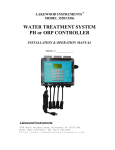
LAKEWOOD INSTRUMENTS
MODEL 2330e
MICROPROCESSOR-BASED
ORP CONTROLLER
INSTALLATION & OPERATION MANUAL
SERIAL #:_______________
Lakewood Instruments
7838 North Faulkner Road, Milwaukee, Wisconsin 53224 USA
Phone (800) 228-0839 • Fax (414) 355-3508
http://www.lakewoodinstruments.com
Lakewood Instruments™ Model 2330e Controller
Quick Installation Sheet
1. Attach the four (4) supplied mounting feet to the back of the controller
enclosure either vertically or horizontally. Install the controller on a flat,
non-vibrating surface. Do not mount the controller to a steel object that
has a large temperature change (side of cooling tower, etc). This can
cause water to condense inside the enclosure.
2. Install water meters, chemical pumps, plumbing assemblies and the ORP
sensor (see drawing on back for cooling tower).
3. Install the provided strain reliefs with nuts, if necessary, by removing the
attached black plugs and inserting strain relief through hole. Wire the
flow switch, pH sensor, water meters and 4-20 mA output; if applicable
(see drawing on back). Ensure wiring connections are correct or damage
may occur.
4. If doing a conduit installation, remove receptacles and wire pumps and
bleed valve directly to the terminals. If using a motorized ball valve, wire
as per wiring instructions. Refer to the instruction manual for more
details.
5. Plug in chemical pumps and valves to controller (unless hardwired as per
step #4).
6. Apply power to the model 2330e controller, press “CLR” twice, press “7”
System setup, press “2” Initialization, press “2” Whole controller, press
“1” Yes. After initialization, press the “CLR” key several times until you
get to the main menu.
7. Press “1” Process, Press “ENT”. This screen allows manual control of
the relay outputs to test the chemical pumps and valves. Press “CLR” to
return to the Process screen.
8. To calibrate the ORP take a sample with a handheld ORP meter, press
the “PRO” button, select either ZERO or SPAN and type in the ORP
value, press “ENT”. See instruction manual for more details.
9. Program the model 2330e relays for chemical feed schemes. See
instruction manual for more details.
FIGURE A
IMPORTANT NOTICE
WARNING: CHEMICAL FEED
All electromechanical devices are subject to failure from a variety of causes.
These include mechanical stress, component degradation, electromagnetic
fields, mishandling, improper setup, physical abuse, chemical abuse,
improper installation, improper power feeds, and exposure.
While every precaution is taken to insure proper functioning, extra
precautions should be taken to limit the ability of over-feeding by limiting
chemical quantities available, secondary shut-downs, alarms, and
redundancy or other available methods.
CAUTION: POWER SOURCE AND WIRING
Low voltage wiring and high voltage (110 plus) should not be run in the
same conduit. Always run separately. Even shielded low voltage is not a
guarantee of isolation.
Every precaution should be taken to insure proper grounding and elimination
of shorting or Electromagnetic field (EMF) interference.
WARNING: ELECTRICAL SHOCK
To reduce the risk of electrical shock, this equipment has a grounding-type
plug that has a third (grounding) pin. This plug will only fit into a groundingtype outlet. If the plug does not fit into the outlet, contact a qualified
electrician to install the proper outlet. DO NOT change the plug in any way.
2
Lakewood Instruments
We thank you for your selection and purchase of a Lakewood
Instruments product.
With proper care and maintenance, this device should give you many
years of trouble-free service. Please take the time to read and
understand this Installation and Operation Manual, paying special
attention to the sections on OPERATION and MAINTENANCE.
If, in the future, any parts or repairs are required, we strongly
recommend that only original replacement parts be used. Our
Customer Service Department is happy to assist you with your parts or
service requests.
Lakewood Instruments Customer Service and Technical Support
Departments can be reached by calling (800) 228-0839 or faxing
(414) 355-3508, Monday through Friday, 7:30 a.m. - 5:00 p.m. CST.
Mail should be sent to:
Lakewood Instruments
7838 North Faulkner Road
Milwaukee, WI 53224 USA
3
4
MODEL 2330e
Table of Contents
1.0 Introduction ...............................................................................................8
2.0 Features, Benefits and Specifications .......................................................9
2.1 Features .........................................................................................10
2.2 Benefits ..........................................................................................10
2.3 Specifications .................................................................................11
2.4 Ordering Information.......................................................................12
3.0 Unpacking, Mounting and Installation .......................................................13
3.1 Unpacking ......................................................................................13
3.2 Mounting the Enclosure..................................................................13
3.3 Plumbing Installation ......................................................................14
3.4 Electrical Installation ......................................................................15
3.4.1 Incoming power 115/230 VAC ..............................................15
3.4.2 Relay Outputs .......................................................................16
3.4.3 Flow Switch Wiring ...............................................................16
3.4.4 Water Meter Wiring...............................................................17
3.4.5 4-20 mA Output Wiring .........................................................17
3.4.6 Node Wiring ..........................................................................17
4.0 Functional Overview..................................................................................18
4.1 Display...........................................................................................18
4.2 Keypad ..........................................................................................18
4.3 Menu .............................................................................................18
4.4 Security Levels ..............................................................................19
5.0 Starting Up the Controller..........................................................................19
6.0 Operation of Controller ..............................................................................20
6.1 Process Screen ..............................................................................20
6.2 Manual Operation of the Relays .....................................................21
6.3 Calibration of ORP .........................................................................21
6.3.1 Calibration ...........................................................................21
6.3.1.1 Single-point Calibration ..........................................22
6.3.1.2 Two-point Calibration .............................................22
6.4 Main Menu......................................................................................23
6.5 Configuring the Relays ...................................................................24
6.5.1 Configuring Relays 1,2,3,4 .................................................24
6.5.1.1 Disabled .............................................................24
6.5.1.2 By Setpoint.........................................................25
6.5.1.2.1 Setpoint ................................................25
6.5.1.2.2 Deadband.............................................25
6.5.1.2.3 Overfeed Time......................................26
6.5.1.2.4 When to Activate ..................................26
6.5.1.3 By Water Meter ..................................................26
5
6.5.2
6.5.3
6.5.4
6.5.5
6.5.6
6.5.7
6.5.8
6.5.1.4 By Percent of Time.............................................27
6.5.1.5 By Feed Schedule..............................................28
6.5.1.6 As an Alarm Relay .............................................28
6.5.1.7 Change My Name ..............................................29
6.5.1.8 Scheduled Lockout?...........................................29
Setting Up the Feed Schedule .........................................30
Alarms .............................................................................32
Water Meters ...................................................................32
4-20 mA Outputs..............................................................34
6.5.5.1 Setup of the 4-20 mA Output .............................34
6.5.5.1.1 Set the 4-20 mA Range...................35
6.5.5.1.2 Calibrate..........................................35
6.5.5.1.3 Which Process? ..............................35
6.5.5.1.4 Manual Control................................35
6.5.5.1.5 Change My Name ...........................35
The System Setup Menu .................................................36
6.5.6.1 Process Parameters...........................................36
6.5.6.1.1 Change My Name ................................36
6.5.6.1.2 Damping ...............................................36
6.5.6.2 Initialization ........................................................37
6.5.6.3 Digital Inputs ......................................................37
6.5.6.4 Firmware Versions .............................................37
6.5.6.5 Change the Security Passwords ........................38
6.5.6.6 Diagnostics ........................................................38
6.5.6.7 Communications ................................................38
6.5.6.7.1 Com Port Setup....................................38
6.5.6.7.2 Initialize Modem ...................................39
6.5.6.7.3 Remote Password ................................40
6.5.6.8 Node Installation ................................................40
Setting the Clock..............................................................40
Changing the Security Levels ..........................................41
7.0 Maintenance.............................................................................................42
7.1 Sensor Maintenance......................................................................42
7.2 Flow Switch Maintenance..............................................................43
7.2.1 Replacing The Reed Switch.............................................44
7.3 Replacing the Fuse........................................................................44
8.0 Troubleshooting .......................................................................................45
8.1 Error Messages .............................................................................45
9.0 Factory Service ........................................................................................47
6
10.0 Drawings
10.1 Cooling tower Suggested installation .................................. 1268657-2a
10.2 Wiring Diagram, Sensor Wiring ........................................... 1268657-3a
10.3 Wiring diagram for water meter inputs ................................ 1104607
10.4 Electrical Schematic............................................................ 1268647-1a
10.5 Electrical Schematic............................................................ 1268647-2a
10.6 Wiring Diagram RS2L Option ............................................. 1169899
10.7 Wiring Diagram RS2L Option .............................................. 1169900
10.8 Wiring Diagram 4-20 mA output, 35L .................................. 69954
10.9 Wiring Diagram NIN Option................................................. 04263
7
1.0 INTODUCTION
The Model 2330e is a LONWORKS Technology, microprocessor based, menu driven, ORP
water treatment controller designed for use in cooling towers. The Model 2330e provides
for ORP tracking and control, flow monitoring and chemical injection. The Model 2330e
is CSA and ANSI/UL approved.
The Model 2330e uses the latest in microprocessor capability, giving the user a high level
of application flexibility. A large illuminated graphics screen, multiple inputs, and an
intuitive menu characterize this new technology.
Security features allow full access to programming features or restrict access to viewing
only. An operator password can help ensure that only authorized personnel will operate
the system.
The Model 2330e is user-friendly with a graphical screen and 16-key numeric keypad. It
accepts multiple inputs and is easily configured. This controller can easily be upgraded in
the field. It’s a combination of reliability, accuracy, security and simplicity.
LONWORKS Technology gives you a high level of flexibility with the capability of adding
nodes, additional inputs and outputs, for monitoring and control. These nodes have
functions such as extra relay outputs, drum level inputs, pH inputs, conductivity inputs,
ORP inputs, 4-20 mA inputs and water meter inputs.
Nodes are added using the –NIN option, according to a mapped network. The mapped
network shows the full node addition capability of the LonWorks based 2000 series
controllers.
The mapped network for the model 2330e shows that any or all of the following nodes
can be added; two relay nodes, two 4-20 mA input nodes, two digital input nodes, four
remote sensor nodes (any combination of pH, conductivity, or ORP), and one makeup
conductivity node.
The complete mapped network is shown below.
8
2.0 Features, Benefits, Specifications
POWER
ON/OFF
SWITCH
LOCK SCREWS
The lock screws keeps
your circuit boards
secure and provides
easy access for wiring
and setup. Simply turn
the lock screw and pull
open the front panel.
16-BUTTON KEYPAD
ENT = for Menu selection
and/or acceptance
of selected values.
CLR = to exit a Menu
selection
and/or
skip input options.
DSP
=
to
change
languages.
PRO = to program a Menu
selection.
Figure 1: Model 2330e
9
ENCLOSURE
A sturdy NEMA 4X rated
enclosure protects your
controller. Make sure it is
properly mounted (SEE:
INSTALLATION;
Mounting). The power
cord and receptacles can
be removed so that the
controller can be hardwired
through
½"
conduit
knockouts.
2.1 FEATURES
• ORP input with ORP sensor diagnostics indicates fouled reference or open PT band.
• Integral flow sight & flowswitch lockout.
• Two (2) water meter inputs. Records both makeup (MTR1) and Blowdown (MTR2)
water meter total gallons.
• Configure Blowdown water meter (MTR2) as second makeup meter.
• Four user configurable relays for ORP control and chemical addition. These relays
can be configured in multiple ways including scheduled feed for biocide addition
• User-selectable relay options:
Feed by setpoint, direct or reverse
Water meter actuated feed. MTR1, MTR2 or the sum of the two
Percent of Time feed
Feed Schedule timer
General alarm
• Three security levels: View only, operator, technician
• 4-20 mA output available as an option.
• Remote communications available as an option.
• 16-key numeric keypad and illuminated graphical display allow for quick and easy
programming.
• The Model 2330e controller stores all setpoints, calibration values, and relay
configurations in an EEPROM. An EEPROM does not require a battery to retain
information, so if power is lost these values will be retained for years. The 2330e
includes a battery backup device to retain information such as water meter totals, and
clock and calendar information. Battery life is approximately 3 months if no power is
applied to the controller.
2.2 BENEFITS
•
•
•
•
•
Multiple control options in a single economical package.
Very accurate control of chemical feed.
Very low maintenance.
Tolerant to power surges and brownouts.
Power cord, plug outlets and attached plumbing make installation easy. There is
plenty of protected room inside the enclosure for electrician wiring.
• Very accurate monitoring of the evaporated water.
• Has expansion slots to add additional control, such as additional relay outputs, 4-20
mA outputs, remote sensor inputs, digital inputs, and 4-20 mA inputs.
10
2.3 Specifications
ORP range
-1000 to + 1000 mV
Output relays
4 selectable use
ORP Accuracy
5.0 mV
Relay ratings
3A each, 10A total
ORP Resolution
1.0 ORP
Power
120/240 VAC 50/60 Hz 6W
Accuracy & Repeatability
± 1.0% of scale
Ambiant temp
32° - 158°F (0 - 70°C)
Deadband/Setpoint
User programmable
Storage temp
32° - 158°F (0 - 70°C)
Auto/Manual outputs
Menu selectable
Max. Water temperature
140°F
Keypad
16 - key push buttons
Max. water pressure
140 psi @ 100°F
Display
Illuminated 128 x 64
pixel LCD
Water meter inputs (2)
Contact head, paddle wheel or turbine
Languages
Selectable:
English, plus one of:
Spanish
German
French
Timer
Relay run time exceeded.
Enclosure
NEMA 4X
11
2.4 Ordering Information
2330e LONWORKS Technology-based ORP controller with 4 selectable relays for
HIGH/LOW setpoints or alarms. Includes plumbing, sensor, flowswitch, power
cord and outlets. ORP range is -1000 to +1000 mV with adjustable deadband.
CONTROLLER OPTIONS
-35L
-RS2L
-NIN
Two 4-20 mA outputs configurable for remote data acquisition of ORP
Communications node with shareware software
Network interface node. Allows 2 NRLY, 1 Makeup NCON, 4 sensor nodes
(NpH or NCON), 2 N420I and/or 2 NDIG to be added.
LANGUAGE OPTIONS (optional, choose one, English and Spanish Standard)
-EF
-EG
English and French.
English and German.
REMOTE NODE OPTIONS (optional, MUST purchase -NIN Option)
NRLY
NpH
N420I
NDIG
NCON
NCKT
Four additional relays with enclosure (2 per 2000 Series Controller).
pH/ORP node for a pH or ORP sensor.
4-20 ma input node for up to 4 4-20 ma inputs.
Digital input node for up to 4 digital inputs.
Conductivity node for makeup water or closed loop control (node only).
Conductivity node for makeup water or closed loop control with PVC
sensor, tee and enclosure. Maximum water pressure is 140 psi @ 100 °F.
Maximum temperature is 140°F.
NOTE: NOT FOR USE WITH MULTIPLE COOLING TOWERS.
MOUNTING OPTION
MP
Mounting Plate
SOFTWARE AND EXTERNAL MODEMS
LRWS
MD4X
MD
Windows-based software for computer to communicate with 2000 Series
Controllers
High-Baud modem in NEMA 4X enclosure ready to power
High-Baud modem for use with 2000 Series Controllers
12
3.0 Unpacking, Mounting and Installation
3.1 Unpacking
Inspect the shipping carton for obvious external damage. Note on the carrier's billof-lading the extent of the damage, if any, and notify the carrier. Save the
shipping carton until your Model 2330e controller is started up.
If shipping damage has occurred, call the Lakewood Instruments Customer
Service Department at (800) 228-0839 and return the controller to the factory
in the original carton.
3.2 Mounting the Enclosure
The Model 2330e is supplied with four mounting feet. The Model 2330e can be
mounted to a panel or to a flat non-vibrating wall.
•
•
•
•
•
•
•
•
Attach the four mounting feet to the back of the controller enclosure.
Install on smooth surface to prevent stress on the mounting feet.
Do not install on vibrating wall.
If enclosure is installed in corrosive environments, consider purging.
Dimensions indicated as inches (millimeters).
The enclosure material is PVC.
Use #10 mounting screws (4).
Avoid drilling or punching additional holes in the controller enclosure.
Damage incurred as a result of any alteration to the enclosure is not covered
under the Lakewood Instruments product warranty.
The dimensions of the enclosure in inches are:
The model 2330e has a shipping weight of about 8 lbs.
NOTE: EXCESSIVE HEAT AND/OR DIRECT SUNLIGHT EXPOSURE WILL
DARKEN THE LCD DISPLAY SCREEN, MAKING IT DIFFICULT TO READ,
AND MAY SHORTEN THE LIFE OF OTHER ELECTRONIC COMPONENTS.
13
3.3 Plumbing Installation
PLUMBING MATERIALS
•
Inlet plumbing can be ¾ inch (1.9 cm) PVC, CPVC, or iron pipe.
•
Provide at least 1 gpm (3.79 Lpm) to the sensor. A 4-psi (0.3 bar) differential
pressure from take-off to injection is sufficient. If flow is marginal, consult your
Lakewood Instruments Factory Representative. The maximum recommended
flow is 5 gpm (18.93Lpm).
•
Outlet plumbing can be ¾ inch (1.9 cm) PVC, CPVC, or iron pipe. PVC, CPVC
Schedule 80 is recommended for strength and sunlight protection.
•
If iron pipe is used, install a PVC union to relieve the stress on the plumbing.
•
Install the reed switch into the flow switch plumbing assembly before mounting
plumbing assembly.
•
The sample line inlet should be plumbed vertically downstream of the
recirculation pump and upstream of the heat exchanger with flow in the upward
direction. This line brings the sample water into the sensor plumbing for
conductivity measurement. If the Lakewood Instruments flow switch plumbing
assembly is used, this flow of water also pushes the flow switch float up to
activate the relay outputs of the controller.
NOTE:
FOR YOUR CONVENIENCE,
INCLUDE A LAKEWOOD INSTRUMENTS
MODEL 9102 SAMPLE LINE SHUT-OFF
VALVE AND A SAMPLE VALVE SPOUT (AS
SHOWN) IN THE INLET FLOW PLUMBING.
Figure 2:
Model 9102 Valve & Spout
•
The sample line outlet flow (solution/sample line) should be plumbed to the
tower return line or the tower basin, where you can insert your chemical feed
system. Refer to the suggested installation drawing in the back of this manual
for an example of a typical installation.
•
Remember to install isolation and bypass valves so that maintenance can be
performed.
WARNING: NEVER INJECT CHEMICALS UPSTREAM OF THE CONTROLLER
FLOW CELLS!
14
If you have questions or need assistance, call Lakewood Instruments
Technical Service Department at (800) 228-0839, Monday-Friday, 7:30 a.m. 5:00 p.m. CST.
WARNING: SOME CHEMICALS MAY HAVE TO BE INJECTED DIRECTLY
INTO THE COOLING SYSTEM WATER LINE AND NOT INTO THE SAMPLE
LINE. CONTACT YOUR WATER TREATMENT SPECIALIST FOR SPECIFIC
RECOMMENDATIONS.
NOTE: IF THE SOLUTION/SAMPLE LINE IS RETURNED TO THE COOLING
TOWER RETURN LINE, USE A CORPORATION STOP (LAKEWOOD
INSTRUMENTS MODEL 9160), A SOLUTION LINE INJECTOR OR A
DISPERSING PIPE . THIS AIDS CHEMICAL-WATER MIXING AND ENHANCES
WATER TREATMENT CONTROL CAPABILITIES.
3.4 Electrical Installation
3.4.1 Incoming Power 115/230 VAC
The Model 2330e can be powered from either 115 VAC or 230 VAC at 50/60 Hz.
The Model 2330e controller comes with a power cord and receptacles. The power
cord and receptacles are rated for 115VAC. If the controller will be powered by
230 VAC, the power cord and receptacles will need to be removed and the
incoming power and the relay outputs will need to be hard-wired.
The incoming power is connected to terminal block TA at the bottom right corner of
the power supply board. There is a hot or line input (terminal 4), a neutral input
(terminals 2 and 3) and an earth ground input (terminal 1). The hot is wired to the
fuse holder located on the bottom of the enclosure. The neutrals are wired directly
to terminals 2 and 3 of terminal block TA. Refer to the drawing in the back of this
manual for wiring instructions.
15
3.4.2 Relay Outputs
The relay outputs are of the same voltage as the power input. Ensure that the
devices that are to be connected to the relay outputs are of the same voltage
rating or damage will occur.
The relay outputs are wired to the receptacles. The receptacle on the far left is
relay #1 and the receptacle on the far right is relay #4. On the power supply
board, relay #4 is on the far left and relay #1 is on the far right. If 115 VAC is used
simply plug your devices into the molded receptacles. If 230 VAC is used, remove
the receptacles and hard-wire your devices to the relay outputs.
Relay #1 and #2 have both a normally open and normally closed contact. This is
designed for use with motorized valves. The normally open (NO) contact is
connected to the open connection of the valve and the normally closed (NC)
contact is connected to the close connection of the valve. The other two relays
only have a normally open contact. Each relay output requires a neutral
connection and an earth ground connection for proper operation.
Refer to the drawing in the back of this manual for wiring instructions.
WARNING! DO NOT PLUG IN CHEMICAL PUMPS THAT ARE LARGER THAN
1/6 HORSEPOWER.
THE CONTROL RELAYS ARE INTENDED FOR
ELECTRONIC OR SMALL MOTOR-DRIVEN CHEMICAL PUMPS. LARGER
PUMPS REQUIRE THE -HR OPTION WITH 25-AMP-RATED INTERPOSING
RELAYS.
CONTACT LAKEWOOD INSTRUMENTS FOR SPECIAL
INSTRUCTIONS.
3.4.3 Flow Switch Wiring
The model 2330e has a flow switch input. The purpose of the flow switch input is
to disable the relay outputs on a loss of flow in the system. The flow switch input
requires a digital contact. Any digital contact rated for 24 VDC and 500 mA may be
used, such as a relay driven by the recirculation pump. Lakewood Instruments
manufactures a flow switch plumbing assembly for use with the model 2330e.
If a flow switch is not used then a jumper must be installed across the flow switch
connections. Refer to the drawings in the back of this manual for wiring
instructions.
16
3.4.4 Water Meters
The Model 2330e will accept two water meter inputs. These inputs can be
configured for make-up, make-up Second Source, Bleed, or Chill Loop make-up.
Refer to the water meter manufacturer’s manual for plumbing information.
The 2330e series controllers will work directly with the following types of meters:
dry contacting head meters, Seametrics open collector output meters, Signet 2535
and 2540 paddle wheel meters, and the Autotrol 1 inch and 2 inch meters.
Contact Lakewood Instruments for other types of water meters. The water meters
are wired to terminal block P1 which is the top terminal block on the I/O board.
Refer to the drawing in the back of this manual for wiring instructions.
3.4.5 4-20 mA Output Wiring
If the -35L option is ordered, the model 2330e has two channels of 4-20 mA
output. This output can be isolated (externally powered) or non-isolated (internally
powered). The 4-20 mA outputs are wired directly to the -35L option card.
Refer to the drawing in the back of this manual for wiring instructions.
3.4.6 Node Wiring
If the –NIN option is ordered with any external nodes (NpH, NCON, NRLY, NDIG,
or N420I) they must be wired to the controller before installation and programming
can take place. Nodes require +24 VDC for operation and twisted pair wire for
data transmission. The NIN option card can provide the +24 VDC for up to two
nodes using non-twisted pair wire. If using three or more nodes an external +24
VDC power supply run in parallel is recommended.
Recommended twisted pair for data specifications are:
Beldon 85102, single twisted pair, stranded 9/29, unshielded, plenum.
Beldon 8471, single twisted pair, stranded 9/29, unshielded, nonplenum.
JY (ST) Y 2 X 2 X .8, UL Level IV 22 AWG, twisted pair, typically solid and
unshielded.
Four wire helical twist, solid, shielded.
If shielded cable is used, the shield should be connected to earth ground via a
470K ohm, .25 watt, metal film resistor to prevent static charge buildup.
Nodes are wired directly to the NIN card inside the controller enclosure.
Please refer to the diagram in the back of this manual for wiring instructions.
17
4.0Functional Overview
4.1 Display
The model 2330e uses an illuminated 128x64-pixel LCD digital display for ease of
viewing. It has multiple lines to display information such as the ORP reading,
alarms, relay status, relay configuration, clock, flow totals for both water meters,
and menu selections.
4.2 Keypad
The model 2330e uses a 16-key numeric keypad for ease of programming. The
keys have the following functions:
ENT
CLR
PRO
DSP
UP arrow
DOWN arrow
Number keys
To accept a setting or to enter a screen.
To exit a screen or to access the main menu.
To calibrate the controller.
To change languages.
To move about in the menu.
To move about in a menu.
To input a value or to select a menu item.
4.3 Menu
The model 2330e is programmed and calibrated by the use of a menu. The
complete Main Menu has 8 available options that can be accessed in the
Technician Level. However, a list of only six options can be viewed at one time.
Use the Ï and Ð keys to scroll through the options. As an introduction, here is a
graphic overview of the first level of each option in the Main Menu to see how it
operates. Complete details of each option are provided later in this manual.
1
2
3
4
5
6
7
8
1
525
mV
HIGH ORP
MTR1 TOTAL
2
3
WHICH RELAY?
FEED SCHEDULE
============
============
1 RLY1
2 RLY2
3 RLY3
4 RLY4
1*BY WEEKDAY
2 BY CYCLE CALENDAR
3 LIST SCHEDULE
MAIN MENU
=============
PROCESS
RELAYS
FEED SCHEDULE
ALARMS
WATER METERS
4-20 MA IN/OUT
SYSTEM SETUP
CLOCK
4
5
6
HIGH ALARM=
WHICH WATER
METER?
650 mV
============
4-20 MA OUTPUT
============
1 SET 4-20 MA
RANGE
2 MANUAL CONTROL
3 CALIBRATE
LOW ALARM=
1 MTR1
2 MTR2
300 mV
1320500
PRO: CALIB; ENT: RELAYS
PRO: “+/-“ ENT: ACCEPT
18
7
8
SYSTEM SETUP
THU
18 FEB ‘98
============
1 PROCESS
PARAMETERS
2 INITIALIZATION
3 DIGITAL INPUTS
4 FIRMWARE VERSION
5 SECURITY
6 DIAGNOSTICS
7 COMMUNICATIONS
8 NODE ISNTALLATION
05:42:40
PRO=CHANGE; CLR=EXIT
4.4 Security Levels
The model 2330e has a security levels to prevent tampering of the controller. The
Model 2330e offers three (3) security levels: 1) View Only, 2) Operator and 3)
Technician. When the controller is in the View Only or Operator security level,
the menu is locked out. In View Only, access is limited to manual operation of the
relays, and viewing all of the process screens. In the Operator mode the user can
operate the relays manually, view the process screens, and calibrate the
controller. He cannot change any other settings. In the Technician mode the
operator has full access to all of the menus.
A password is required to change from a tight security level to a less restrictive
security level. Each level has its own factory-preset password (2222 for
Technician, 1111 for Operator). If the controller is in the View Only or Operator
mode just press the appropriate password on the keypad to change to a less
restrictive security mode.
The passwords can be changed to personalized passwords from the Technician
Level Menu.
NOTE: IF YOU USE PERSONALIZED PASSWORDS, MAKE SURE THEY ARE
RECORDED IN A SAFE AND SECURE PLACE.
5.0 Starting Up the Controller
Once the Installation is complete it is time to start up the controller.
Initiate sample flow to the controller by opening the sample line isolation valves.
Check for leakage.
Power up the controller by either turning on the circuit breaker or plugging the
power cord into a 120 VAC receptacle.
It is best to initialize the whole controller to remove any settings that may be in the
memory before programming the controller. Refer to section 6.5.6.2 of this
manual to initialize the controller.
If applicable, install each node in the software.
Set the clock by following section 6.5.7.
Set the high and low ORP alarms by following section 6.5.3.
Configure the relays for operation by following section 6.5.
Calibrate the ORP by following section 6.3
Verify operation of the controller before leaving the area.
19
6.0 Operation of the Controller
6.1 Process Screen
The screen that is used the most in the 2330e controller is the Process Screen.
Below are the process screen views. The process screen has three sections. The
top section shows the ORP reading. The alarm bar is the middle section and
appears between the top and bottom sections. It is solid in appearance and
flashes showing the current active alarms in sequence if there are multiple alarms.
The bottom section has user selectable readings as shown below.
1 - DATE SCREEN
525
mV
ALARM BAR
3 MAR ’98
11:55:04
PRO=CALIB; ENT=RELAYS
There are many different screens available in the
PROCESS screen. These screens allow you to view
the unit’s settings (incl. time setting, relay set-ups,
total flow, etc.) without the danger of altering them.
Access these screens by using the Ï and Ð keys to
scroll through the available screens.
• Press “ENT” to manually enable a relay for testing or
troubleshooting purposes.
• Press “PRO” to calibrate the ORP.
• Press “CLR” to access the main menu.
5 – RELAY 1,2,3,4 SETTINGS
2 - ALL RELAY SCREEN
525
•
525
mV
mV
HIGH ORP
NO FLOW
RLY1 RLY2 RLY3 RLY4
RLY4:
DISABLED
PRO=CALIB; ENT=RELAYS
3 - BLOW SETPOINT SCREEN
525
mV
PRO=CALIB; ENT=RELAYS
6 – MTR1 TOTAL FLOW
525
mV
OPENED TC
RLY1: ORP SETPOINT
525
0
mV
PRO=CALIB; ENT=RELAYS
4 - RELAY 2 SETTINGS
525
MTR1 TOTAL FLOW=
PRO=CALIB; ENT=RELAYS
7 – MTR2 TOTAL FLOW
mV
525
OPENED TC OPENED TC
mV
RLY1 TIMEOUT
SHORTED TC
RLY2: BY MTR2 METER
FEED AFTER GALS/LTRS=
0 FOR 00:00 MM:SS
MTR2 TOTAL FLOW=
PRO=CALIB; ENT=RELAYS
PRO=CALIB; ENT=RELAYS
0
PRESS ENT ESS
RELAYS
ENT FOR
20
If nodes are installed there will be
additional screens for the additional
inputs or outputs. Please see your
specific node manual for more
information.
6.2 Manual Operation of the Relays
All four of the relays can be operated manually. To manually operate the relays:
Go to the Process screen. Press “ENT”. You will be taken to a screen that looks
like:
AUTO-MANUAL (5 MINS.)
(1)
RLY1
(2)
RLY2
(3)
RLY3
(4)
RLY4
Press 1-4;
CLR=EXIT
PRESS 1-4; CL
EXIT
Press “1-4 “ to manually change the state of that particular relay. If the relay is
already on, pressing that number will turn it off. A five-minute countdown timer will
start. After five minutes has expired the relay will return to automatic control. A
relay that is in manual control will stay in manual control until the five minutes
expires even if this screen is exited. The five-minute timer helps to prevent
damage to the system if a relay is left in manual. WARNING: Manual control
overrides everything including the flow switch input. Use care when
operating relays manually with no flow in the system.
6.3 Calibration of ORP
6.3.1 CALIBRATION
The model 2330e controller reads ORP in millivolts. To control free bromine or free
chlorine pH and temperature must be maintained. 1 ppm of free chlorine at 7.5 pH
and 25°C is equal to approximately 550-750 mV. This varies with different water
quality.
When calibrating ORP keep in mind that it can be affected by several factors:
• pH
• Water quality
• Temperature
A single point calibration is sufficient for most applications using the model 2330e
controller. A two point calibration can be performed if necessary.
If the ORP has been calibrated incorrectly you may restore the default values by
initializing ORP calibration.
21
6.3.1.1 SINGLE-POINT CALIBRATION
We recommend that the ORP calibrations only be performed with the ORP sensor
mounted as it will be used in the system.
It is necessary to have an accurate reading of the process water to properly
calibrate the controller. A hand-held ORP meter that tests the sample is best.
Once you have obtained a reading, immediately enter the value into the controller.
In the process screen, press PRO. Select ZERO. Use the number keys to enter
the value, and then press ENT. When the number is accepted, you will see the
CALIBRATION COMPLETE screen before the LCD display switches back to the
original PROCESS screen. Then take a second sample with a hand-held ORP
meter and confirm the reading on the display.
6.3.1.2 TWO-POINT CALIBRATION
The model 2330e controller is capable of performing a two point calibration using
both the ZERO and SPAN calibrations. To perform a good two-point calibration,
buffers are used with the ZERO calibration buffer at least 200 mV lower than the
SPAN calibration buffer.
To calibrate the sensor in buffer solutions, the sensor and a solution ground wire
must be in the container of the buffer solution. Perform the two-point calibration as
follows:
•
•
•
•
•
•
•
•
•
•
•
•
Initialize the calibration.
Shut the isolation valves to the controller plumbing assembly.
Open the controller front panel. Disconnect the solution ground wire from
terminal 5 of terminal block P7.
Connect a wire that has been stripped at both ends to terminal 5 of terminal
block P7.
Place the ORP sensor and the wire connected in the previous step into the
lower value buffer solution.
Press “PRO”, select “ZERO”. Use the keypad to enter the calibration value.
Press “ENT”.
Place the sensor and solution ground wire into the higher value buffer
solution.
Press “PRO”, select “SPAN”. Use the keypad to enter the calibration value.
Press “ENT”.
Re-install the sensor into the plumbing. Ensure locking ring is locked.
Remove the stripped wire from terminal block P7 and re-attach the solution
ground wire.
Restore flow to plumbing assembly
Perform a single point calibration if necessary.
22
6.4 Main Menu
The MAIN MENU of the 2330e looks like this:
1
2
3
4
5
6
7
8
MAIN MENU
=============
PROCESS
RELAYS
FEED SCHEDULE
ALARMS
WATER METERS
4-20 MA IN/OUT
SYSTEM SETUP
CLOCK
The MAIN MENU can be accessed from the PROCESS screen by pressing
“CLR”. If “CLR” is pressed and the MAIN MENU does not appear, the controller is
probably in the VIEW ONLY or OPERATOR security mode. If the controller is in
the VIEW ONLY or OPERATOR security mode, enter the TECHNICIAN security
password to be able to access the MAIN MENU.
To move about in the menu screen use the Ï and Ð keys to highlight the desired
option and press “ENT” or simply press the number key for the desired option.
Use the “ENT” key to accept a setting or to enter a screen. Use the “CLR” key to
reject a setting or to exit a screen. From anywhere in the menu, pressing “CLR”
will take you one step closer to the MAIN MENU.
Certain menu items are only visible if certain conditions apply, such as:
nodes are installed, or other parameters are configured. If a menu item does
not appear in the menu it most likely means that the option is not installed or
configured.
Each of the MAIN MENU options are discussed in detail later in this manual.
23
6.5 Configuring the Relays
To access the relay configuration screen from the MAIN MENU, press “2” or
highlight RELAYS and press “ENT”. The following screen will appear.
WHICH RELAY?
============
1 RLY1
2 RLY2
3 RLY3
4 RLY4
Select the relay that you want to program.
6.5.1 Configuring Relays 1,2,3,4
Below is the RELAY OPTIONS screen. The asterisk (*) next to one of the options
tells you how that relay is configured. Relays 1, 2, 3, and 4 can be programmed in
each of the methods shown on the RELAY OPTIONS screen.
RLY2
============
1*DISABLED
2 SETPOINT
3 WATER METER
4 PERCENT BLOWDOWN
5 PERCENT OF TIME
6 FEED SCHEDULE
7 ALARM RELAY
6.5.1.1 Disabled
Relays 1, 2, 3, and 4 can be disabled.
energize automatically.
•
When a relay is disabled, it will not
From the RELAY OPTIONS screen press “1” Disabled to disable the relay.
24
6.5.1.2 By Setpoint
Relays 1, 2, 3, and 4 can be configured to operate based on a setpoint.
To set up the relay to operate based on a setpoint, select SETPOINT in the
RELAY OPTIONS screen. The following screen will appear.
SETPOINT=
525
mV
DEADBAND=
20
PRO: +/-
mV
ENT: ACCEPT
6.5.1.2.1 SETPOINT
In the SETPOINT screen you will set the SETPOINT, the DEADBAND and the
OVERFEED TIME alarm.
The SETPOINT is the ORP value that you are trying to maintain. Check with your
water treatment engineer to determine the ORP setpoint for your system needs.
Follow these instructions to establish the controller's setpoint:
•
Use the keypad numbers to enter the proper ORP setpoint and press
”ENT”. When finished, you will automatically be moved down to the
deadband.
6.5.1.2.2 DEADBAND
After the setpoint is established, the controller's deadband must also be set.
"Deadband" refers to the amount of ORP above and below the setpoint—a range
within which the controller will not react. Due to continuous fluctuations in the
ORP level, it is necessary to have this deadband range or stable readings will be
difficult to obtain. The Deadband should be a small percentage of the setpoint.
Half the deadband amount will be automatically put above the setpoint, and the
other half below it.
For example, an ORP setpoint of 525 mV with a deadband of 20 mV would result
in the relay turning on at 535 mV and turning off at 515 mV when set for above
setpoint activation.
•
Use the keypad numbers to enter the proper deadband setpoint and press
”ENT”.
When finished, you will automatically be switched to the
OVERFEED TIME alarm screen.
25
6.5.1.2.3 OVERFEED TIME
The OVERFEED TIME alarm is designed to notify the operator of a problem in the
chemical feed system such as, a pump has lost its prime or there is no chemical in
the drum. It will also protect the system from overfeeding chemical when the
indicated ORP does not display a change in actual ORP. The OVERFEED
timeout function will display a visual alarm on the display and it will turn off the
relay. If a relay is configured as an alarm relay, the OVERFEED TIME alarm will
energize the alarm relay. To disable this function set the OVERFEED time to
0:00.
•
Use the keypad numbers to enter the time in hours and minutes before this
alarm will appear and press ”ENT”. Maximum setting is 17 hours and 59
minutes.
6.5.1.2.4 WHEN TO ACTIVATE
After configuring the SETPOINT, the DEADBAND, and the OVERFEED alarm, the
controller will automatically move to the WHEN TO ACTIVATE screen. To set up
to feed a reducer type product set the relay to activate above the setpoint. To set
up to feed an oxidizer type product set the relay to activate below the setpoint.
WHEN TO ACTIVATE
=====================
1 *ABOVE SETPOINT
2 *BELOW SETPOINT
•
In the WHEN TO ACTIVATE screen, select either”1” ABOVE SETPOINT
or”2” BELOW SETPOINT.
6.5.1.3 By Water Meter
Relays 1, 2, 3, and 4 can be configured to operate for a specified amount of time
based on a specified amount of flow through the water meter inputs. MTR1,
MTR2 or the sum of BOTH water meter inputs can activate the relay.
•
•
•
•
From the RELAY OPTIONS screen press”3” WATER METER.
Select either MTR1 or MTR2 or BOTH as the trigger for the relay.
Use the keypad to enter the amount of flow before the relay is activated. Press
”ENT”.
Enter the amount of time that the relay will be activated. Press ”ENT”.
26
6.5.1.4 By Percent of Time
The Percent of Time feature allows you to feed chemical strictly based by a
percent of time. This relay control scheme works in patterns of 20-second time
blocks. A relay is on for some multiple of 20 seconds and off for some multiple of
20 seconds. Below is a chart showing how Percent of Time works over a 400
second example.
x = 20 seconds on
- = 20 seconds off
0%
5%
10%
20%
30%
40%
50%
60%
70%
80%
90%
95%
100%
Í==================400 seconds======================Î
- - - - - - - - - - - - - - - - - - - x - - - - - - - - - - - - - - - - - - x - - - - - - - - - x - - - - - - - - x - - - - x - - - - x - - - - x - - - x - - x - - x - - - x - - x - - x - - x - x - - x - x - - x - x - - x - x - x - x - x - x - x - x - x - x - x - x x - x x - x - x x - x - x x - x - x x x x - x x - x x x - x x - x x - x x x x x x x - x x x x - x x x x - x x x x x x x x x x x x x - x x x x x x x x x x x x x x x x x x x x x x x x x x x x x x x x x x x x x x x x x x x x x x x x
A 400-second example is shown because it will cover the patterns of the major
percentages. The patterns for odd values such as 37% or 52% cannot be shown in
a 400-second time interval but they would look very much like those patterns
shown for 40% and 50% respectively. In an extreme case such as 99%, the relay
would be on for 99 20-second blocks (1980 seconds) and then off for 1 20-second
block (20 seconds) and then on for 1980 seconds and off for 20 seconds etc.
To determine the total amount of chemical fed over a 24 hour period, multiply the
percent of time by the number of hours a day that your controller is operating, then
multiply by your chemical pump flow rate per hour.
For example:
We select 10% of the time, our controller operates 24 hours a day and our
chemical pump flow rate is 1 gallon per hour.
10% x 24 hours x 1gallon = 2.4 Gallons
Day
Hour
Day
•
•
From the RELAY OPTIONS screen press”4” PERCENT OF TIME.
Use the keypad to enter the percentage of time desired. Press ”ENT”.
27
6.5.1.5 By Feed Schedule
The feed schedule is used to feed chemicals such as biocides on a time of day
basis. Setting up the feed schedule is a two-part process. The first part is to
configure the relay so that it will operate by feed schedule. The second part of the
process is to configure the feed schedule. The feed schedule is covered in section
6.5.2.
•
From the RELAY OPTIONS screen press”5” FEED SCHEDULE.
The controller will respond with the following screen.
SCHEDULED RELAY
SEE MAIN MENU
FOR FEED SCHEDULE
PRESS ANY KEY
The relay has been configured to operate based on a feed schedule but, the relay
will not activate because the feed schedule has not been programmed yet.
6.5.1.6 As an Alarm Relay
Relays 1, 2, 3, and 4 can be configured as alarm relays. The alarms that will
cause the relay to activate are selectable from the controller alarms or from any
node input alarms. The controller alarms include: HIGH ORP, LOW ORP, HIGH
REFERENCE IMPEDANCE, HIGH REFERENCE VOLTAGE, LOW REFERENCE
VOLTAGE, OPEN PT BAND, FEED SEQUENCE ACTIVE, RLY1 TIME
EXCEEDED, RLY2 TIME EXCEEDED, RLY3 TIME EXCEEDED, RLY4 TIME
EXCEEDED, and the NO FLOW alarm.
•
From the RELAY OPTIONS screen press”6” ALARM RELAY. The controller
will respond with the following screen.
WHICH ALARMS?
=========================
1 CONTROLLER
2 RELAYS 5-8
3 RELAYS 9-12
4 MAKEUP COND
5 REMOTE SENSOR
6 REMOTE SENSOR
7 REMOTE SENSOR
8 REMOTE SENSOR
9 ANALOG INPUTS (4)
10 ANALOG INPUTS (4)
11 DIGITAL INPUTS (4)
12 DIGITAL INPUTS (4)
•
Select the alarms from this menu that will activate the relay.
28
6.5.1.7 Change My Name
The name of each individual relay can be changed to any 4-character name. This
is useful to designate the chemical name for each relay. Use the arrow keys to
change the character and the ENT key to move to the next character.
OLD NAME=
RLY2
NEW NAME=
OXID
<UP><DOWN>ENT: ACCEPT
•
From the RELAY OPTIONS screen press”7” CHANGE MY NAME.
6.5.1.8 Scheduled Lockout?
This setting allows the user the choice of whether to lock out a relay during a
scheduled feed sequence or not. If you do not want to lock out this relay during a
scheduled feed sequence select NO.
LOCK OUT RELAY DURING
SCHEDULED FEED?
=========================
1 * YES
2 NO
•
•
From the RELAY OPTIONS screen press”8” SCHEDULED LOCKOUT?.
Press “1” YES to lock out the relay during a scheduled feed or press “2” NO to
allow the relay to operate normally during a feed schedule.
Note: This setting is only available and visible when the relay is set to
operate based on SETPOINT, WATER METER, or PERCENT of TIME.
29
6.5.2 Setting up the Feed Schedule
Refer to section 6.5.1.5 to configure a relay to feed based on the feed
schedule before continuing with this section.
To get to the feed schedule menu:
•
From the MAIN MENU press”3” FEED SCHEDULE. You will see the following
screen:
FEED SCHEDULE
============
1*BY WEEKDAY
2 BY CYCLE CALENDAR
3 LIST SCHEDULE
The feed schedule can be programmed to feed chemicals by either WEEKDAY or
by a CYCLE CALENDAR basis.
BY WEEKDAY is used to feed chemicals by the weekday name, i.e. Monday,
Tuesday, Wednesday etc. This is a seven-day schedule. At the end of the week,
the schedule starts over again. To configure the feed schedule to feed by
weekday:
•
From the FEED SCHEDULE screen, press”1” BY WEEKDAY.
BY CYCLE CALENDAR is used to feed chemicals by a schedule other than one
that is seven days long. BY CYCLE CALENDAR can be used to feed the same
chemical every day or up to 28 days between feedings. The operator specifies the
number of days in the cycle calendar. After the cycle calendar is completed, the
schedule starts over again. This method of feeding is particularly useful when
feeding two biocides on alternating weekly basis. To configure the feed schedule
to feed by cycle calendar:
•
•
•
From the FEED SCHEDULE screen, press”2” BY CYCLE CALENDAR.
Use the keypad to enter the number of days in your cycle then press ”ENT”.
Remember the maximum number of days allowed is 28.
Use the keypad to enter which day today is in your cycle, e.g. today is day
number 5 in my 14 day cycle, then press ”ENT”.
After selecting whether the feed schedule will be fed by WEEKDAY or by CYCLE
CALENDAR it is time to actually program the schedule. To enter the actual feed
schedule or to edit the feed schedule from the feed schedule screen above:
•
Press”3” LIST SCHEDULE. This will take you to a list of all scheduled feeds
as shown in the screen on the next page.
NOTE: The maximum number of scheduled feeds is 16 (sixteen) total.
30
1
2
3
4
5
6
•
FEED SCHEDULE
==================
01 03:00 RLY2
00 00:00
00 00:00
00 00:00
00 00:00
00 00:00
If there are no scheduled feeds, select the first schedule and press ”ENT”. If
you are editing the schedule, select the schedule that you want to edit and
press ”ENT”.
Below is an example screen for programming a chemical feed.
Before
programming a chemical feed, you need to configure Relay 1, 2, 3, or 4 to be a
feed schedule relay.
RELAY (ARROWS) : NONE
CYCLE DAY
:0
START TIME
: 00:00
FEED DURATION : 00:00
LOCKOUT TIME : 00:00
<UP><DOWN>ENT: ACCEPT
•
To program the schedule use the keypad to enter the values in the above
screen. Press ”ENT” to move to the next item.
NOTE: ALL TIMES ARE IN HOURS AND MINUTES
RELAY
is which relay you want to program (you must configure a
relay to be a feed schedule relay first). Use the arrow
keys to select the available relays. Only relays that have
been configured as feed schedule relays will appear.
CYCLE DAY or DAY
is the day you wish to actuate the feed schedule relay.
START TIME
is the time you want to start the feed schedule sequence.
This start time uses the 24 hour clock or military time.
06:00:00 is 6 a.m. 18:00:00 is 6 p.m.
FEED DURATION
is the amount of time the feed schedule relay will be on.
LOCKOUT TIME
after the feed duration is completed, an additional lockout
time for RLY 1, 2, 3, and 4 relays can be programmed.
The lockout time prevents the other relays from operating
until this time expires. Setting this time to 0:00 will
disable this feature.
31
6.5.3 Alarms
The Model 2330e is equipped with both high and low ORP alarms. This menu
option allows you to program the specific values for these alarms. When a ORP
alarm is received, it will appear as a flashing message in the middle of the display
and any configured alarm relays will be activated. Consult your water treatment
specialist when determining the proper High and Low Alarm values for your
system.
To set the alarm setpoints:
HIGH ALARM=
650
mV
LOW ALARM=
400
mV
PRO:+/- ENT: ACCEPT
•
•
•
From the MAIN MENU press”4” ALARMS. Use the keypad to enter a value for
the high alarm. Press ”ENT”.
Use the keypad to enter a value for the low alarm and press ”ENT”.
Use the keypad to enter a value for the deadband and press “ENT”. Refer to
section 6.5.1.2.2 for a discussion on deadband.
6.5.4 Water Meters
The 2330e series controllers will work directly with the following types of meters:
dry contacting head meters, Seametrics open collector output meters, Signet 2535
and 2540 paddle wheel meters, and the Autotrol 1 inch and 2 inch meters.
Contact Lakewood Instruments for other types of water meters.
Both water meter inputs are programmed in the same manner.
To get to the water meter configuration screen:
•
•
•
From the main menu, press”5” WATER METERS. This will take you to the
WHICH WATER METER SCREEN.
Press”1” for MTR1 or press”2” for MTR2.
This will take you to the WATER METER TYPES screen as shown on the next
page.
32
WATER METER TYPES
=================
1 CONTACTING HEAD
2 PADDLE WHEEL
3 DATA INDUSTRIAL
4 SIGNET
5 AUTOTROL TURB 1 IN.
6 AUTOTROL TURB 2 IN.
7 CHANGE MY NAME
•
Use the keypad to select the type of water meter that you are using.
The next screen is the UNITS OF VOLUME screen.
•
The water meters can be configured for gallons or liters.
GALLONS or press”2” for LITERS.
Press”1” for
If CONTACTING HEAD was selected:
•
You will be taken to the GALLONS OR LITERS PER CONTACT screen. Use
the keypad to enter the number of gallons or liters per contact for your specific
meter then press ”ENT”. You will then be asked if you want to reset the total
count for that meter to zero. Press”1” for YES or press”2” for NO.
If PADDLE WHEEL was selected:
•
You will be taken to the PULSES PER GAL/LITER screen. Use the keypad to
enter the pulses per gal/liter for your particular water meter then press ”ENT”.
You will then be asked if you want to reset the total count for that meter to zero.
Press”1” for YES or press”2” for NO.
If DATA INDUSTRIAL was selected:
•
You will be taken to the SLOPE VALUE screen. Use the keypad to enter the K
factor and offset values for your particular water meter then press ”ENT”. You
will then be asked if you want to reset the total count for that meter to zero.
Press”1” for YES or press”2” for NO.
If SIGNET was selected:
•
You will be taken to the K-FACTOR screen. Use the keypad to enter the Kfactor for your particular water meter then press ”ENT”. You will then be asked
if you want to reset the total count for that meter to zero. Press”1” for YES or
press”2” for NO.
33
If AUTOTROL TURB 1 IN. was selected:
•
The controller will confirm that the AUTOTROL TURB 1 IN. has been selected
and you will be asked if you want to reset the total count for that meter to zero.
Press ”1” for YES or press ”2” for NO.
If the AUTOTROL TURB 2 IN. is selected:
•
The controller will confirm that the AUTOTROL TURB 2 IN. has been selected
and you will be asked if you want to reset the total count for that meter to zero.
Press ”1” for YES or press ”2” for NO.
6.5.5 4-20 mA OUTPUTS
If the -35L option is ordered the model 2330e has two channels of 4-20 mA output.
The -35L is an option card that can be added in the field.
6.5.5.1 Set Up of the 4-20 mA Output
To set up the 4-20 mA output:
•
From the Main Menu, press ”6” 4-20 mA OUTPUTS
4-20 MA OUTPUT
====================
1 420A
2 420B
•
Press ”1” For channel A 4-20 mA OUT SETUP. Press ”2” For channel B 4-20
mA OUT SETUP
The 4-20 mA Out Setup screen allows the user to set the 4-20 mA range,
calibrate the 4-20 mA output, select which process the 4-20 mA channel will
respond to, take manual control of the 4-20 mA output, and change the name of
the output. Below is the 4-20 mA Setup screen.
4-20 MA OUTPUT
====================
1 SET 4-20 MA RANGE
2 CALIBRATE 4-20 mA
3 WHICH PROCESS?
4 MANUAL CONTROL
5 CHANGE MY NAME
34
6.5.5.1.1 Set the 4-20 mA Range
The 4-20 mA output range must be set for the output to be useful.
•
•
•
From the 4-20 mA Setup screen, press ”1” Set the 4-20 mA RANGE.
Use the keypad to enter an ORP value for the 4-mA point. Press ”ENT”.
Use the keypad to enter an ORP value for the 20-mA point. Press ”ENT”.
6.5.5.1.2 Calibrate
The 4-20 mA needs to be calibrated to the actual output to be accurate. A
milliamp meter is necessary to calibrate the 4-20 mA output. Connect the milliamp
meter in-line with one leg of the 4-20 mA output. Refer to the drawing in the back
of this manual for wiring instructions.
•
•
•
From the 4-20 mA Setup screen, press”2” CALIBRATE.
Use the keypad to enter the milliamp reading from the milliamp meter for the 4mA point. Press ”ENT”.
Use the keypad to enter the milliamp reading from the milliamp meter for the
20-mA point. Press ”ENT”.
6.5.5.1.3 Which Process?
If the model 2330e has any remote sensor nodes attached the 4-20 mA channel
can be configured to operate based on that input.
•
•
From the 4-20 mA Setup screen, press”3” WHICH PROCESS?.
Use the up and down arrow keys to select the process that will control the 4-20
mA output. Press ”ENT”.
6.5.5.1.4 Manual Control
Manual control is used to temporarily change the 4-20 mA output.
•
•
From the 4-20 mA Setup screen, press ”4” MANUAL CONTROL.
Use the up and down arrow keys to raise or lower the 4-20 mA output. To exit
this screen press ”CLR”.
6.5.5.1.5 Change My Name
The name of the 4-20 mA output can be changed by the operator.
•
•
From the 4-20 mA Setup screen, press”5” CHANGE MY NAME.
Use the arrow keys to change the characters, use the ENT key to move the
cursor to the next character.
35
6.5.6 The System Setup Menu
The system setup menu is used to set up the name of the process, damping,
initialize the controller, digital inputs, check the firmware version, change the
security passwords, check the diagnostics, set up the communications, and node
installation.
6.5.6.1 Process Parameters
The process parameters screen is used to change the name of the process, and
set the damping.
6.5.6.1.1 Change My Name
The name of the process can be changed from ORP to a different 4-character
name.
To change the name of the process:
•
•
•
•
From the Main Menu press ”7” SYSTEM SETUP.
Press ”1” PROCESS PARAMETERS.
Press ”1” CHANGE MY NAME.
Use the arrow keys to change the characters, use the ENT key to move the
cursor to the next character.
6.5.6.1.2 Damping
The rate of change of the ORP value can be slowed down using DAMPING. If the
ORP value is changing quickly you can slow it down by:
•
•
•
•
From the Main Menu press”7” SYSTEM SETUP.
Press”1” PROCESS PARAMETERS.
Press”4” DAMPING.
Use the keypad to change the DAMPING value. Input a larger number to slow
the rate of change down or a smaller number to speed it up. Press “ENT”.
36
6.5.6.2 Initialization
Initialization restores the factory default settings to the controller. The whole
controller can be initialized or just the calibration. It is suggested that you initialize
the whole controller before you program the controller. This will clear any random
settings that may be in the controller. To do so, follow these instructions:
•
•
•
From the Main Menu, press ”7” SYSTEM SETUP.
Press ”2” INITIALIZATION.
Press ”2” WHOLE CONTROLLER and press ”ENT”. A warning will appear on
the screen (see below). Press ”1” to proceed, ”2” to cancel.
WARNING:
THIS OPTION REQUIRES
RE-CALIBRATION AND REPROGRAMMING!
PROCEED?
1 YES
2 NO
To initialize just the calibration:
•
Press”1” CALIBRATIONS instead of ”2” WHOLE CONTROLLER in the
procedure above. The same warning screen will appear.
6.5.6.3 Digital Inputs
If the model 2330e controller has a digital input node (NDIG) installed the inputs
are configured from this screen. If a NDIG is not installed there is no access to
this menu item. Configuration of the digital inputs are covered in the NDIG
manual.
6.5.6.4 Firmware Versions
Sometimes it is necessary to verify the firmware version of the controller for
troubleshooting purposes. To obtain the firmware versions:
•
•
•
From the Main Menu, press ”7” SYSTEM SETUP.
Press ”4” FIRMWARE VERSION.
The firmware versions will be displayed. Use the arrow keys to see all
firmware versions. To exit this screen, press “CLR”.
37
6.5.6.5 Change the Security Passwords
The security password can be changed from the factory default settings to any
four-digit value of your choice.
To change the security passwords:
•
•
From the Main Menu, press ”7” SYSTEM SETUP.
Press ”5” SECURITY.
CHANGE PASSWORD
=======================
1 OPERATOR
2 TECHNICIAN
•
•
•
•
Press “1” OPERATOR to change the operator password or Press “2”
TECHNICIAN to change the technician password.
Use the keypad to enter the old password. If the password has not been
changed before, the old password for OPERATOR is 1111 and the password
for TECHNICIAN is 2222.
Use the keypad to enter the new password.
Use the keypad to enter the new password a second time for verification
If you lose your password, contact Lakewood Instruments for assistance.
6.5.6.6 Diagnostics
The diagnostics screen is used for troubleshooting purposes. Contact Lakewood
Instruments for assistance.
6.5.6.7 Communications
The model 2330e has an option for remote communications, the –RS2L option. If
this option is installed the communications option is configured from this screen.
This screen is used to set up the com port, initialize the modem, and set the
remote password.
To set up the communications option:
•
•
From the Main Menu, press ”7” SYSTEM SETUP.
Press ”7” COMMUNICATIONS.
COMMUNICATIONS
=======================
1 COM PORT SETUP
2 INITIALIZE MODEM
3 REMOTE PASSWORD
38
6.5.6.7.1 Com Port Setup
Com port setup is used to set up the com port for use with a modem or direct
connect.
•
To set up the com port press “1” COM PORT SETUP
COM PORT PARAMETERS
=======================
BAUD RATE: 19200
DATA BITS: 8
STOP BITS: 1
PARITY
: NONE
<UP><DOWN> ENT: ACCEPT
•
•
Use the arrow keys to change the baud rate. If using the direct connect
method of communicating, ensure that the baud rate at the controller and the
baud rate in the LRWS software match.
The standard values for the DATA BITS is 8, STOP BITS is 1, and PARITY is
NONE. Normally these will not need to be changed.
6.5.6.7.2 Initialize Modem
Before a modem can be used by the controller it must be initialized.
initialization screen gives four choices of modems.
The
To initialize the modem:
•
From the Communications menu, press “2” INITIALIZE MODEM
INITIALIZE MODEM
=======================
1 HAYES ACCURA
2 U.S. ROBOTICS
3 ZOOM
4 OTHER MODEM
•
•
Select your modem from the list. If your modem is not listed and you select
OTHER MODEM use the keypad to enter the initialization string for your
modem.
If the modem fails to initialize, check the 25-pin connector, the phone cable, the
modem, and the –RS2L option card.
39
6.5.6.7.3 Remote Password
Remote communications to the Lakewood Instruments 2000 series controllers is
protected with an 8-digit password. The remote password is required to make
changes to the model 2330e controller using the communications option card.
The remote password screen in the communications menu is used to change the
remote password. The remote password can only be changed at the controller.
To change the remote password:
•
•
•
From the communications menu, press “3” REMOTE PASSWORD.
Use the keypad to enter the old password. Enter the new password. Repeat
the new password again for verification. NOTE: The default password is
12345678.
Set the remote password in the LRWS program to match the new password for
this controller.
6.5.6.8 Node Installation
The node installation menus is used to install new nodes and to de-install installed
nodes. Please refer to your node manual for information on node installation.
6.5.7 Setting the Clock
The clock uses the 24 hour or military time. 06:00:00 is 6 a.m. 18:00:00 is 6 p.m.
To set the clock:
•
From the Main Menu press ”8” CLOCK. The following screen will appear:
MON
11 FEB ‘02
11:23:13
PRO: CHANGE; CLR: EXIT
•
•
•
•
•
•
•
•
•
Press ”PRO” to change the clock settings.
Use the up and down arrow keys to change the day of the week. Press ”ENT”.
Use the number keys to change the date. Press ”ENT”.
Use the arrow keys to change the month. Press ”ENT”.
Use the number keys to change the year. Press ”ENT”.
Use the number keys to change the hour. Press ”ENT”.
Use the number keys to change the minutes. Press ”ENT”.
Use the number keys to change the seconds. Press ”ENT”.
Press ”CLR” to exit this screen.
You must press “ENT” all the way through this menu for the settings to take affect.
40
6.5.8 Changing the Security Levels
The security level can be change to prevent any unwanted tampering of the
controller. To change the security level from Technician to Operator or ViewOnly:
•
From the Main Menu, press “0”. (Note that “0” does not appear on the menu
screen.)
CHANGE LEVEL TO
OPERATOR
?
WARNING:YOU SHOULD
KNOW THE PASSWORD.
1 YES
2 NO
•
Select YES to change the security level to a more restrictive level.
The controller menu now functions at the new security level.
To return to the Technician security level:
•
Press the numeric password from the Process screen:
TECHNICIAN
PRESS ANY KEY
Remember that following the first power-up the Technician password is 2222
and the Operator password is 1111. You may change the passwords in the
SYSTEM SETUP menu.
41
7.0 Maintenance
Periodic maintenance is required to ensure trouble free operation of the model
2330e controller. The following sections cover the required maintenance.
7.1 Sensor Maintenance
Routine maintenance is necessary in order to maximize the efficiency and
accuracy of your sensor. Clean the electrode end of the ORP sensor at least once
per month. Cleaning of the ORP sensor may need to be performed more
frequently if it is in a high fouling environment.
• Remove power from the controller and shut off the sample flow.
• Remove the sensor from its plumbing.
• Be careful not to touch the glass electrode. Do not use cloth to clean the
electrode. Cloth has oils that will foul the sensor.
• If there is oil on the sensor glass, use isopropyl alcohol to clean the electrode.
• It is recommended that you use a 10% Muriatic or HCL acid to clean the
sensor.
• Wash the sensor off with tap water.
• Install the sensor in its plumbing.
• Restore sample flow and check for leaks.
• Restore power to the controller.
• Allow the reading to stabilize for approximately 30 minutes.
• Perform a calibration of the ORP.
42
7.2 Flow Switch Maintenance
If you have the flow switch plumbing assembly, you may need to periodically clean
the wetted parts in this assembly.
•
•
•
•
Shut off the inlet flow and the power to the controller.
Turn the red lock ring for the flow switch counterclockwise.
Pull out the clear flow sight tube and remove the float with your fingers.
Use a bottlebrush on the float, flow sight and the flow switch assembly to
remove any residue.
• Clean and lubricate the “O” ring with a silicone-based lubricant (petroleumbased lubricants will cause the O-ring to swell).
• Lock down the red lock ring after you replace the components.
• Turn the inlet flow back on and check for leaks.
FlowSwitchAssembly
Find No.
1
2
3
4
5
6
Part No.
1167266
1166418
1167234
1169740
1107004
1166417
43
Part Description
Flowsight
O-Ring (flow sight)
Flow Magnet
Red Locking Ring Kit
Reed Switch
O-Ring (check valve)
7.2.1 Replacing the Reed Switch
If you ever need to replace the reed switch for the flow switch, follow the
procedure below.
• Remove the power to the controller and shut off the sample flow.
• Disconnect the flow switch wires from the controller.
• Remove the screws holding the flow switch plumbing assembly and disconnect
flow switch assembly from piping, if necessary to gain access to the reed
switch.
• Pull hard on the wires that go to the reed switch assembly to remove the reed
switch from the plumbing assembly.
• Push the new reed switch into the plumbing assembly and wire the new reed
switch to the controller.
• Re-install plumbing.
• Restore flow to the plumbing assembly and check for leaks.
• Restore power to the controller.
7.3 Replacing the Fuse
The Model 2330e contains a 10A, 250V fuse. The fuse holder is located on the
bottom of the enclosure.
It is accessible from the outside of the box.
Replacement fuses must be a fast blow type. If the fuse is blown, the display will
be blank and the four power supply lights inside the controller enclosure will be
dark when the unit is connected to power. Refer to the troubleshooting section of
this manual for more information about blank displays.
44
8.0 Troubleshooting
8.1 Error Messages
This section discusses some of the more common questions with the Model
2330e. These notes are not intended to be all-inclusive—only to cover the most
common situations. If you have other questions or are need support, contact the
Lakewood Instruments Technical Service Department toll free at (800) 228-0839.
PROBLEM
{Alarm Flashing}
“ORP: HIGH ALARM”.
{Alarm Flashing}
“ORP: LOW ALARM”.
WHAT THIS MEANS
ORP is too high with respect
to the high alarm setpoint.
ORP is too low with respect to the
low alarm setpoint.
There may be a problem with the
wiring or the reed switch in the
meter may be bad.
Water meters not
accumulating.
{Alarm Flashing}
“FEED SEQUENCE ACTIVE”.
Display is blank.
For water meters other than the
contacting head type, check the
manufacturer’s user manual for
that particular water meter.
This simply indicates that a feed
schedule relay is active.
There may be a problem with the
incoming power, the fuse or the
circuit board. Open the front
panel to troubleshoot.
45
CORRECTIVE ACTION
1.
See {RLY: TIME EXCEEDED}.
2.
Check the High Alarm Value.
3.
Check relay setpoints and deadbands.
4.
Check chemical drum levels.
5.
Check proper operation of chemical
pumps.
1.
See {RLY: TIME EXCEEDED}.
2.
Check the Low Alarm Value.
3.
Check relay setpoints and deadbands.
4.
Check chemical drum levels.
1.
Approximately 24 volts DC should be
present at the input terminal when the
water meter contact is closed. That
should change to zero VDC when the
contact opens. Check these voltages and
for correct wiring.
2.
Is the controller configured for your type of
water meter?
No action necessary.
1.
Check the fuse. Replace if blown.
2.
Does the unit have power? Verify with volt
meter.
3.
If there is power to terminals LINE and
NEUTRAL on TA, call Lakewood
Instruments Technical Service for more
information.
PROBLEM
{Alarm Flashing}
“RLY: TIME EXCEEDED”.
“NO FLOW” alarm.
WHAT THIS MEANS
This indicates that the controller
has been trying to feed chemical
for longer than the userprogrammed time and is unable
to reach the setpoint.
Flow input switch is not closed.
CORRECTIVE ACTION
1.
Check for proper operation of pump. Use the
manual relay control to help.
2.
Check that the chemical drum is not empty.
3.
Check for power to the chemical pump.
4.
Verify the relay timeout time is properly set for
your application (see RELAYS in MAIN menu).
5.
To reset this alarm, momentarily turn off flow to
the controller to get the no flow alarm.
1.
The flow switch float may be stuck or no flow is
present.
2.
Flow switch may be bad. Replace reed switch
in plumbing assembly.
If no flow switch is used, a jumper wire should be
installed across the flow switch input. Removing the
jumper disables all relay outputs.
46
9.0
Factory Service
Technical Support for Lakewood Instruments can be reached by calling (800)
228-0839 or faxing (414) 355-3508, Monday through Friday, 7:30 a.m. – 5.00
p.m. CST.
NOTE: IF YOU CALL FOR TROUBLESHOOTING HELP, PLEASE HAVE THE
MODEL NUMBER, SERIAL NUMBER, AND ANY OPTIONS PERTAINING TO
YOUR UNIT AVAILABLE FOR REFERENCE.
Mail and returns should be sent to:
Lakewood Instruments
7838 North Faulkner Road
Milwaukee, WI 53224 USA
When any merchandise is to be returned to the factory, please call and obtain a
Return Goods Authorization (RGA) number and have the following information
available:
•
•
•
•
•
Customer’s name, address, telephone and fax numbers (shipping and billing).
A hard copy purchase order number for cases where repairs or parts are
required that are not under warranty.
A contact person’s name and telephone number to call if the equipment is
beyond repair or to discuss any other warranty matter.
Equipment model and serial numbers.
Reason for return, e.g., repair, warranty, incorrect part, etc.
We will then fax to your attention an RGA form that must accompany the returned
item.
NOTE: THE RGA NUMBER MUST BE CLEARLY WRITTEN ON THE OUTSIDE
OF THE PACKAGE(S) BEING RETURNED.
ANY ITEMS SENT BACK TO THE FACTORY
WITHOUT AN RGA NUMBER WILL BE REFUSED
AND RETURNED TO SENDER
47
Parts List and Service Guide
When calling Lakewood Instruments, please have your controller’s complete
model number and serial number available, together with the firmware version so
that the Technician can better assist you.
Refer to the Ordering Information section of this manual for part numbered
replacement parts.
Write your controller’s complete model number, serial number, and firmware
version here so that you will have them available if you wish to contact a
Lakewood Instruments technician.
Model Number:
Serial Number:
Firmware Version:
10.0 Drawings
For more information call toll free in the USA (800) 228-0839
Manufactured in the USA
Lakewood Instruments
7838 North Faulkner Road, Milwaukee, WI 53224 USA
Phone (800) 228-0839 • Fax (414) 335-3508
http://www.lakewoodinstruments.com