1
8)
3.
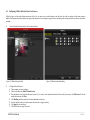
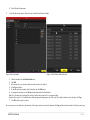
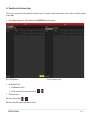
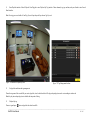
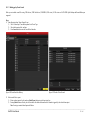
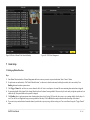
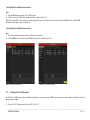
Exit the Motion Detection menu.
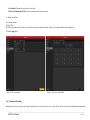
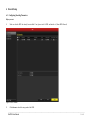
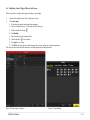
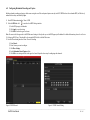
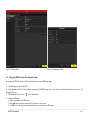
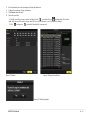
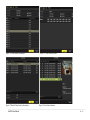
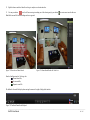
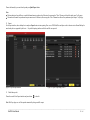
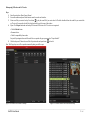
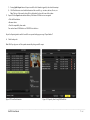
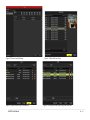
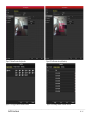
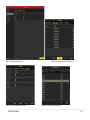
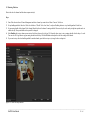
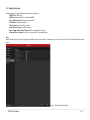
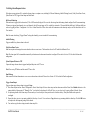
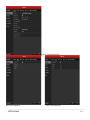
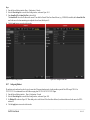
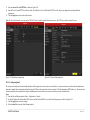
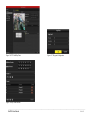
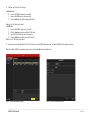
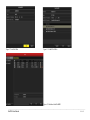
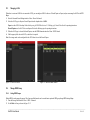
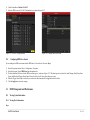
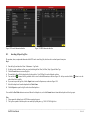
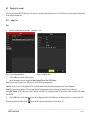
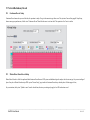
Enter Schedule settings interface. Menu> Record> Schedule>Record/Capture Schedule
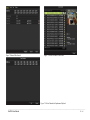
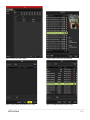
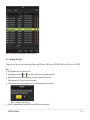
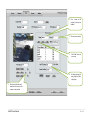
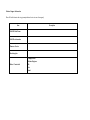
Figure 6.14 Record Schedule
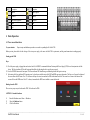
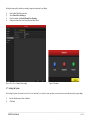
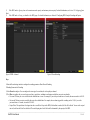
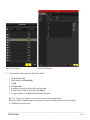
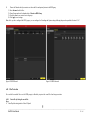
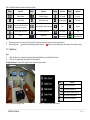
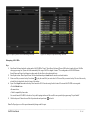
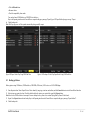
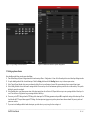
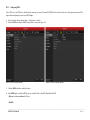
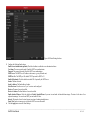
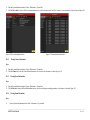
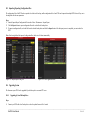
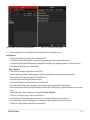
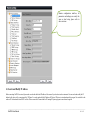
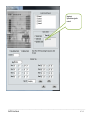
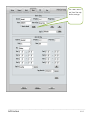
Figure 6.15 Edit Schedule- Motion Detection
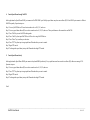
1) Check the checkbox after the Enable Schedule item.
2) Click Edit.
3) In the message box, you can choose the day to which you want to set schedule.
4) Set the Type as Motion.
5) To schedule an all-day recording, check the checkbox after the All Day item.
6) To arrange other schedule, leave the All Day checkbox blank and set the Start/End time.
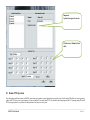
Note: Up to 8 periods can be configured for each day. And the time periods can’t be overlapped each other.
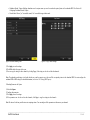
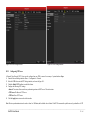
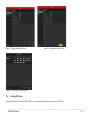
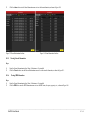
Repeat the above steps11)-13) to schedule motion detection triggered recording/capture for all the week. If the schedule can also be set to other days, click Copy.
7) Click OK to back to upper level menu.
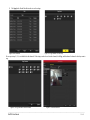
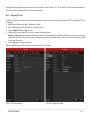
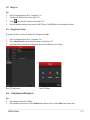
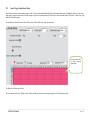
You can repeat steps to set schedule for other channels, if the settings can also be used to other channels, click Copy, and then choose the channel to which you want to copy.
_______________________________________________________________________________________________________________________________________________________________
NetDVR User Manual
37 / 165