1
Adjust+: User Manual
Revision:
Version 1.5, 2012-12-04
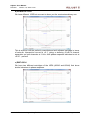
Zooming Result Graphics
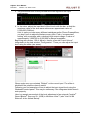
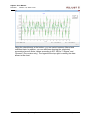
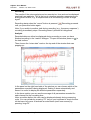
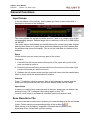
In general you can zoom into all result graphics within the program.
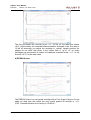
Zoom-in
Procedure:
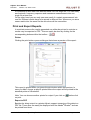
4. Click with the left mouse button at the point of the upper left corner of the
area you want to zoom in.
5. Keep the left mouse button pressed and move the mouse to the lower right
corner of the area you want to zoom in.
6. Release the left mouse button and the display will zoom into the wanted
area.
Note: Keeping right mouse button pressed moves the zoomed section. The
context menu will pop up but this has no effect in general.
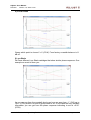
Zoom-out
Dragging with the left mouse button within any graphics from right lower corner
to left upper corner restores original display range.
Change Languages
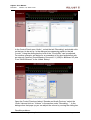
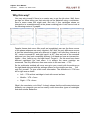
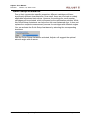
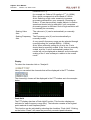
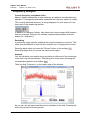
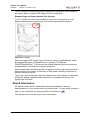
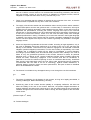
Adjust+ can be switched between different languages. This affects the user
interface. In the lower part of the main window you can find a drop down list that
shows all currently available languages:
Note: currently there are only german and english texts available. Other
languages can be implemented any time later on.
Offline Analysis with WAV Files (Pro-Version)
"Pro" version of Adjust+ offers a recording function that streams input data into
a WAV file with the current audio format chosen within the configuration. By
default this is 24 Bit at 96 kHz.
Recording of input signal
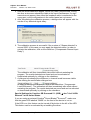
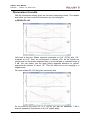
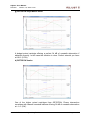
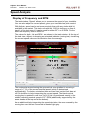
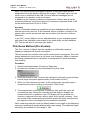
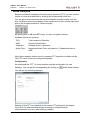
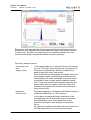
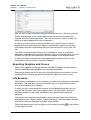
You can start recording by pressing function key "F7" or when you click into the
corresponding checkbox:
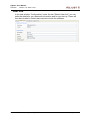
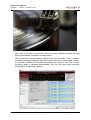
A “Save as” dialogue pops up where you can specify the filename you want.
Adjust+ by default suggests a filename based on date and time of recording.
© 2012 Dr. Feickert Analogue / ProgTec GmbH
Page 62 of 68