1
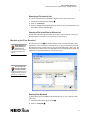
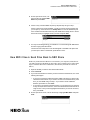
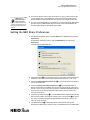
..... USING NEO SHARE™ How NEO 2 Users Pick Up Text or Files 3. Press or click Yes if the program asks if you are sure; you can check the box if you don’t want to see the message again. Saving and Clearing Files Received To save files you have received and clear them from the list, follow these steps: 1. Check the boxes next to the file names. 2. Press or click Save. 3. In the window that opens, choose the folder where you want to save the files; then, press or click OK. The preferences determine the default location; see page 7. If the file that you received had any text in a linked file on NEO 2, that text will appear within <form> and </form> tags at the end of the received file. Opening the Files Received There are three ways to open the files you’ve received from your NEO users: • Double-click the file in the Files Received list. The file will open in the default program for text files (or the type of file you have chosen). On Windows, it may be helpful to set WordPad as your default program for text files to give you more options as you work with the file. • Open a program, such as WordPad, and open a new document. In NEO Share, click a file in the Files Received list and drag it into the program you have opened. The text of the file will appear in a document in that program. • On Macintosh computers, if you have the program in the dock, you can drag the file onto the program icon in the dock to open it in that program. How NEO 2 Users Pick Up Text or Files Make sure your Renaissance Receiver is connected to your computer, and make sure your NEO 2 users know the Receiver name. Then, ask your NEO 2 users to follow these steps to pick up the text from your Pickup Zone or one of the files you’ve selected to be picked up: 1. Press one of the file keys to choose where you want to pick up the text or file. 2. Press cmd-O. 3. NEO 2 will ask if you want to keep the current file. If you want to keep it, press Y for yes, enter a name for the file, and press enter. If not, press N for no and press enter. 4. NEO 2 will search for your network (Receiver). If you have connected to a Receiver before, NEO 2 will ask if you want to stay connected to that network. If you want to connect to the same Receiver, press Y for yes, then enter and go to step 5. If you need to choose a different Receiver, press N for no, then enter. If you haven’t connected to a Receiver before, or if you have and you chose not to stay connected to the same one, the screen will list the Receivers that are in range. Press until you have highlighted the Receiver you want to connect to; then, press enter. 5